How to choose a laptop in 2026: a practical buying guide
How to choose a laptop in 2026: pick the right type, then CPU, RAM, storage, screen, battery and ports. Simple rules for students, work, gaming and creative use.
LandGadget Newsroom · · 7 min read
Quick verdictDecide what you'll do and where you'll carry it, then buy enough RAM and a good screen, and don't overpay for CPU power you won't use.
Jump to the verdict ↓On this page
- Start with what you'll do and where you'll carry it
- The main types of laptop
- Processor: good enough is good enough
- RAM: buy enough now
- Storage: SSD only, and not too small
- Screen: the part you look at all day
- Battery life and charging
- Keyboard, build and ports
- Graphics for gaming and creative work
- Common mistakes to avoid
A laptop is one of the few gadgets you'll use for hours every day for four or five years, so it pays to get the basics right. The good news: you don't need to understand every chip name. If you answer a few questions in the right order, the choice narrows quickly. This guide walks through them, from the type of laptop to the ports on the side.
Start with what you'll do and where you'll carry it
Write down your main tasks honestly. Most people browse, write documents, join video calls and stream video. Any modern mid-range laptop does that well. Heavier jobs change the picture:
- Gaming needs a dedicated graphics card (GPU) and good cooling.
- Photo and video editing needs more RAM, a fast SSD and an accurate screen.
- Programming and local AI benefit from lots of memory; see our guide to buying a laptop for local AI.
Then think about portability. If the laptop goes in a bag every day, weight and battery life matter more than raw power. A machine around 1.2–1.4 kg with all-day battery feels very different from a 2.5 kg gaming laptop with a large power brick.
The main types of laptop
| Thin and light | Gaming / performance | 2-in-1 | Chromebook | |
|---|---|---|---|---|
| Best for | Study, office, travel | Games, 3D, video | Notes, drawing, media | Web, school, basic tasks |
| Weight | Light | Heavy | Light to medium | Light |
| Battery life | Usually long | Usually short | Varies | Usually long |
| Graphics | Integrated | Dedicated GPU | Integrated | Integrated |
| Watch out for | Few ports | Noise, heat | Wobbly hinges | Limited apps offline |
Also decide on the operating system. Windows runs the widest range of software and games. macOS on Apple-silicon MacBooks is known for efficiency and battery life, but memory and storage can't be upgraded later. ChromeOS is simple and cheap but built around web apps.
Processor: good enough is good enough
For everyday work, almost any current mid-range chip from Intel (Core Ultra), AMD (Ryzen) or Qualcomm (Snapdragon X), or any Apple M-series chip, is fast enough. Spending more on the CPU makes sense only if you regularly compile code, edit video or run heavy simulations.
Two practical tips:
- Compare chips of the same generation: a new mid-range chip often beats an old high-end one.
- The same chip can perform very differently depending on cooling and power settings, so read reviews of the exact laptop, not just the processor.
Many new laptops advertise an NPU for AI features. It helps with things like camera effects and live captions, but it is not a reason to pay much more; our NPU explainer explains when it actually matters.
RAM: buy enough now
RAM is the spec people regret most. In 2026, 16 GB is the sensible minimum for Windows and macOS, 32 GB is worth it for heavy multitasking, creative work or development, and 8 GB only makes sense on a Chromebook or a very light-use machine.
On many thin laptops and all Apple-silicon MacBooks, RAM is soldered and can't be upgraded. Check before you buy. If the laptop has a free slot, upgrading later is possible; our guide on how to upgrade laptop RAM shows how. For a fuller breakdown by task, read how much RAM you need.
Storage: SSD only, and not too small
Every laptop worth buying uses an SSD. Choose 512 GB as a minimum if you keep photos, games or offline files; 1 TB if you edit video or install many games. A 256 GB drive fills up fast once system updates and apps are installed. Our SSD buying guide explains NVMe and PCIe generations if you plan to upgrade.
Screen: the part you look at all day
Look at more than resolution:
- Size: 13–14 inches for portability, 15–16 inches for comfort and multitasking.
- Brightness: around 300 nits or more is comfortable indoors; aim higher if you work near windows or outside.
- Panel type: OLED gives deep blacks and rich colour; good IPS is a safe, cheaper choice; Mini-LED gets very bright. Our OLED vs Mini-LED comparison covers the trade-offs.
- Refresh rate: 90–120 Hz makes scrolling smoother; gamers may want 144 Hz or more.
- Finish: matte screens reflect less, glossy screens look punchier.
Battery life and charging
Manufacturers' battery claims come from light tests, so treat them as a best case and look for independent reviews. Thin-and-light laptops and ARM-based machines usually last longest; gaming laptops often manage only a few hours away from the wall. Check whether the laptop charges over USB-C, which lets you use one charger for laptop and phone; our USB-C charger guide explains wattage.
Keyboard, build and ports
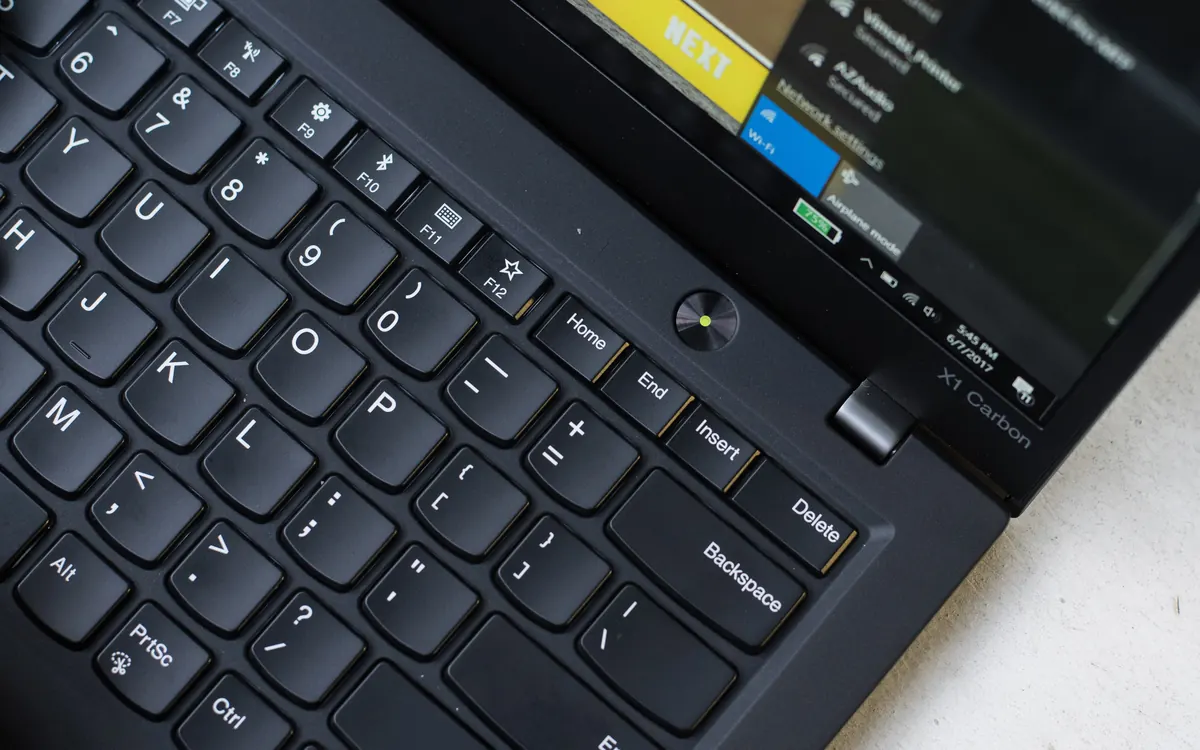
Try the keyboard if you can: key travel, layout and backlighting matter if you type a lot. A sturdy hinge and a large, accurate touchpad are signs of a well-built machine.
Count your ports. Most people need at least two USB-C ports (ideally with Thunderbolt or USB4 for fast docks and displays), one USB-A for older accessories, and HDMI if you present or use an external monitor. Wi-Fi 6E or Wi-Fi 7 is a nice bonus if your router supports it.
Graphics for gaming and creative work
Integrated graphics handle video, office work and light games. For modern 3D games or GPU-accelerated editing, you need a dedicated GPU. Check the GPU's memory (VRAM) and its power limit, because the same graphics chip can be much slower in a thin laptop than in a thick one. Our graphics card guide explains how much VRAM you need.
Common mistakes to avoid
+ Pros
- Buying 16 GB of RAM or more when it's soldered
- Reading reviews of the exact model and configuration
- Checking screen brightness and the number of ports
- Choosing USB-C charging
− Cons
- Paying for a top CPU you won't use
- Settling for 8 GB of RAM or a 256 GB SSD on Windows
- Trusting battery-life claims without independent tests
- Ignoring weight if you carry the laptop daily
Our verdict
Use first, then RAM, screen and battery
Decide what you'll do and how often you'll carry it, then choose the laptop type. Within that type, prioritise 16 GB of RAM or more, a 512 GB SSD, a bright screen and good battery life, and check the ports you need. A mid-range processor is plenty for most people; spend the difference on memory and the display, which you can't change later.
Frequently asked questions
How much RAM should a laptop have in 2026?
16 GB is the sensible minimum for Windows and macOS laptops. Choose 32 GB for heavy multitasking, video editing, programming or local AI. 8 GB is only enough for Chromebooks and very light use.
How much storage do I need on a laptop?
Choose at least a 512 GB SSD. Pick 1 TB if you edit video, keep large photo libraries or install many games. 256 GB fills up quickly on Windows.
Is a more expensive processor worth it?
Usually not for browsing, office work and video calls, which any current mid-range chip handles well. Pay more for the CPU only if you edit video, compile code or run heavy software regularly.
What screen size is best for a laptop?
13 to 14 inches is best if you carry the laptop often. 15 to 16 inches is more comfortable for multitasking and long sessions at a desk.
Do I need a laptop with an NPU?
Not necessarily. An NPU speeds up some AI features such as camera effects and captions, but it is not a reason to pay much more. RAM, screen and battery matter more for most people.
Can I upgrade a laptop later?
Sometimes. Many laptops let you replace the SSD, but RAM is often soldered, and Apple-silicon MacBooks can't be upgraded at all. Check the exact model before buying.
More from Computers & AI
View all →Read next
How to choose a baby monitor: Wi‑Fi vs non‑Wi‑Fi, security
Audio, local video or Wi‑Fi app monitor? How to choose a baby monitor by range, night vision, battery, privacy and security, plus the setup steps that matter.
HDMI vs DisplayPort: which cable should you use in 2026?
HDMI vs DisplayPort explained: HDMI 2.1 and 2.2 vs DisplayPort 1.4 and 2.1 bandwidth, which to use for gaming monitors, TVs, consoles and laptops, plus cables.
How long does it take to charge an electric car?
From 40+ hours on a wall socket to about 20–40 minutes on a fast charger: how long EV charging really takes, how to work it out for your car, and what slows it.