How to choose an SSD in 2026: NVMe vs SATA, PCIe 4.0 vs 5.0
SATA or NVMe, PCIe 4.0 or 5.0, TLC or QLC, DRAM or DRAM-less: how to pick the right SSD for a PC, laptop, PS5 or handheld without overpaying.
LandGadget Newsroom · · 7 min read
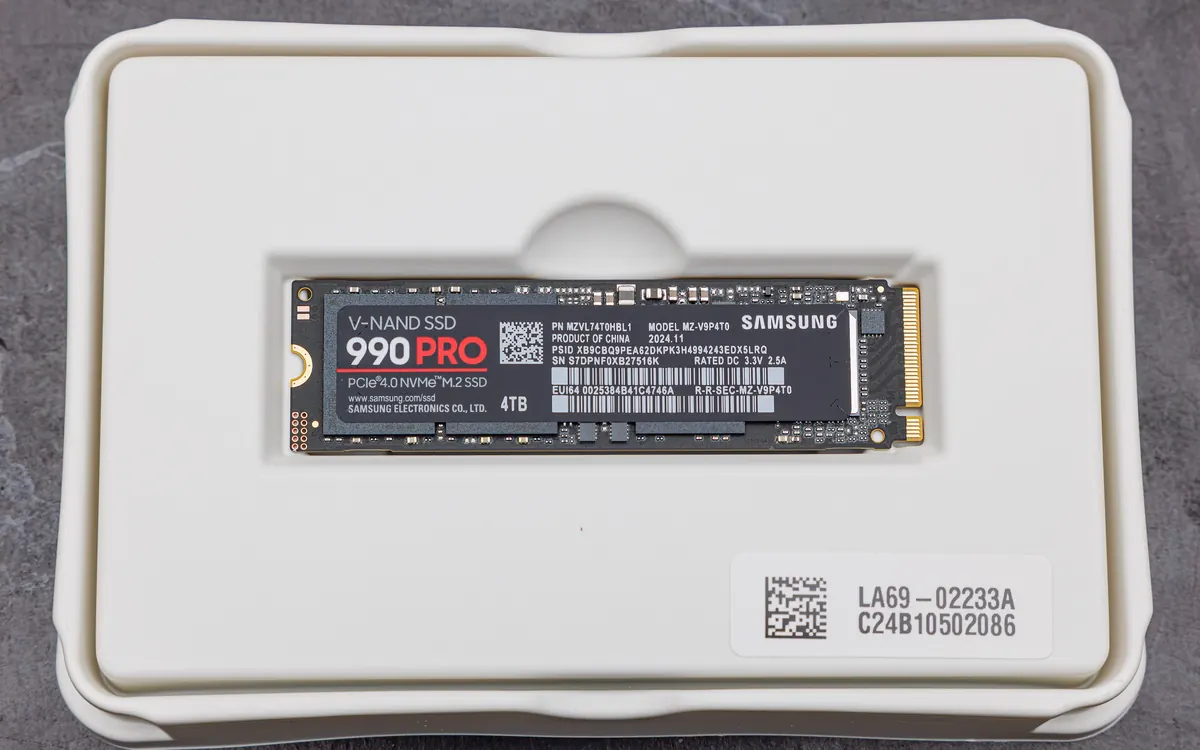
Quick verdictFor most people: a 1–2 TB PCIe 4.0 NVMe SSD with TLC flash, in the size your slot takes. Pay for PCIe 5.0 only if you move huge files every day.
Jump to the verdict ↓On this page
An SSD is the single upgrade that makes an old computer feel new: faster boot, apps that open instantly, games that load in seconds. But the labels are confusing. M.2, NVMe, PCIe Gen 4, TLC, DRAM-less, TBW... This guide explains what each one means and which actually matters for you. We don't rank specific models; we explain how to read a spec sheet so you can compare any drive.
Step 1: find out what your device accepts
Before looking at speed, check what fits. Your motherboard or laptop manual (or the maker's support page) tells you three things:
- Interface: SATA or NVMe. A 2.5-inch drive is always SATA. An M.2 slot can be SATA, NVMe or both. M.2 is only the shape of the stick.
- PCIe generation: an NVMe slot runs at PCIe 3.0, 4.0 or 5.0. Newer drives work in older slots, but only at the older slot's speed.
- Length: M.2 sticks are 22 mm wide and come in lengths such as 2230 (30 mm), 2242 and 2280 (80 mm). Most desktops and many laptops use 2280; the Steam Deck, ROG Ally and many thin laptops use 2230.
Apple Silicon Macs have storage soldered to the board, so the only upgrade path is an external SSD.
NVMe vs SATA: the big jump
SATA SSDs top out around 550 MB/s because of the old SATA III link (6 Gbit/s). That is still several times faster than a hard drive and a fine upgrade for an older laptop or desktop with only a 2.5-inch bay.
NVMe drives talk to the processor over PCIe lanes, usually four of them. Typical maximum sequential speeds are roughly:
| SATA SSD | NVMe PCIe 3.0 | NVMe PCIe 4.0 | NVMe PCIe 5.0 | |
|---|---|---|---|---|
| Max sequential read (approx.) | ~550 MB/s | ~3,500 MB/s | ~7,000+ MB/s | ~10,000–14,000+ MB/s |
| Heat | Low | Low–moderate | Moderate | High, heatsink usually needed |
| Typical use | Old PCs, 2.5-inch bays | Older laptops/PCs | Most PCs, PS5, handhelds | Workstations, heavy video work |
| Value in 2026 | Only if no M.2 | OK if your slot is Gen 3 | Sweet spot | Premium |
The headline number is sequential speed, which matters when copying big files. Everyday snappiness depends more on random reads and writes (small files, apps, the OS), where the gap between a good Gen 4 and a Gen 5 drive is much smaller. In games, load times between PCIe 4.0 and 5.0 drives are usually close, because the game, not the SSD, is the bottleneck.
TLC vs QLC flash
The memory chips inside matter for how a drive behaves under load:
- TLC (3 bits per cell) is the mainstream choice: good sustained speed and endurance.
- QLC (4 bits per cell) is cheaper per terabyte, but slows down sharply on long writes and usually has a lower endurance rating.
Almost all SSDs use part of their flash as a fast SLC cache. Short bursts of writing feel fast on any drive; once the cache fills during a huge copy, QLC drives can drop to hard-drive-like speeds. For a game library you install once and mostly read, QLC is fine. For video editing or frequent large transfers, prefer TLC.
DRAM vs DRAM-less
Higher-end drives have a small DRAM chip that holds the map of where data lives. Many budget NVMe drives are DRAM-less and borrow a little system RAM instead (Host Memory Buffer, HMB). For a boot drive in a laptop or a gaming PC, a good DRAM-less NVMe drive is fine. For constant heavy writes, a drive with DRAM stays more consistent.
+ Pros
- PCIe 4.0 TLC drives give near-top real-world speed at a sensible price
- DRAM-less and QLC drives cut cost for game libraries and secondary storage
- NVMe drives are backwards compatible with older PCIe slots
− Cons
- PCIe 5.0 drives cost more, run hot and rarely feel faster day to day
- QLC drives slow down sharply on long writes once the cache fills
- Spec-sheet speeds are best-case sequential numbers, not everyday performance
Capacity, endurance and warranty
- Capacity: 500 GB fills fast with Windows, apps and a couple of modern games. 1 TB is a sensible minimum, 2 TB if you game. SSDs also tend to perform better with some free space, so plan to keep roughly 10–20% empty.
- Endurance (TBW): "terabytes written" is the amount of data the maker guarantees the drive can write in its life. Mainstream TLC drives are often rated for several hundred TBW per terabyte of capacity, far more than most home users write. Compare it between drives as a quality signal.
- Warranty: good drives usually come with 3–5 years. A longer warranty often goes with a higher TBW rating.
Special cases: PS5, handhelds and external drives
- PS5: Sony's requirements are an M.2 NVMe PCIe 4.0 drive, 250 GB to 8 TB, with a recommended read speed of 5,500 MB/s or more and a heatsink or heat spreader. Many drives sold "for PS5" already include one.
- Steam Deck, ROG Ally and other handhelds: you need an M.2 2230 NVMe drive. Check whether yours is easy to open; often a microSD card is the simpler way to add space, and our microSD Express explainer covers the newer, faster cards.
- External SSDs: speed depends on the port. USB 3.2 Gen 2 gives roughly 1,000 MB/s, Gen 2x2 about 2,000 MB/s, and USB4/Thunderbolt more. They're ideal for Macs and for moving files between machines.
Quick checklist
- Confirm the slot type, PCIe generation and length in your manual.
- Pick NVMe PCIe 4.0 unless your slot is SATA-only or Gen 3.
- Choose TLC (with DRAM if you write a lot); QLC for cheap bulk storage.
- Get 1–2 TB, compare TBW and warranty.
- Clone your old drive or do a clean install, then enable TRIM (on by default in Windows, macOS and most Linux setups).
Our verdict
1–2 TB PCIe 4.0 NVMe, TLC flash
For almost every PC, laptop and PS5, a 1–2 TB PCIe 4.0 NVMe SSD with TLC flash is the best balance of speed, price and endurance. Choose a SATA drive only for machines without NVMe, a 2230 stick for handhelds, and PCIe 5.0 only if you regularly move very large files and have a slot and cooling for it. Pairing a new SSD with enough memory matters too; see how much RAM you need, and if you're building a machine for AI models, our laptop for local AI guide.
Frequently asked questions
Is NVMe always faster than SATA?
For large transfers, yes, by several times. In everyday use the difference is smaller but still noticeable when opening big apps or projects. The biggest jump is still from a hard drive to any SSD.
Can I put a PCIe 5.0 SSD in a PCIe 4.0 slot?
Yes. It will work, but only at PCIe 4.0 speed, so you pay extra for performance you can't use.
Do SSDs need a heatsink?
PCIe 3.0 and most 4.0 drives work fine without one in a ventilated case or laptop. PCIe 5.0 drives and drives in a PS5 should have one to avoid throttling.
How long does an SSD last?
Usually many years. Typical home use writes far less than a mainstream drive's TBW rating, so most SSDs are replaced for capacity long before they wear out. Keep backups anyway, as any drive can fail.
More from Computers & AI
View all →Read next

Game Pass late October: Final Fantasy VII Remake, Mouthwashing
Xbox's second October Game Pass wave adds Final Fantasy VII Remake Intergrade, The Séance of Blake Manor and Mouthwashing. Nine games leave on October 31.
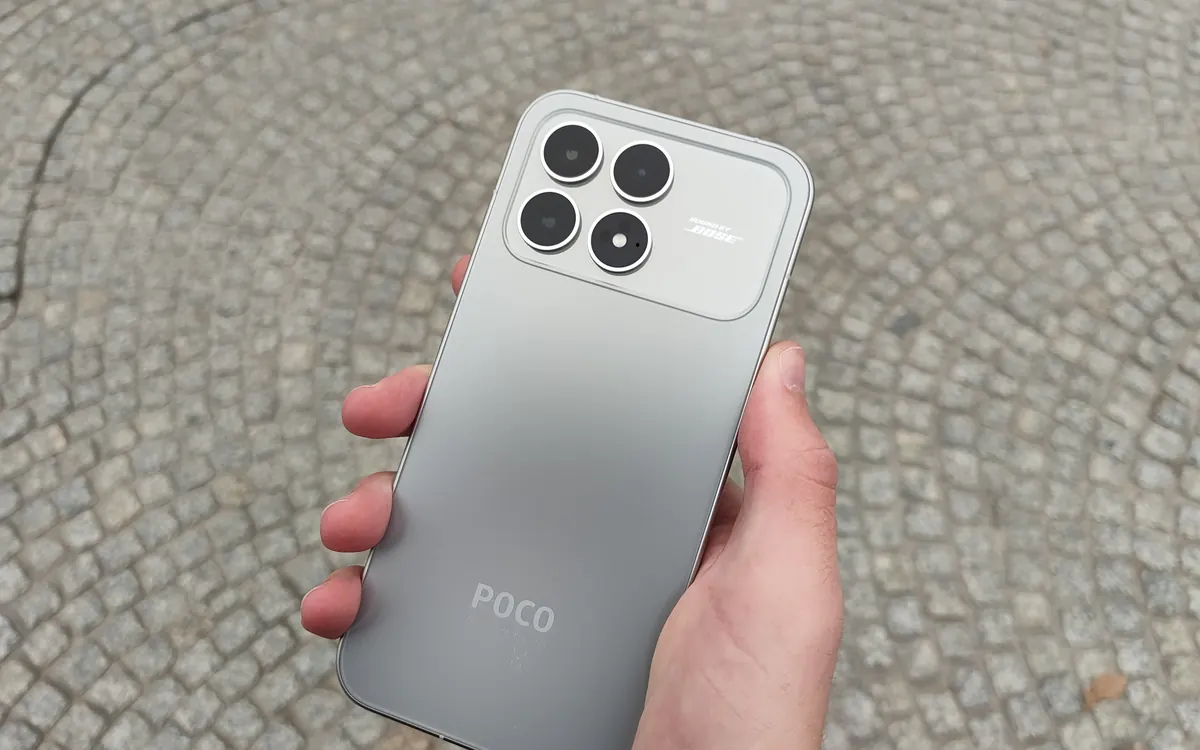
POCO X8s: a compact phone with a 6,330 mAh battery
The POCO X8s is up for pre-order in Vietnam before its formal launch: a 6.35-inch OLED, Snapdragon 7 Gen 4, 6,330 mAh battery and 100 W charging from about $437.

SwitchBot permanent outdoor lights add Matter for $240
SwitchBot's 30-metre Permanent Outdoor Lights mix RGB effects with real warm and cool white LEDs and join Apple Home, Google Home or Alexa via Matter.