How to choose a baby monitor: Wi‑Fi vs non‑Wi‑Fi, security
Audio, local video or Wi‑Fi app monitor? How to choose a baby monitor by range, night vision, battery, privacy and security, plus the setup steps that matter.
LandGadget Newsroom · · 8 min read
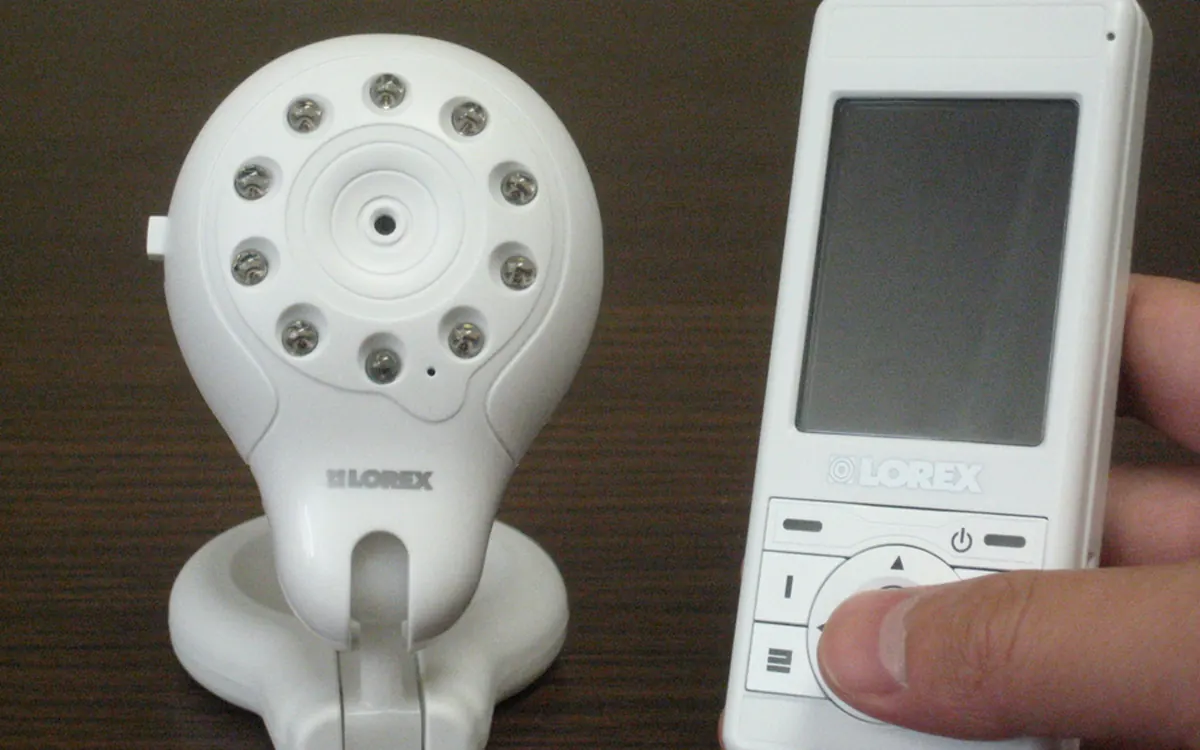
Quick verdictFor most homes a non‑Wi‑Fi video monitor is the simplest and most private choice; pick a Wi‑Fi monitor only if you really need to watch from outside the house, and then lock it down.
Jump to the verdict ↓On this page
A baby monitor is one of the few gadgets that sits in the most private room of your home and runs all night. Picking one is less about megapixels and more about a few practical questions: do you need to watch from outside the house, how far is the nursery from where you sit, and how much do you trust the device to stay private? This guide walks through the types, the features that matter and the security steps that make a connected monitor safe to use.
The three types of baby monitor
Audio-only monitors transmit sound (and sometimes room temperature) to a parent unit. They are cheap, simple and have the longest battery life. Many use DECT, the same digital radio standard as cordless home phones, which gives low interference and good range. Their limit is obvious: you hear crying, but you can't see whether your baby is awake, has rolled over or is just babbling.
Non‑Wi‑Fi video monitors pair a camera with a dedicated handheld screen over their own digital radio link, usually in the 2.4 GHz band. The video never goes through your router or the internet. You get a picture, night vision and usually two-way talk, with very little setup: plug in, switch on, done. The trade-off is that you can only watch within radio range, and the extras are more limited.
Wi‑Fi (app) monitors connect the camera to your home network and stream to an app on your phone, and often to a parent unit as well. That unlocks viewing from anywhere, motion and sound alerts, clips or recording, sharing with a partner or grandparent, and sometimes sleep tracking. It also means the camera is an internet device, with the same risks and maintenance as any home security camera.
| Audio-only | Non‑Wi‑Fi video | Wi‑Fi app monitor | |
|---|---|---|---|
| Watch from outside home | No | No | Yes |
| Uses the internet | No | No | Yes |
| Setup | Very easy | Easy | App, account, Wi‑Fi |
| Works if Wi‑Fi drops | Yes | Yes | Often not |
| Extras | Few | Some (zoom, lullabies, temperature) | Most (alerts, clips, sharing, tracking) |
Features that actually matter
Range and reliability. Walls, floors and other 2.4 GHz devices reduce range far below the "open field" number on the box. If the nursery is on another floor or at the far end of the house, read reviews about dropouts, look for an out-of-range alert, and check that a Wi‑Fi model will get a strong signal where the camera sits. A mesh Wi‑Fi system often fixes a weak spot.
Night vision. Almost all video monitors use infrared LEDs for a black-and-white picture in a dark room. What matters is a clear image across the cot at night, not the daytime resolution. Some parents prefer models whose infrared LEDs don't glow visibly.
Parent unit battery and screen. On non‑Wi‑Fi models the handheld is the whole experience. Look for a battery that lasts a night with the screen in standby (voice-activated screen modes help), a screen large enough to see breathing movement, and a volume or sound-level indicator so you can mute the speaker but still see noise.
Camera placement and mounting. The safest setup keeps the camera and its cable well out of the baby's reach. Mount it on a wall or a high shelf and secure the cable, never on or over the cot rail. Manufacturers give minimum distances in their manuals; follow them. Pan-and-tilt or a wide-angle lens lets you place the camera further away and still see the whole cot.
Two-way talk, lullabies and temperature. Nice to have. Talk-back can soothe a toddler, and a temperature reading is handy, but none of these should outweigh range and reliability.
Subscriptions. Many Wi‑Fi monitors put recording, history or sleep analytics behind a monthly plan. Check what works for free before you buy, and add the yearly cost to the price.
Wi‑Fi monitor security: what to check before you buy
Connected baby monitors have a poor security record. Researchers have repeatedly found weak or default passwords, unencrypted streams and cloud flaws, and New York has just passed a law requiring security features and a warning label on internet-connected monitors sold there. Before buying a Wi‑Fi model, check:
- Account security: you create your own password (no shared default code), and the app supports two-factor authentication.
- Encryption: the maker states that video is encrypted in transit, and ideally offers end-to-end encryption or local-only storage.
- Updates: the brand ships firmware and app updates regularly and has a way to report security issues. A long history of fixes is a good sign; silence is not.
- Local options: a local or LAN-only mode, or a microSD card, lets you keep video in the house and keep watching if the internet goes down.
- Privacy policy: what is uploaded (clips, audio, sleep data), how long it is kept, and whether it is used to train AI features.
+ Pros
- Watch and get alerts from anywhere, on several phones
- Recording, clips and sleep history
- Usually better apps, zoom and smart detection
− Cons
- Depends on Wi‑Fi and often the maker's cloud
- Needs updates and account security to stay private
- Features can disappear behind subscriptions or if the service shuts down
Set it up safely
- Update everything first: camera firmware, the app and your router's firmware.
- Use a strong, unique password for the monitor account and turn on two-factor authentication.
- Secure your Wi‑Fi: WPA2 or WPA3, a strong network password, and a guest or IoT network for smart devices if your router offers one.
- Switch off what you don't use: remote viewing, cloud recording or sharing with old accounts. Review who has access every few months.
- Reset before you sell or give it away, and remove the device from your account.
If you like the idea of keeping cameras off the cloud entirely, our guide to a smart home without internet covers local-control options.
Our verdict
Non‑Wi‑Fi video for most homes; Wi‑Fi only if you need remote viewing
Start with how you'll use it. If you're always in or near the house, a non‑Wi‑Fi video monitor gives a picture, night vision and talk-back with no app, no account and nothing exposed to the internet. Choose a Wi‑Fi monitor if you want to check in from work, share access with family or get sleep data, and treat it like any connected camera: strong password, two-factor authentication and updates. Whatever you pick, prioritise reliable range, a clear night image and a parent unit that lasts the night over resolution.
Frequently asked questions
Are non-Wi-Fi baby monitors safer?
They avoid the biggest risk, remote access over the internet, because the video never leaves the radio link between camera and parent unit. Someone nearby with special equipment could in theory intercept a weak link, so prefer digital, encrypted models from known brands.
Can a Wi-Fi baby monitor be hacked?
Yes, like any connected camera, especially with default passwords or outdated firmware. A unique password, two-factor authentication, regular updates and a brand that fixes security issues reduce the risk a lot.
Do I need a video baby monitor or is audio enough?
Audio is enough for many families, especially in small homes. Video helps you tell whether your baby is actually awake before you go in, which some parents find saves trips and sleep.
Can I use a regular security camera as a baby monitor?
You can, and many have good apps and night vision. Dedicated monitors usually add a parent unit, faster alerts, talk-back, lullabies and temperature readings. Either way, mount it out of reach and secure the account.
How far from the cot should a baby monitor be?
Follow the distance in your monitor's manual and keep the camera and all cables well out of the baby's reach, ideally on a wall or high shelf rather than on the cot.
More from Smart Home
View all →Read next

CPU vs GPU bottleneck explained: how to tell what's slowing your games
What a CPU or GPU bottleneck really is, how to spot one with a performance overlay, why resolution changes everything, and the fixes worth trying before you buy parts.
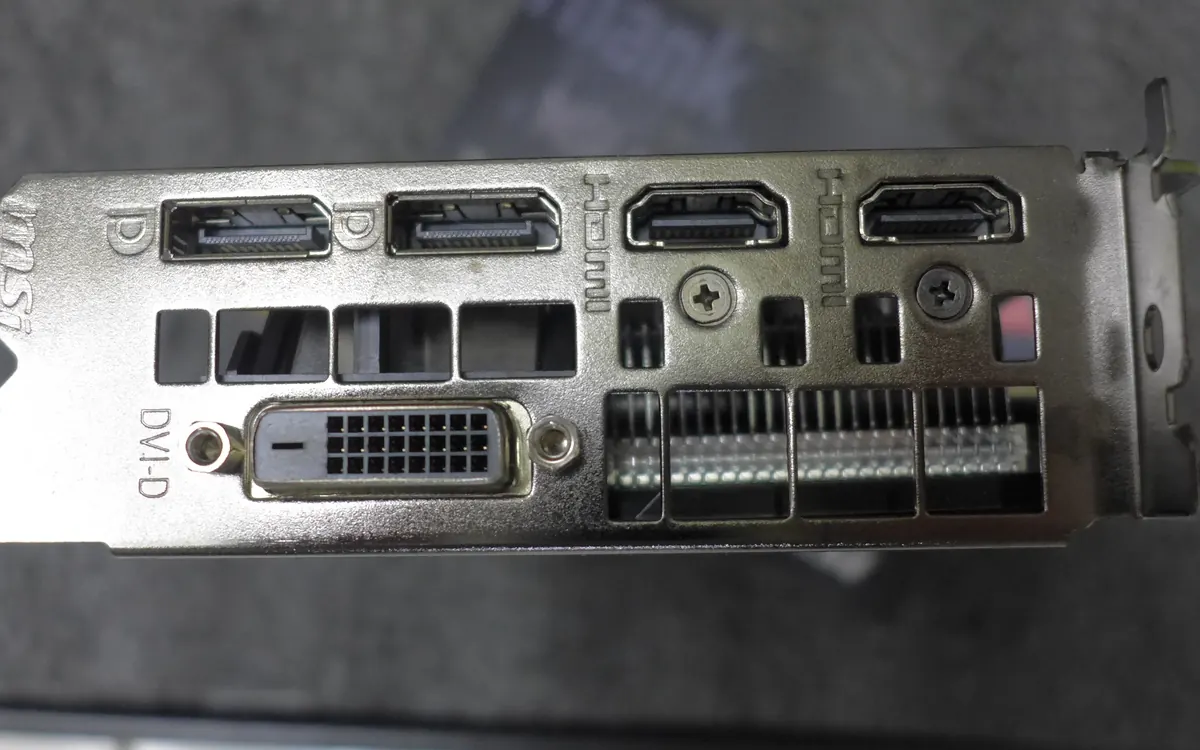
HDMI vs DisplayPort: which cable should you use in 2026?
HDMI vs DisplayPort explained: HDMI 2.1 and 2.2 vs DisplayPort 1.4 and 2.1 bandwidth, which to use for gaming monitors, TVs, consoles and laptops, plus cables.

Smart ring vs smartwatch: which health wearable should you buy?
Smart ring or smartwatch? Compare sleep and heart-rate tracking, battery life, workouts, GPS, subscriptions, sizing and phone compatibility to pick the right wearable.