How to upgrade laptop RAM: check if you can, pick the right stick, install it
Can your laptop take more RAM? How to check for soldered memory and free SO-DIMM slots, choose DDR4 or DDR5 modules that fit, and install them safely.
LandGadget Newsroom · · 5 min read
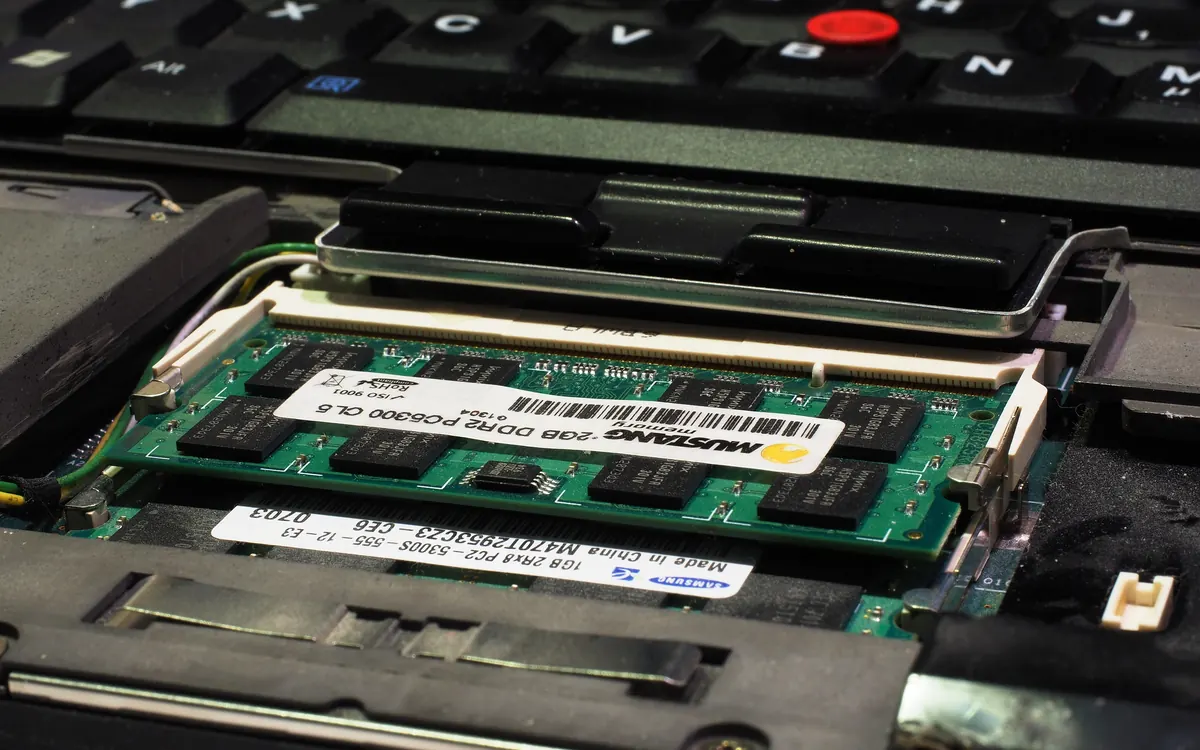
Adding RAM is one of the cheapest ways to make a laptop that stutters with many browser tabs feel normal again. But unlike desktops, many modern laptops can't be upgraded at all. Here is how to check yours, buy the right module and install it.
Step 1: check whether your laptop can be upgraded
Laptop memory comes in three forms:
- SO-DIMM slots: small removable sticks, common in business laptops, gaming laptops and many budget models. Upgradable.
- CAMM2 / LPCAMM2: a newer flat, screwed-in module used in some recent laptops. Upgradable, but only with a matching module.
- Soldered (LPDDR4X/LPDDR5/LPDDR5X): chips fixed to the motherboard, used in most ultrabooks, Apple Silicon MacBooks and many thin Windows laptops. Not upgradable.
Some laptops mix both: part soldered, plus one free slot. To find out what you have:
- Look up your exact model on the maker's support site and download the user or service manual. It lists the memory type, the number of slots and the maximum supported capacity.
- On Windows, open Task Manager → Performance → Memory. It shows the speed and "Slots used: 1 of 2", for example. If it shows no slots or the memory is soldered, the manual is the final word.
- Tools such as CPU-Z (SPD tab) show the module type and part number of each installed stick.
Step 2: choose the right module
- Generation: DDR4 and DDR5 SO-DIMMs are keyed differently and are not interchangeable. Buy the one your laptop uses. Our DDR4 vs DDR5 guide explains the differences.
- Speed: buy a speed your laptop supports. A faster stick will usually run at the laptop's maximum speed anyway, so paying extra for it rarely helps.
- Capacity: for how much to buy, see how much RAM you need. For most people in 2026, 16 GB is the comfortable baseline and 32 GB suits heavy multitasking, creative work or local AI.
- Dual channel: two identical sticks (for example 2 × 8 GB) let the processor read from both at once. This matters most for laptops with integrated graphics, which use system RAM as video memory. If you add a stick to an existing one, match the size and speed where possible.
Step 3: install it
- Back up your data, shut down fully (not sleep) and unplug the charger.
- Remove the base screws. Keep track of different screw lengths. Some laptops have clips, so use a plastic pry tool rather than a screwdriver.
- If the manual says to, disconnect the battery connector. Then hold the power button for a few seconds to drain any leftover charge.
- Touch a bare metal part of the chassis to discharge static, and handle modules by their edges.
- To remove an old stick, push the two side latches outward and it will pop up at an angle.
- Insert the new module at about a 30° angle, notch aligned, until the gold contacts are almost hidden. Then press it down until both latches click.
- Reconnect the battery, close the base and power on.
The first boot can take noticeably longer, sometimes a minute or more with a black screen, while the system "trains" the new memory. Don't power off during this. Afterwards, check Task Manager to confirm the new total.
If it doesn't work
- No boot or beeps: reseat the module firmly. Then try one stick at a time to find the faulty one.
- Less RAM shown than installed: check that the module is a supported type and within the maximum capacity, and update the BIOS from the maker's site.
- Random crashes: run Windows Memory Diagnostic or MemTest86. Mixed brands or speeds are a common cause.
If your memory turns out to be soldered, the best upgrades left are usually an SSD or freeing up memory by closing heavy apps. For a desktop, see our PC upgrade guide.
Frequently asked questions
Can I put a DDR5 stick in a DDR4 laptop?
No. The modules have different notches and electrical specs, so they physically won't fit and are not compatible.
Does adding RAM void my warranty?
It depends on the maker and country. Many manufacturers treat memory as a user-replaceable part, but check your warranty terms or manual first.
Can I upgrade RAM on a MacBook?
Not on Apple Silicon MacBooks: the memory is part of the chip package. You have to choose the capacity when you buy.
Is it OK to mix 8 GB and 16 GB sticks?
It usually works, but only part of the memory may run in dual channel. Matching pairs give the most predictable performance.
More from Computers & AI
View all →Read next
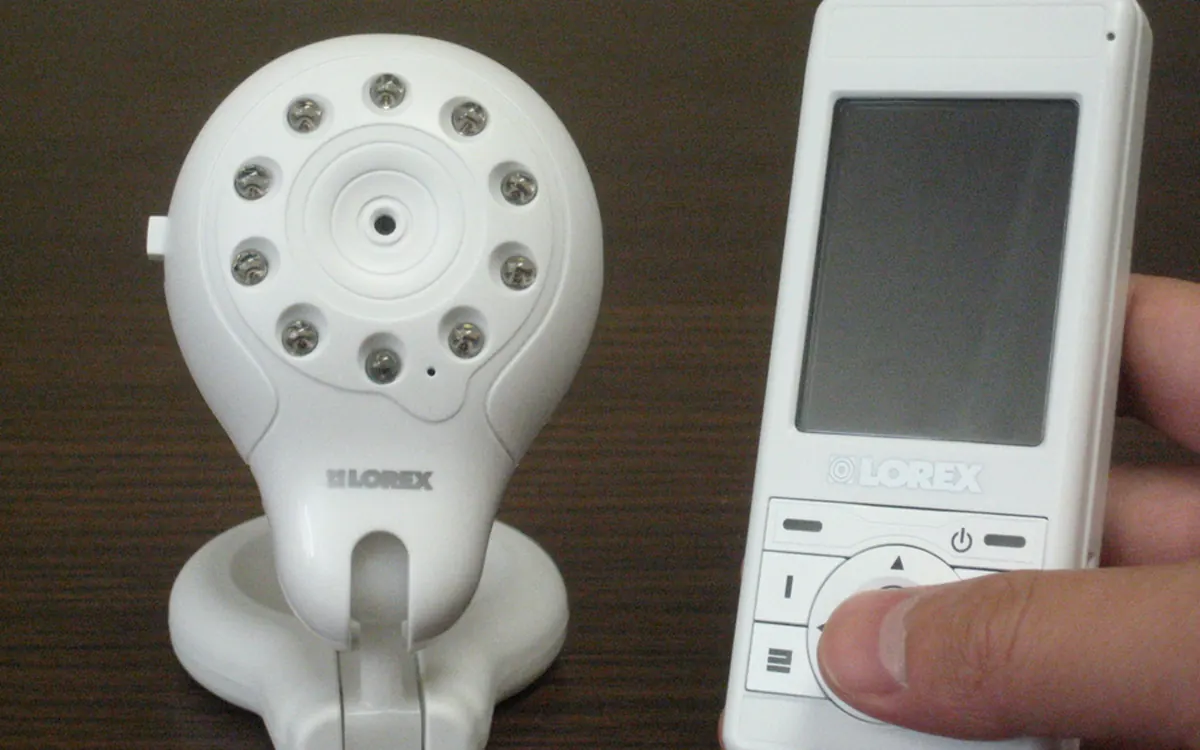
How to choose a baby monitor: Wi‑Fi vs non‑Wi‑Fi, security
Audio, local video or Wi‑Fi app monitor? How to choose a baby monitor by range, night vision, battery, privacy and security, plus the setup steps that matter.
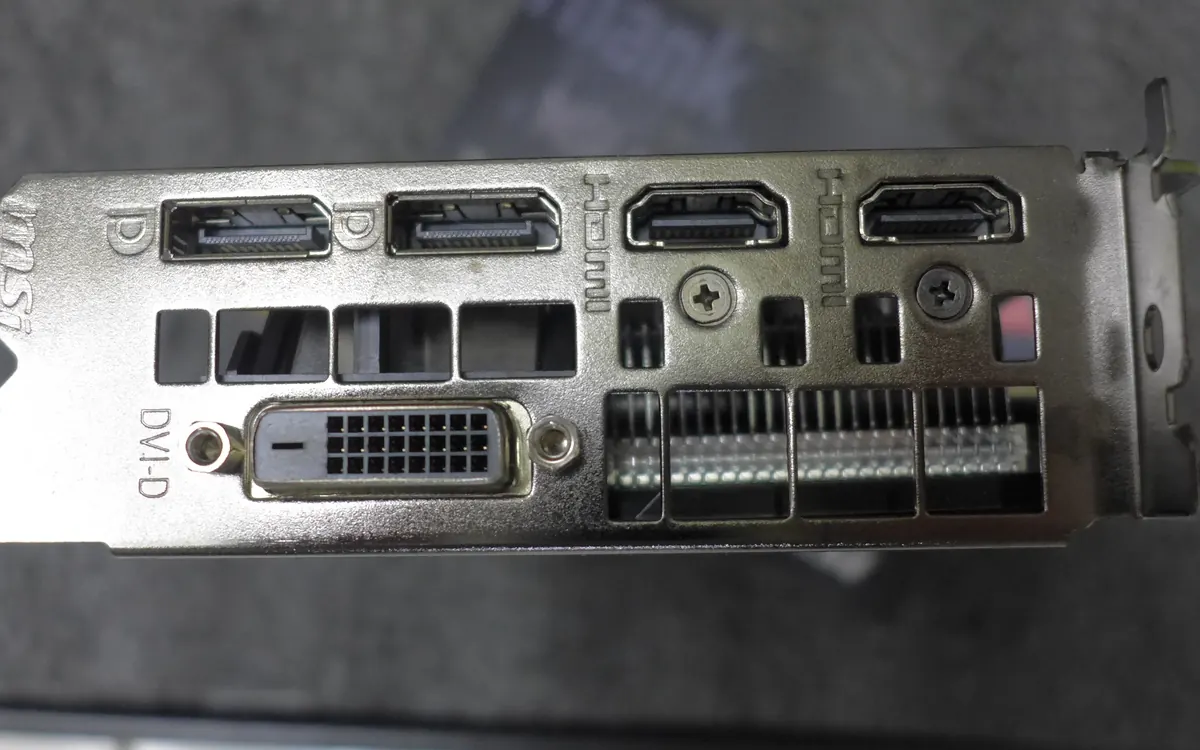
HDMI vs DisplayPort: which cable should you use in 2026?
HDMI vs DisplayPort explained: HDMI 2.1 and 2.2 vs DisplayPort 1.4 and 2.1 bandwidth, which to use for gaming monitors, TVs, consoles and laptops, plus cables.

Smart ring vs smartwatch: which health wearable should you buy?
Smart ring or smartwatch? Compare sleep and heart-rate tracking, battery life, workouts, GPS, subscriptions, sizing and phone compatibility to pick the right wearable.