HDMI vs DisplayPort: which cable should you use in 2026?
HDMI vs DisplayPort explained: HDMI 2.1 and 2.2 vs DisplayPort 1.4 and 2.1 bandwidth, which to use for gaming monitors, TVs, consoles and laptops, plus cables.
LandGadget Newsroom · · 7 min read
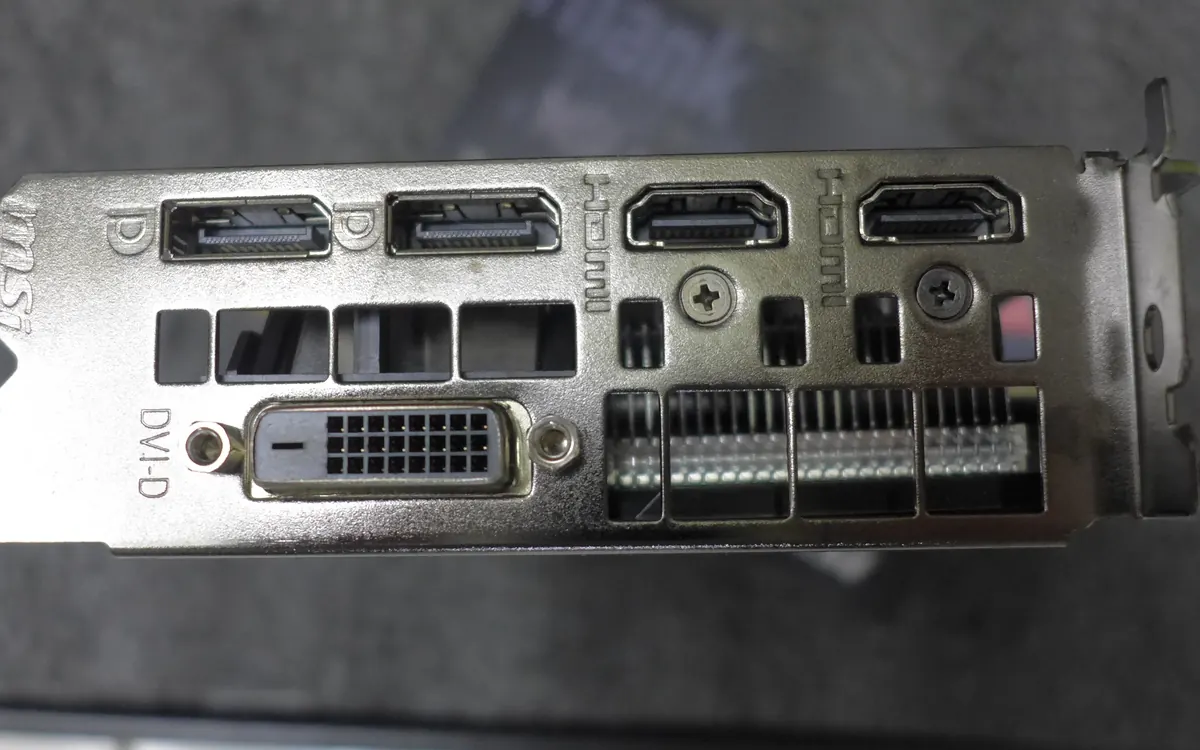
Quick verdictUse DisplayPort to connect a PC to a gaming monitor, and HDMI 2.1 for TVs, consoles and soundbars. The version and the cable matter more than the connector shape.
Jump to the verdict ↓On this page
Most monitors and graphics cards have both HDMI and DisplayPort sockets, and both carry video and audio over a single cable. So which one should you plug in? The short answer: DisplayPort for PC monitors, HDMI for TVs and consoles. The longer answer depends on the version each device supports, because that decides the resolution and refresh rate you actually get.
The quick difference
HDMI was built for home entertainment. It's on every TV, console, streaming box, AV receiver and soundbar, and it adds TV-specific features such as eARC (sending lossless audio back to a soundbar) and CEC (one remote controlling several devices).
DisplayPort is a VESA standard built for computers. It's on practically every desktop graphics card and most gaming monitors, it's the signal that runs through USB-C and Thunderbolt on laptops, and it can drive several monitors from one port via daisy-chaining (MST). Full-size DisplayPort plugs also have a latch, so they don't slip out.
Versions and bandwidth
What really limits you is bandwidth: how much data per second the link can carry. More pixels, higher refresh rates and 10-bit HDR colour all need more of it.
| Standard | Max bandwidth | Typical maximum (uncompressed) | Where you'll find it |
|---|---|---|---|
| HDMI 2.0 | 18 Gbps | 4K 60 Hz, 1440p 144 Hz | Older TVs, budget monitors, many laptops |
| HDMI 2.1 | 48 Gbps | 4K 120–144 Hz 10-bit; more with DSC | Current TVs, PS5, Xbox Series X, gaming monitors, GPUs |
| HDMI 2.2 | 96 Gbps | 4K 240 Hz and 8K at high refresh | Spec published 2025; devices only starting to appear |
| DisplayPort 1.4 | 32.4 Gbps | 4K 120 Hz 8-bit; 4K 240 Hz with DSC | Most monitors and graphics cards |
| DisplayPort 2.1 | Up to 80 Gbps (UHBR20) | 4K 240 Hz, 8K; even more with DSC | Newer GPUs and high-end OLED monitors |
Two things to note. First, DisplayPort 2.1 has three speed grades, UHBR10 (40 Gbps), UHBR13.5 (54 Gbps) and UHBR20 (80 Gbps), and a device can claim "DP 2.1" with any of them, so check the spec sheet. Second, Display Stream Compression (DSC) lets both standards go well beyond their raw limits. A 4K 240 Hz monitor works fine over DisplayPort 1.4 with DSC, and most players can't see the difference.
The same caution applies to HDMI: some monitors advertise "HDMI 2.1" but only offer 24 Gbps, which is not enough for full 4K 120 Hz with HDR. Look for the exact bandwidth or a "4K 120 Hz" claim per port.
Which to use, device by device
Gaming PC to monitor. Use DisplayPort. It's the port that monitor makers test first for high refresh rates, it carries VESA Adaptive-Sync (the basis of FreeSync and G-Sync Compatible), and older G-Sync monitors only offer VRR over DisplayPort. Our FreeSync vs G-Sync explainer covers the details. HDMI 2.1 works too if your monitor and GPU both support its full bandwidth.
Console to TV or monitor. Use HDMI; PS5, Xbox Series X|S and Nintendo Switch 2 have no DisplayPort. For 4K at 120 Hz and HDMI VRR on PS5 or Xbox, the TV or monitor needs HDMI 2.1 ports. If you're shopping for a screen, our gaming monitor guide explains which models make good console displays.
TV and soundbar. Use HDMI, and plug the soundbar into the TV's eARC port to pass Dolby Atmos from TV apps. TVs almost never have DisplayPort. Our TV buying guide explains how many HDMI 2.1 ports you need.
Laptop to monitor. If your laptop's USB-C or Thunderbolt port supports DisplayPort Alt Mode (often marked with a DP or lightning icon), a USB-C to DisplayPort cable or a USB-C monitor is the cleanest option, and a USB-C monitor can charge the laptop over the same cable. Otherwise use the laptop's HDMI port, but check its version: many laptops still have HDMI 2.0, capped at 4K 60 Hz.
Several monitors from one port. Only DisplayPort supports MST daisy-chaining (and macOS doesn't support MST at all). HDMI needs one port per screen.
Cables: where most problems start
Flickering, black screens and refresh rates stuck at 60 Hz are usually the cable, not the port.
- For HDMI 2.1, buy a cable labelled Ultra High Speed HDMI, ideally with the certification label on the box. "High Speed HDMI" cables are 18 Gbps-era.
- For DisplayPort 2.1, look for DP40 or DP80 certification (40 and 80 Gbps). For DisplayPort 1.4, a VESA-certified DP8K cable is plenty.
- Keep passive cables short. At the highest speeds, reliable passive cables are typically a couple of metres long; for longer runs use active or fibre-optic cables.
- Adapters usually work in one direction only: DisplayPort to HDMI is common, but HDMI to DisplayPort needs a powered converter. Adapters can also drop VRR and HDR.
+ Pros
- DisplayPort: on every desktop GPU, high refresh rates, Adaptive-Sync, daisy-chaining, locking plug
- DisplayPort over USB-C: one cable for video, data and charging on laptops
- HDMI: universal on TVs and consoles, with eARC, CEC and HDMI VRR
− Cons
- DisplayPort: almost absent on TVs, consoles and home theatre gear
- HDMI: versions are confusing and some 'HDMI 2.1' ports are limited
- Both: the fastest modes need short, certified cables
Our verdict
DisplayPort for PCs, HDMI 2.1 for TVs and consoles
If you're connecting a PC to a gaming monitor, use DisplayPort with a certified cable; it's the most reliable way to get high refresh rates and VRR. For TVs, consoles and soundbars, use HDMI 2.1 with an Ultra High Speed cable. In both cases, check the version on each device: the slowest link in the chain sets your limit.
Frequently asked questions
Is DisplayPort better than HDMI for gaming?
On a PC monitor, usually yes: DisplayPort is supported by every graphics card, carries Adaptive-Sync for FreeSync and G-Sync, and DisplayPort 2.1 offers up to 80 Gbps. HDMI 2.1 is just as good if both devices support its full 48 Gbps, and it's the only choice for consoles.
Can I get 144 Hz over HDMI?
Yes, if both devices support it. HDMI 2.0 handles 1080p and 1440p at 144 Hz on most monitors; for 4K at 120–144 Hz you need HDMI 2.1 at both ends and an Ultra High Speed HDMI cable.
Do I need a new cable for HDMI 2.1?
Probably. Older High Speed HDMI cables were designed for 18 Gbps. For 4K 120 Hz with HDR, use a certified Ultra High Speed HDMI cable.
Does DisplayPort carry audio?
Yes. Both DisplayPort and HDMI carry multichannel audio, so monitor speakers or a headphone jack on the monitor will work. Only HDMI offers eARC for sending audio from a TV to a soundbar.
Can I connect a PS5 to a monitor with DisplayPort?
No. PS5 and Xbox only output HDMI, and HDMI-to-DisplayPort needs an active converter that often drops VRR and high refresh rates. Use the monitor's HDMI 2.1 port instead.
What is HDMI 2.2?
HDMI 2.2 doubles bandwidth to 96 Gbps for higher resolutions and refresh rates and uses new Ultra96 cables. The spec was released in 2025, but few devices support it yet, so HDMI 2.1 remains the standard to buy in 2026.
More from Gaming
View all →Read next
DDR4 vs DDR5 RAM: differences, compatibility and which to buy
DDR4 or DDR5? How speed, latency, voltage and price compare, which CPUs and motherboards support each, why they aren't interchangeable, and when DDR4 still makes sense.
Smart ring vs smartwatch: which health wearable should you buy?
Smart ring or smartwatch? Compare sleep and heart-rate tracking, battery life, workouts, GPS, subscriptions, sizing and phone compatibility to pick the right wearable.

ESA's Hera sees Didymos and Dimorphos apart for the first time
ESA's Hera probe has resolved the Didymos–Dimorphos pair from 1,280 km away. First detailed Dimorphos images since DART's 2022 impact are due 25 November.