How to choose a graphics card: a practical GPU buying guide
How to choose a graphics card: match it to your monitor, pick enough VRAM, check your power supply and case, compare Nvidia, AMD and Intel, and buy used safely.
LandGadget Newsroom · · 6 min read
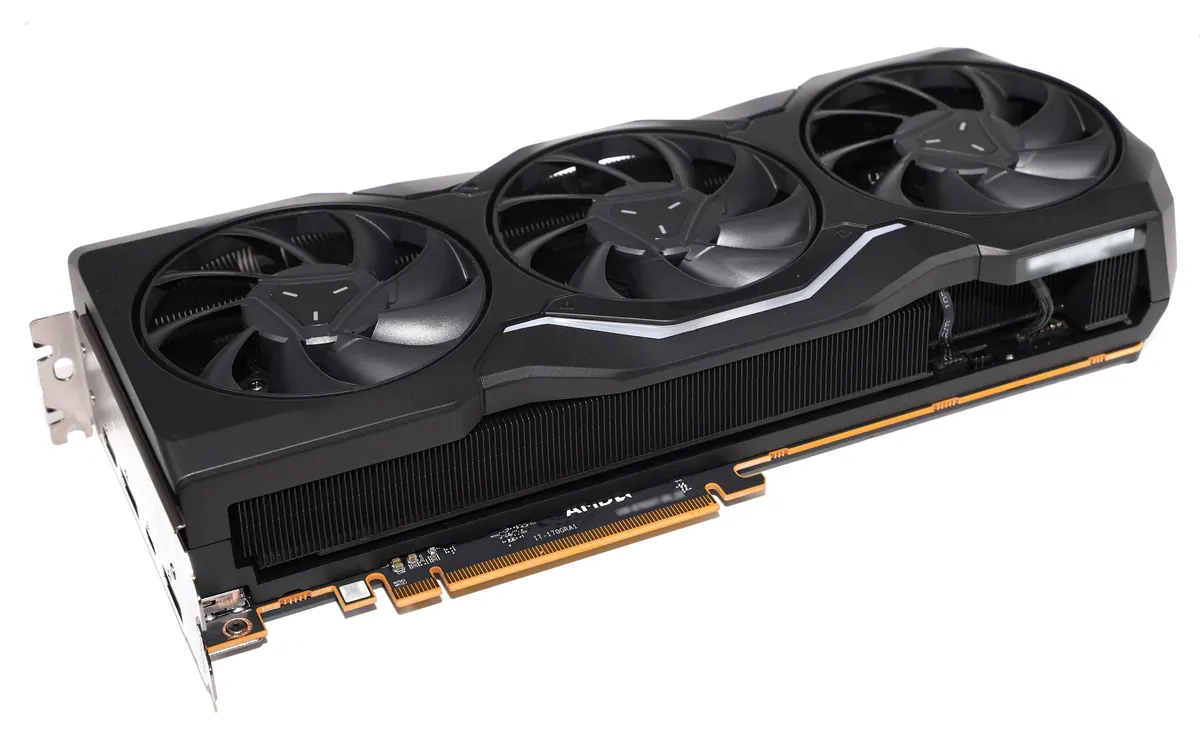
On this page
A graphics card is usually the most expensive part of a gaming PC and the one that decides how smooth your games look. It is also the easiest part to get wrong: people buy a card that is too weak for their monitor, too big for their case or too hungry for their power supply. This guide walks through the checks that matter, in the order we would do them. Prices and models change every few months, so we focus on the rules that stay true.
Start with your monitor
Your screen sets the target. A 1080p monitor at 60 Hz needs far less GPU power than a 1440p panel at 165 Hz or a 4K TV. Decide what you want first: high frame rates for competitive shooters, or high detail for story games. If you are still choosing a screen, our gaming monitor guide explains resolution, refresh rate and panel types.
As a rough rule, entry and mid-range cards are built for 1080p, upper mid-range cards for 1440p, and the top tier for 4K with high settings. Always check independent reviews that test the games you play at your resolution.
Set a budget and keep the system balanced
A powerful GPU paired with a very old processor can be held back in CPU-heavy games, especially at 1080p and high frame rates. The reverse is also true: a fast CPU will not save a weak card at 4K. If your PC is several years old, it can make sense to split the budget between a new card and a CPU or platform upgrade. Also check system memory; our guide to how much RAM you need covers that side.
Get enough video memory (VRAM)
VRAM stores textures and other game data. When a game needs more than the card has, you can see stutter, blurry textures or have to lower settings. Recent games ask for more memory every year, so this is the spec that ages a card fastest.
| Use | Sensible VRAM (general guidance) |
|---|---|
| 1080p esports and older games | 8 GB can still work |
| 1080p and 1440p new games | 12 GB or more |
| 4K, heavy ray tracing, mods | 16 GB or more |
| Local AI models | As much as you can afford |
These are rules of thumb, not hard limits. Settings, ray tracing and mods change the picture a lot.
Check your power supply and connectors
Look at the card maker's recommended power supply wattage and compare it with the label on your PSU. Quality matters as much as the number: a cheap unit near its limit is a risk. Then check connectors. Many cards use one or more 8-pin PCIe plugs, while many recent high-end Nvidia cards use the 12V-2x6 connector (the update to 12VHPWR). Use the cable or adapter that comes with the card or your PSU, push it in fully and avoid sharp bends near the plug.
Make sure it fits in your case
Modern cards can be long, tall and three or more slots thick. Compare the card's length with your case's GPU clearance, check that it will not block other slots you need, and leave space for airflow. Heavy cards may need a support bracket to avoid sag. Small form factor cases often list a maximum card size; respect it.
Check the motherboard
Any recent card fits a standard PCIe x16 slot, and newer cards work in older PCIe generations. But some budget cards use only eight or four PCIe lanes, which can lose more performance on an older PCIe 3.0 board. Intel Arc cards in particular need Resizable BAR enabled in the BIOS to perform well, so check that your platform supports it.
Understand upscaling and frame generation
Upscalers render the game at a lower resolution and rebuild a sharper image. Nvidia's DLSS works only on RTX cards, while AMD's FSR and Intel's XeSS have versions that run on a wider range of hardware. Frame generation inserts extra frames to make motion look smoother, but it can add input lag and works best when the base frame rate is already decent. For a recent example of what these tools can do, see our story on DLSS 4.5 in new games. Treat them as a bonus, not a substitute for raw performance.
Choose between Nvidia, AMD and Intel
- Nvidia has the widest support for DLSS, strong ray tracing and the CUDA software that most AI and creative apps target.
- AMD often offers more VRAM or raster performance for the money, and FSR works across brands.
- Intel Arc can be good value in the budget range, but check driver results for the games you play.
If you plan to run AI models locally, VRAM and software support matter most; our laptop for local AI guide explains the trade-offs, and the same logic applies to desktops.
New or used?
A used card can be a bargain, but buy where you have buyer protection. Ask for a test under load, check temperatures and fan noise, and look for physical damage or a burnt power connector. Cards used for crypto mining are not automatically bad, but warranty transfer and remaining warranty time are worth checking. A new card gives you a full warranty and the latest features, which is often worth a small premium.
Frequently asked questions
How much VRAM do I need for gaming?
For new games, 12 GB is a comfortable minimum at 1080p and 1440p, and 16 GB or more is better for 4K or heavy mods. 8 GB still works for esports and older titles.
Will a new graphics card work in my old PC?
Usually yes if it has a PCIe x16 slot, a strong enough power supply with the right connectors and enough case space. Very old CPUs may limit performance.
Is DLSS or FSR better?
DLSS is generally rated higher for image quality but runs only on Nvidia RTX cards. FSR and XeSS work on more hardware. Many games support more than one.
Should I buy a used graphics card?
It can save money if you buy with buyer protection, test it under load and check its condition. Remaining warranty is a big plus.
More from Computers & AI
View all →Read next
Cyberpunk 2077 update 2.5: dual wielding, mods and an Edgerunners 2 gig
CD Projekt Red's free Edgerunners 2 Update (2.5) adds dual-wielded pistols, cross-platform mods via mod.io, cyberware styling and a prequel quest to the new anime.
How to spot fake apps on Google Play before you install
Fake WhatsApp, Chrome and banking apps keep slipping onto Google Play. Learn the checks that expose a clone: developer, downloads, reviews, ads, permissions, Play Protect.

Seattle will add up to 200 curbside EV chargers by 2030
Seattle is letting residents pick sites for up to 200 new curbside Level 2 EV chargers near apartments, with installs from fall 2027 to 2030.