CPU vs GPU bottleneck explained: how to tell what's slowing your games
What a CPU or GPU bottleneck really is, how to spot one with a performance overlay, why resolution changes everything, and the fixes worth trying before you buy parts.
LandGadget Newsroom · · 4 min read
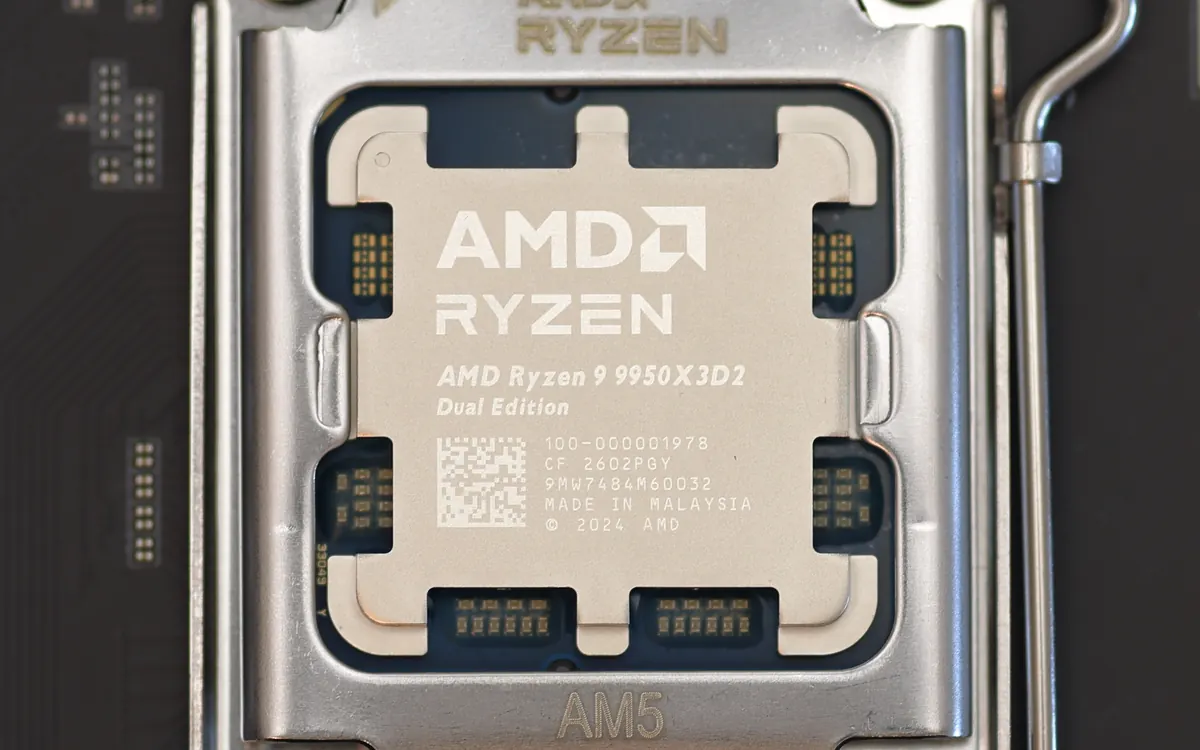
"Bottleneck" is one of the most used and misunderstood words in PC gaming. It simply means the part that limits performance at a given moment. Some part always does. What matters is whether that limit stops you reaching the frame rate you want, and which upgrade would actually move it.
How a frame gets made
For each frame, the CPU runs game logic, physics, AI and tells the graphics card what to draw (draw calls). The GPU then renders the image at your chosen resolution and settings. If the CPU can prepare 90 frames per second but the GPU can only render 60, you get about 60. That's a GPU limit. If it's the other way round, the CPU is the limit, and a faster graphics card won't help.
How to spot it
Turn on a performance overlay showing GPU usage, CPU usage per core, frame rate and frame time. Many GPU drivers include one, and tools such as MSI Afterburner with RivaTuner can show it too.
| What you see | Likely limit |
|---|---|
| GPU usage ~95–100% | GPU (normal and expected) |
| GPU usage well below 90%, one or more CPU threads near 100% | CPU |
| Lowering resolution barely raises FPS | CPU |
| Lowering resolution or settings raises FPS a lot | GPU |
| Stutter, hitching, RAM nearly full | Memory or storage |
Total CPU usage can look low even when the CPU is the limit. A game might max out one or two threads while the other cores are idle, so look at per-core load. Also turn off any frame cap or V-Sync while testing. Otherwise the GPU will look under-used because it's waiting on purpose.
Why resolution changes everything
At 1080p with a fast graphics card, the GPU finishes frames quickly and the CPU often becomes the limit, especially in esports titles aiming for 200+ FPS or big strategy and simulation games. At 1440p and 4K, each frame is much heavier for the GPU, so the same CPU is rarely the limit. That's why one CPU can be "too slow" for a high-end card at 1080p and perfectly fine at 4K. Upscalers like DLSS, FSR and XeSS render at a lower internal resolution, which can shift the limit back toward the CPU.
Fixes before buying anything
- GPU-limited and want more FPS? Lower heavy settings (ray tracing, shadows, volumetrics), turn on an upscaler or lower the resolution.
- CPU-limited? Raise resolution or graphics settings for free image quality, cap the frame rate for smoother frame times, and close background apps.
- Check RAM: run memory in dual channel and enable XMP or EXPO in the BIOS so it runs at its rated speed. A single stick can hold back a CPU noticeably in games.
- Check temperatures: an overheating CPU or GPU throttles. Clean the dust and check cooling.
- Update your GPU driver and BIOS.
When to upgrade which part
If you're GPU-limited at the settings you want, a faster graphics card is the answer, but check your power supply too. If you're CPU-limited in the games you care about, a CPU upgrade (and maybe a new platform) helps more. Our PC upgrade guide puts it all in order. For smoother gaming at whatever frame rate you reach, a variable refresh rate monitor helps too. See FreeSync vs G-Sync.
Frequently asked questions
Are bottleneck calculator websites accurate?
Not really. They give one generic percentage, but the real limit depends on the game, resolution, settings and your frame-rate target.
Is 100% GPU usage bad?
No. It means the graphics card is fully used, which is what you want in a demanding game. Just keep an eye on temperatures.
Can RAM be a bottleneck?
Yes. Running out of RAM causes stutter, and single-channel or slow memory can limit how fast the CPU feeds the GPU.
More from Computers & AI
View all →Read next
How to choose a baby monitor: Wi‑Fi vs non‑Wi‑Fi, security
Audio, local video or Wi‑Fi app monitor? How to choose a baby monitor by range, night vision, battery, privacy and security, plus the setup steps that matter.
HDMI vs DisplayPort: which cable should you use in 2026?
HDMI vs DisplayPort explained: HDMI 2.1 and 2.2 vs DisplayPort 1.4 and 2.1 bandwidth, which to use for gaming monitors, TVs, consoles and laptops, plus cables.
Smart ring vs smartwatch: which health wearable should you buy?
Smart ring or smartwatch? Compare sleep and heart-rate tracking, battery life, workouts, GPS, subscriptions, sizing and phone compatibility to pick the right wearable.