microSD Express explained: what Switch 2 owners need to know
Why Nintendo Switch 2 only accepts microSD Express cards, how they differ from regular microSD, what you can store on them and how much capacity to buy.
LandGadget Newsroom · · 6 min read
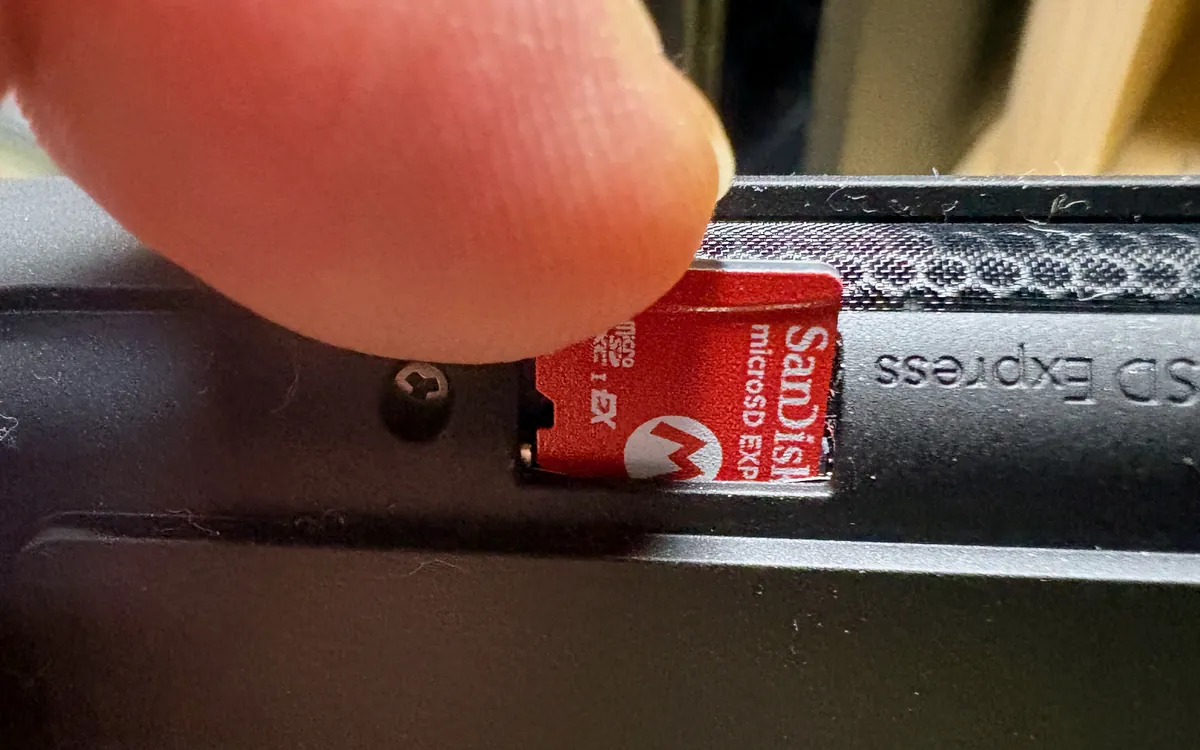
If you've just bought a Nintendo Switch 2, there's a good chance your old microSD card won't work in it. Nintendo's new console uses a newer, faster kind of memory card called microSD Express. Here's what that means, what to look for when buying one and how much storage makes sense.
What is microSD Express?
microSD Express is part of the SD Association's SD 7.1 specification, announced in February 2019. It looks like any other microSD card, but it adds a second interface: PCI Express (PCIe 3.1, one lane) with the NVMe protocol, the same kind of technology used in modern SSDs.
The result is a much higher ceiling. The SD Association quotes a theoretical maximum of 985 MB/s. For comparison, the UHS-I bus used by almost all regular microSD cards tops out at 104 MB/s. Real cards are slower than the theoretical limit, but still several times faster than a typical UHS-I card. That matters for a console loading big open-world games straight from the card.
Cards keep the old UHS-I interface too, so a microSD Express card still works in a phone, camera or card reader that doesn't support Express. It just runs at UHS-I speed there.
How to tell if a card is microSD Express
Look for the word "Express" and the "EX" mark on the card or its packaging. Speed markings like "U3", "V30" or "A2" alone don't mean a card is Express. Those describe UHS-I cards, which Switch 2 rejects for game storage. On the back, Express cards have a second row of contacts.
microSD vs microSD Express
| Regular microSD (UHS-I) | microSD Express | |
|---|---|---|
| Interface | UHS-I | PCIe 3.1 x1 + NVMe (plus UHS-I) |
| Max bus speed | 104 MB/s | 985 MB/s (theoretical) |
| Switch 2 game storage | No | Yes, up to 2 TB |
| Original Switch | Yes | Yes, at regular microSD speed |
| Works in older readers | Yes | Yes, at UHS-I speed |
Why Switch 2 only accepts Express cards
Nintendo says the faster cards are needed "to ensure games will run smoothly". Switch 2 games are bigger and more demanding than Switch 1 titles, and the console treats the card almost like a second internal drive.
According to Nintendo's microSD Express FAQ, regular microSD, microSDHC and microSDXC cards can't be used for games, save data, screenshots or videos on Switch 2. The one exception: if you have screenshots and videos from an original Switch on an old card, you can import them into the Switch 2's system memory.
What goes on the card (and what doesn't)
On Switch 2, a microSD Express card can hold:
- downloaded games (it becomes the default install location as soon as it's inserted)
- software updates and DLC
- screenshots and captured videos
Save data never goes on the card. It always stays in the console's system memory, so swapping cards won't touch your progress.
How much storage do you need?
Switch 2 comes with 256 GB of built-in storage, and part of that is reserved for the system. How quickly it fills depends on how you buy games:
- Mostly physical cards: you may manage without a memory card for a while, although some games still download updates or extra data (see why Nintendo still backs physical games).
- A mix of physical and digital: a 256 GB card roughly doubles your space and suits most players.
- Mostly digital: consider 512 GB or 1 TB. Big new games can be large on their own. The Ocarina of Time remake, for example, lists an estimated 27 GB download.
Nintendo recommends sticking to one card and moving to a bigger one when it fills up. Games saved across several cards can't be combined onto a single card later. So it's usually cheaper in the long run to buy more capacity up front.
Buying tips
- Check for "Express" in the product name. Many listings mention Switch compatibility while selling ordinary UHS-I cards.
- Buy from reputable sellers. Fake cards that report more capacity than they really have are common online. On a PC you can check a new card with free tools such as H2testw (Windows) or F3 (Linux/macOS).
- You'll need an Express-capable reader for full speed on a computer. Ordinary readers still work, at UHS-I speed.
- Any brand that meets the standard works. Cards with official Nintendo branding are an option, not a requirement.
Moving screenshots to a PC
You can copy screenshots and videos to a computer over a USB-C cable from System Settings → Data Management → Manage Screenshots and Videos. You can also read the card directly and copy the Nintendo/Album folder. Nintendo notes that the card-reader method may not work properly on non-Windows systems such as macOS. Playing on a big screen? Our gaming monitor guide explains what to look for.
Frequently asked questions
Can I use my old Switch microSD card in a Switch 2?
Only to import screenshots and videos captured on the original Switch. It can't store games, updates, DLC or new captures on Switch 2.
Does a microSD Express card work in the original Switch?
Yes. Nintendo says it works there, but only at the speed of a regular microSD card.
What is the largest card Switch 2 supports?
Nintendo supports microSD Express cards with capacities up to 2 TB.
Are my game saves stored on the card?
No. Save data always stays in the Switch 2 system memory and can't be copied to a microSD Express card.
Do I need an official Nintendo-branded card?
No. Nintendo says any card up to 2 TB that meets the microSD Express standard can be used.
More from Gaming
View all →Read next
OnePlus Ace 7's fan blows two ways to keep your hands cool
OnePlus says the Ace 7 series' built-in fan splits its airflow between the chip and the back panel and keeps hot air off your fingers. Why that detail matters.

ALMA's 'cosmic hamburger' shows how giant planets may form
ALMA slices the edge-on disk known as Gomez's Hamburger into layers of gas and dust and spots a clump that may be a giant planet in the making. What it shows.
UGREEN ID500 Pro is a Matter camera that records locally
UGREEN's 4K pan-tilt ID500 Pro streams and moves over Matter 1.5.1 and records to its new HomeAgent hub. Early-bird prices, what it needs and when it ships.