PC upgrade guide 2026: what to upgrade first for the biggest speed boost
SSD, RAM, GPU, CPU or PSU? A step-by-step order for upgrading an older desktop PC, how to find your real bottleneck, and when a full rebuild makes more sense.
LandGadget Newsroom · · 4 min read
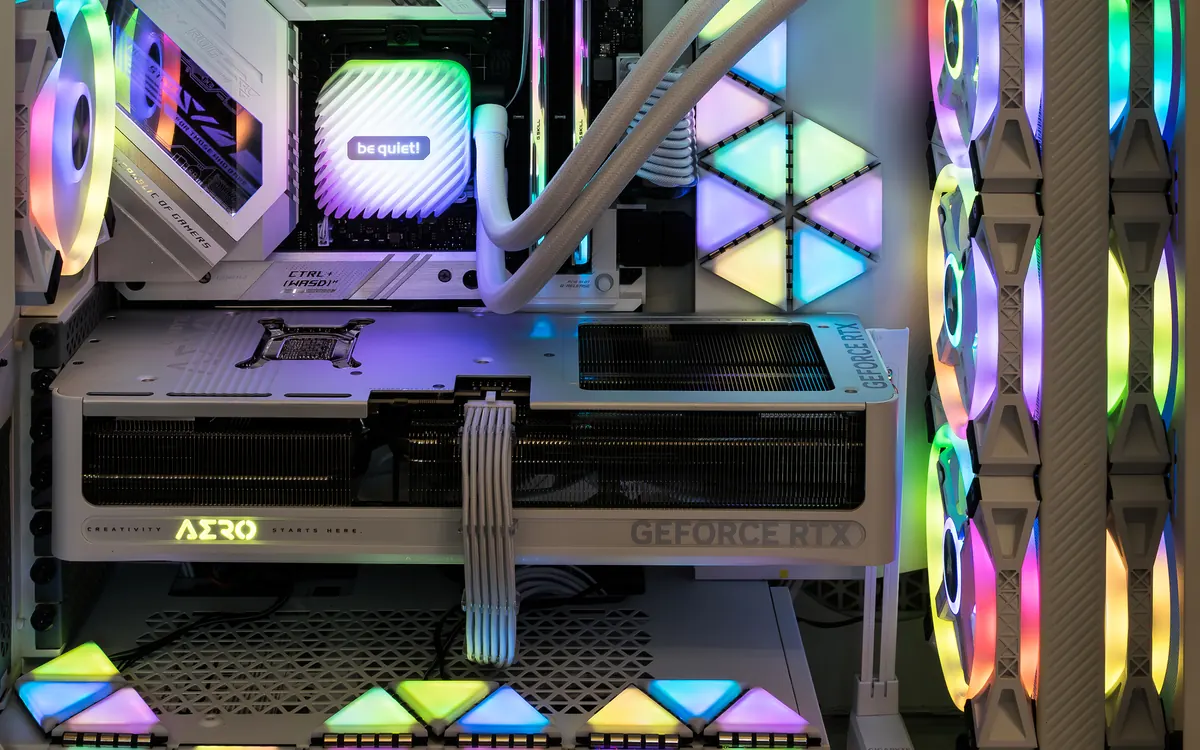
On this page
Before you spend money, it helps to know which part is actually holding your PC back. This guide goes through upgrades roughly in the order that gives the most improvement per euro or dollar for a typical older desktop. Skip any step that doesn't match what your system needs.
Find your bottleneck first
Open Task Manager → Performance (Windows) and do what feels slow. If the disk sits at 100% during boot and app launches, storage is the problem. If memory is nearly full, you need more RAM. In games, a performance overlay (for example from your GPU driver or Steam) shows CPU and GPU load. A GPU near 95–100% is normal. A low GPU load with one CPU thread maxed out points to the processor. Our explainer on CPU and GPU bottlenecks covers how to read these numbers.
Swap a hard drive for an SSD
If Windows still boots from a spinning hard drive, nothing else will feel as dramatic: faster boots, instant app launches and much shorter game loads. Even a SATA SSD is a huge jump. If your motherboard has an M.2 slot, an NVMe drive costs about the same. Clone your old drive or do a clean install. Our SSD buying guide explains NVMe vs SATA and what your slot supports.
Add RAM if you run out
If Task Manager regularly shows memory 85–90% full, add RAM. Use the generation your board supports (DDR4 or DDR5, see DDR4 vs DDR5) and install sticks in pairs for dual channel. For capacity targets, see how much RAM you need. In 2026, 16 GB is the baseline for gaming and 32 GB is comfortable for heavier work. Laptop owner? See how to upgrade laptop RAM.
Upgrade the graphics card for gaming
For games, the GPU decides resolution, settings and frame rate more than anything else. Before buying, check three things: the card's length and slot width against your case, your power supply wattage and connectors, and whether your CPU is fast enough to keep a much faster card busy. Read how to choose a graphics card and, if you're saving money, how to buy a used graphics card. Running AI models locally? VRAM matters most. See how much VRAM you need for local AI.
Check the power supply
A new GPU often needs more wattage or a 12V-2x6 or extra 8-pin connector. An old, low-quality PSU is also a common cause of crashes under load. Replace it before or together with the graphics card. See what power supply you need.
Upgrade the CPU or the whole platform
A drop-in CPU upgrade is possible if your motherboard socket and BIOS support a newer chip. Check the board maker's CPU support list and update the BIOS first. Otherwise, a new CPU means a new motherboard and often new RAM (for example, moving from DDR4 to DDR5). That costs about as much as half a new PC, so compare it with a full rebuild.
Don't forget the screen and cooling
A faster GPU is wasted on a 60 Hz monitor. A high-refresh gaming monitor can be the upgrade you'll actually notice. Also clean the dust out of fans and filters. If an older CPU cooler is overheating, a better cooler or fresh thermal paste can bring back lost performance from thermal throttling.
When to rebuild instead
If your PC needs a new CPU, motherboard, RAM and GPU at once, or it is old enough that the case and PSU are also limits, a new build or new prebuilt is usually better value. You can often keep the SSD, case and a quality PSU.
Frequently asked questions
What single upgrade helps an old PC the most?
If it still uses a hard drive as the boot drive, an SSD. If it already has an SSD, the answer depends on what Task Manager shows is maxed out.
Will more RAM increase FPS?
Only if you are running out of memory or moving from single to dual channel. Extra RAM you don't use won't raise frame rates.
Do I need to reinstall Windows after upgrading?
Usually not for RAM, GPU or a cloned SSD. A new motherboard may require reactivating Windows, and sometimes a clean install is the smoother option.
More from Computers & AI
View all →Read next
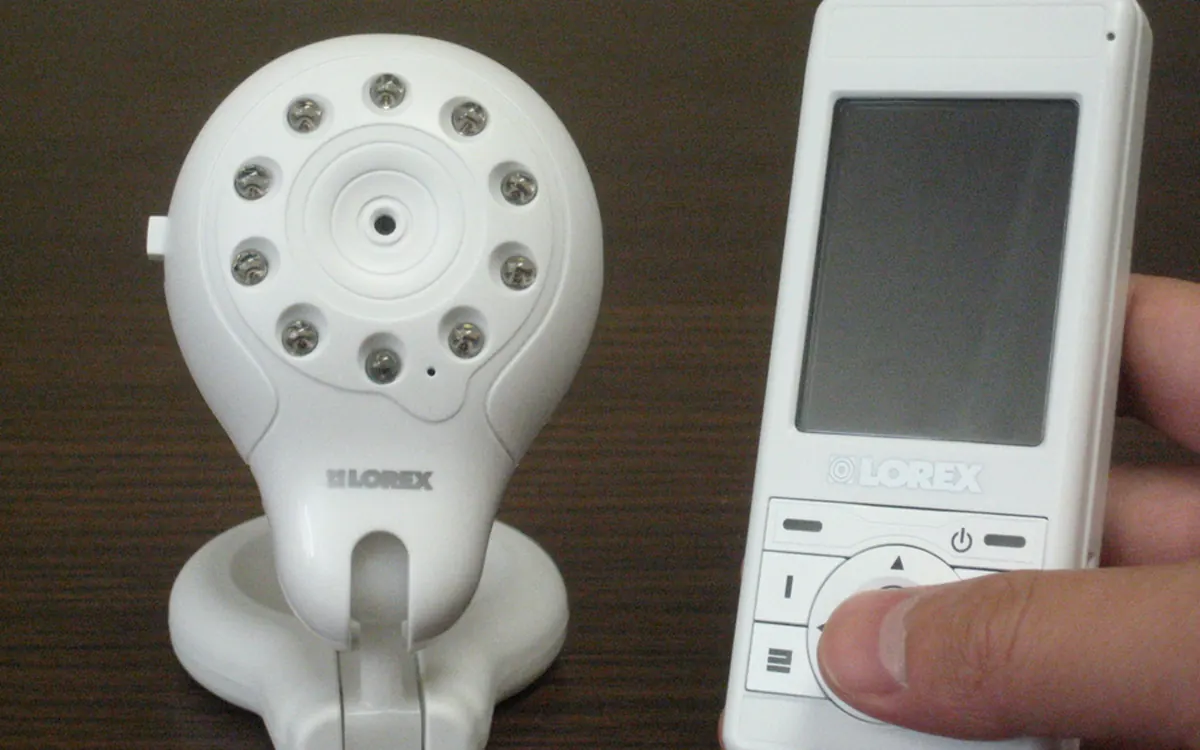
How to choose a baby monitor: Wi‑Fi vs non‑Wi‑Fi, security
Audio, local video or Wi‑Fi app monitor? How to choose a baby monitor by range, night vision, battery, privacy and security, plus the setup steps that matter.
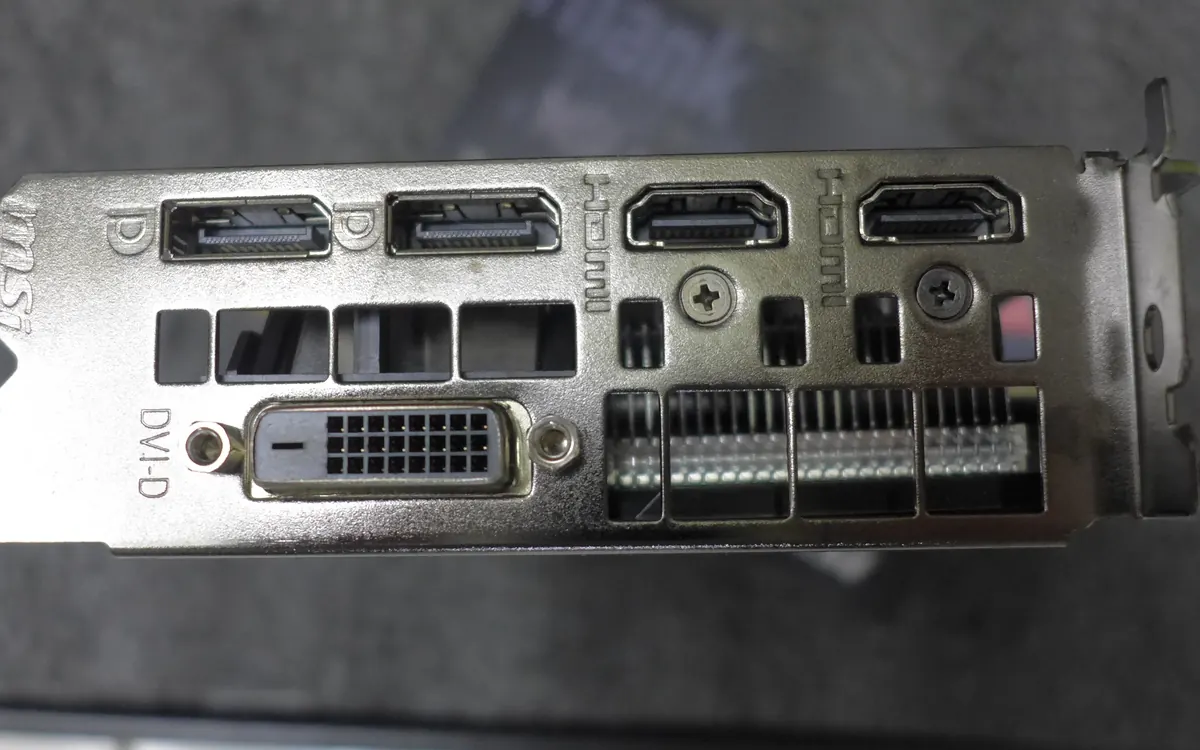
HDMI vs DisplayPort: which cable should you use in 2026?
HDMI vs DisplayPort explained: HDMI 2.1 and 2.2 vs DisplayPort 1.4 and 2.1 bandwidth, which to use for gaming monitors, TVs, consoles and laptops, plus cables.

Smart ring vs smartwatch: which health wearable should you buy?
Smart ring or smartwatch? Compare sleep and heart-rate tracking, battery life, workouts, GPS, subscriptions, sizing and phone compatibility to pick the right wearable.