FreeSync vs G-Sync: which matters for your monitor?
FreeSync vs G-Sync explained: how variable refresh rate works, the tiers (Premium, Pro, Compatible, Ultimate), GPU and console support, and what to buy in 2026.
LandGadget Newsroom · · 7 min read
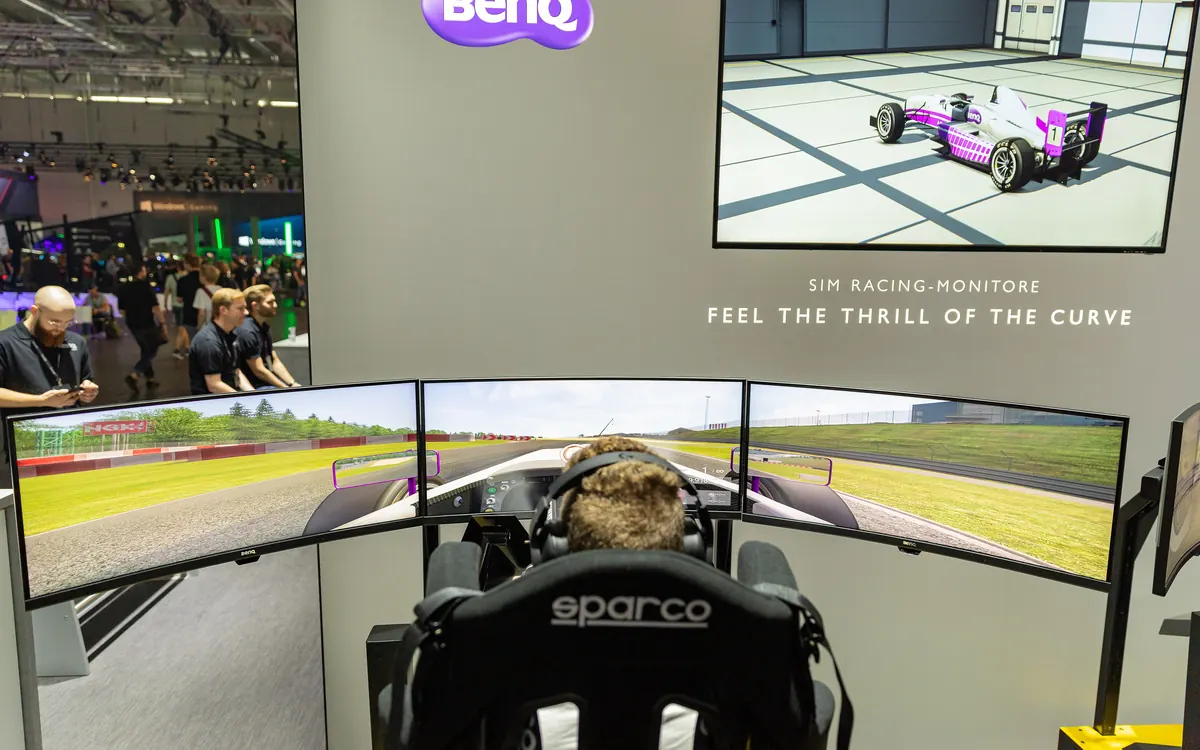
Quick verdictBuy for your graphics card: any FreeSync or G-Sync Compatible monitor works with AMD, Nvidia and Intel over DisplayPort; pay extra for G-Sync with a built-in module or MediaTek scaler only if you own an Nvidia card and want its extras.
Jump to the verdict ↓On this page
Shop for a gaming monitor and nearly every listing carries a FreeSync or G-Sync badge, sometimes both. They solve the same problem, but the tiers, the fine print and the compatibility rules are confusing. Here's what each badge actually means and how to choose.
The problem both solve: tearing vs stutter
A normal monitor refreshes at a fixed rate, say 144 times a second. Your graphics card, however, finishes frames at an uneven pace: 97 fps in one scene, 131 in the next. When a new frame arrives halfway through a refresh, the screen shows parts of two frames at once. That jagged horizontal split is screen tearing.
The old fix, V-Sync, makes the GPU wait for the monitor. Tearing disappears, but you get stutter whenever the frame rate drops below the refresh rate, and extra input lag.
Variable refresh rate (VRR) flips it around: the monitor waits for the GPU. Each refresh starts when a new frame is ready, so a game running at 97 fps is shown at 97 Hz. No tearing, no V-Sync stutter, and very little added latency. FreeSync and G-Sync are both brands of VRR.
FreeSync in a nutshell
AMD FreeSync launched in 2015 and is built on VESA Adaptive-Sync, an open part of the DisplayPort standard; AMD also supports it over HDMI. There's no licence fee for monitor makers, which is why FreeSync is everywhere. AMD certifies monitors in three tiers. In 2024 it raised the bar, according to its FreeSync page:
- FreeSync: tear-free, low latency, and now at least 144 Hz for monitors under 3,440 pixels wide.
- FreeSync Premium: at least 200 Hz under 3,440 pixels wide (120 Hz for ultrawides and wider), with low framerate compensation (LFC).
- FreeSync Premium Pro: Premium plus FreeSync HDR certification.
Older monitors certified under the earlier rules keep their badge, so a 75 Hz "FreeSync" screen from a few years ago is still out there.
G-Sync in a nutshell
Nvidia G-Sync came first, in 2013, and originally required a dedicated Nvidia hardware module inside the monitor. That module added cost but let Nvidia tune each panel, including variable overdrive (adjusting pixel response as the refresh rate changes, which reduces smearing or overshoot). Today there are three labels:
- G-Sync Compatible: a standard Adaptive-Sync monitor that Nvidia has tested and validated to work well with GeForce cards. No module.
- G-Sync: the full feature set, certified by Nvidia.
- G-Sync Ultimate: G-Sync plus high-end HDR.
The big change: since 2024, Nvidia has put full G-Sync features into MediaTek monitor scalers, so new monitors no longer need the separate module. The same move brought G-Sync Pulsar, which combines VRR with backlight strobing for clearer motion; the first Pulsar monitors went on sale in January 2026, Nvidia says.
FreeSync vs G-Sync side by side
| FreeSync (all tiers) | G-Sync Compatible | G-Sync / Ultimate | |
|---|---|---|---|
| Underlying tech | VESA Adaptive-Sync | VESA Adaptive-Sync | Nvidia module or MediaTek scaler |
| Works with AMD GPUs | Yes | Usually yes | Newer models usually; check |
| Works with Nvidia GPUs | Usually yes (DisplayPort) | Yes, validated | Yes, full features |
| Extras | LFC (Premium), HDR (Pro) | Basic VRR | Variable overdrive, Pulsar on some |
| Price impact | Little or none | Little or none | Higher |
Which GPUs work with which badge
- Nvidia cards (GeForce 10 series and newer) can run VRR on most FreeSync and Adaptive-Sync monitors over DisplayPort. Only G-Sync Compatible models are validated by Nvidia, but many others work fine; switch it on in the Nvidia app or Control Panel. Recent GeForce cards also support HDMI 2.1 VRR on compatible TVs.
- AMD cards work with FreeSync monitors over DisplayPort and HDMI. Older G-Sync monitors with the original module typically only offer VRR to Nvidia cards; newer module and MediaTek-based models generally also support Adaptive-Sync, but check the spec sheet.
- Intel Arc GPUs support Adaptive-Sync, so FreeSync and G-Sync Compatible screens are the safe pick.
- Consoles: Xbox Series X|S supports HDMI VRR and FreeSync; PS5 supports HDMI 2.1 VRR. For a console you need a monitor or TV with HDMI 2.1 VRR, not just a DisplayPort FreeSync badge.
What matters more than the logo
1. The VRR range. VRR only works between a minimum and maximum refresh rate, for example 48–165 Hz. If your frame rate drops below the minimum, tearing or stutter comes back.
2. Low framerate compensation (LFC). LFC shows each frame twice (or more) when fps drops below the range, so 40 fps on a 48–165 Hz screen runs at 80 Hz. All FreeSync Premium and Premium Pro monitors must support it. It's what keeps demanding games smooth.
3. Panel quality and overdrive. A slow panel with heavy overshoot will look worse than a good panel with any badge. Reviews that measure response times across the refresh range are worth reading. Our gaming monitor buying guide covers panel types, resolution and refresh rate.
4. Your GPU's real frame rate. VRR shines between roughly 50 and 120+ fps. If your card can't get near the monitor's range at its native resolution, a cheaper screen or a better graphics card will do more.
+ Pros
- FreeSync and G-Sync Compatible monitors are cheap and work across AMD, Nvidia and Intel
- Full G-Sync adds tuned overdrive and, on some models, Pulsar motion clarity
- Both remove tearing with far less lag than V-Sync
− Cons
- Badges don't guarantee a good panel or a wide VRR range
- Older module-based G-Sync monitors may lock AMD users out of VRR
- Console VRR needs HDMI 2.1, which many PC monitors skip
Our verdict
Pick the panel first, then the badge
For most people, any monitor with FreeSync Premium or G-Sync Compatible is the sensible choice: it costs little extra, works with all modern GPUs and includes LFC. Consider full G-Sync (now often via MediaTek scalers) only if you use an Nvidia card and want features like variable overdrive or Pulsar. Check the VRR range, LFC and HDMI 2.1 VRR if you also play on a console. If you game on a TV, our TV buying guide explains HDMI 2.1, VRR and ALLM.
Frequently asked questions
Can I use G-Sync on a FreeSync monitor?
Usually yes. Nvidia GeForce 10 series and newer cards can run VRR on most FreeSync and Adaptive-Sync monitors over DisplayPort. Nvidia only guarantees the models it validates as G-Sync Compatible, but you can enable it on others in the Nvidia app or Control Panel.
Does FreeSync work with Nvidia graphics cards?
Yes, through Nvidia's G-Sync Compatible mode over DisplayPort. Some monitors may flicker or show artefacts at low frame rates, which is why validated G-Sync Compatible models are the safer pick.
Is G-Sync better than FreeSync?
Full G-Sync monitors add Nvidia-tuned extras such as variable overdrive and, on some models, Pulsar strobing. For basic tear-free gaming, a good FreeSync Premium or G-Sync Compatible monitor performs similarly and costs less.
Should I turn V-Sync on with G-Sync or FreeSync?
VRR works on its own inside the monitor's refresh range. Many players cap the frame rate slightly below the maximum refresh rate so the game never leaves the VRR range; V-Sync settings above the cap matter less.
Do PS5 and Xbox support FreeSync or G-Sync?
Xbox Series X and S support HDMI VRR and FreeSync. PS5 supports HDMI 2.1 VRR. Neither uses G-Sync, so check that your monitor or TV supports VRR over HDMI 2.1.
More from Gaming
View all →Read next
NASA's new Artemis plan: Earth-orbit test, landing in 2028
Artemis III becomes a 2027 Earth-orbit test with both commercial landers, and the first crewed landing moves to 2028 with whichever lander is ready first.
RTX Remix 1.6 adds DLSS 5, Minecraft beta and Windows on Arm
NVIDIA's RTX Remix 1.6 brings DLSS 5 neural rendering, up to 6x Multi Frame Generation, a Minecraft Java beta mod and Arm support for Portal RTX and more.
How to check battery health on iPhone and Android
How to check your phone's battery health on iPhone, Samsung Galaxy, Pixel and other Android phones, what the numbers mean, and when a battery replacement is worth it.