What is a normal GPU temperature? Safe ranges and fixes
Normal GPU temperatures at idle and in games, when hot is too hot, hotspot and VRAM readings explained, how to check your GPU temp and 8 ways to cool it down.
LandGadget Newsroom · · 8 min read
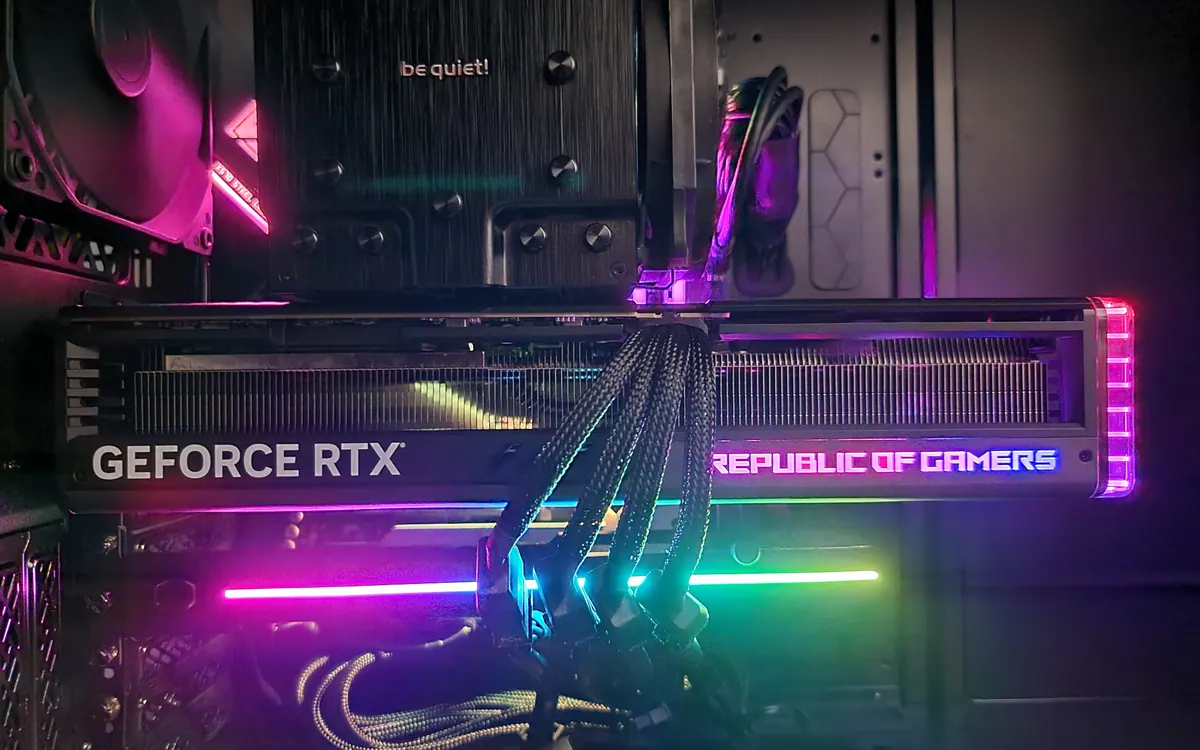
Graphics cards run hot by design. A GPU pulling 200–450 W in a game turns almost all of that power into heat, so seeing 75 °C on a monitoring tool is not a fault. What matters is whether the temperature is normal for your card, whether it is stable, and whether the card is slowing down because of it. This explainer gives you realistic ranges, shows how to read the different sensors, and lists the fixes that actually work.
Normal GPU temperature ranges
These are typical ranges for desktop graphics cards from Nvidia, AMD and Intel with their stock coolers, in a room at around 20–25 °C. Use them as a sanity check, not a specification.
| Situation | Typical GPU temperature | What it means |
|---|---|---|
| Idle / desktop | 30–50 °C | Normal. Cards with zero-RPM fans can sit at 45–55 °C because the fans are off. |
| Video, light games | 45–65 °C | Normal light load. |
| Long gaming session | 60–85 °C | Normal for most cards; compact and small-form-factor cards run at the top end. |
| Sustained 85–90 °C+ | Near the limit | Check airflow and dust; the card may be lowering clocks. |
| At the listed maximum | Throttling | The card protects itself by cutting speed; fix cooling. |
Laptop GPUs are a special case. Thin gaming laptops are often tuned to hold 80–87 °C under load, because the cooling system is small and fans are kept quieter. That is usually within the design limits; see our laptop buying guide for why chassis size matters.
How hot is too hot?
Every GPU has a maximum temperature set by its maker. Nvidia lists a "Maximum GPU Temperature" on the specification page of each GeForce card, typically around 90 °C for recent models. AMD and Intel define similar limits in their drivers. As a card approaches that number, its boost algorithm lowers clock speeds and voltage to keep it there, which is called thermal throttling. If temperatures still can't be controlled, the card or PC will shut down to protect itself.
So a GPU at 83 °C isn't going to break, but it may be giving you slightly lower or less consistent frame rates than the same card at 70 °C. Long term, cooler is better: lower temperatures mean less fan noise, less stress on solder joints and a longer life for fans and thermal pads.
GPU, hotspot and memory temperatures explained
Monitoring tools often show several readings, and they are not the same thing:
- GPU temperature (sometimes "edge" or "core") is the main sensor most tools and Task Manager show. The ranges above refer to this one.
- Hotspot or junction temperature is the hottest point measured across the chip. It normally reads 10–20 °C higher than the GPU temperature. AMD has said junction temperatures up to 110 °C can be expected during normal gaming on some of its cards. A gap much larger than about 25–30 °C can be a sign of poor contact between the cooler and the chip. Some newer cards and drivers no longer report this sensor.
- Memory (VRAM) temperature shows how hot the graphics memory is. Fast GDDR6X and GDDR7 chips can run warmer than the GPU itself; compare your numbers with reviews of the same model rather than with the core temperature.
How to check your GPU temperature
You don't need special hardware to check:
- Windows Task Manager: press Ctrl+Shift+Esc, open Performance and select your GPU. Recent versions of Windows 10 and 11 show the temperature of a dedicated GPU at the bottom.
- GPU-Z or HWiNFO (free): show GPU, hotspot and memory temperatures, clock speeds, fan speed and a PerfCap reason that tells you if the card is limited by temperature, power or voltage.
- MSI Afterburner: shows an in-game overlay with temperature, clocks and frame rate, and lets you set a custom fan curve. It works with most brands of card.
- Vendor apps: the Nvidia app and AMD Software: Adrenalin Edition both include performance overlays.
- Linux:
nvidia-smifor Nvidia cards, orsensors(lm-sensors) for AMD and Intel GPUs.
For a meaningful reading, play a demanding game for at least 15–20 minutes and look at the stable value, not the first spike. If you are testing a second-hand card, our used graphics card checklist explains how to run a proper stress test.
Why your GPU is running hot
- Dust clogging the heatsink fins and fans, the most common cause in PCs older than a year or two.
- Poor case airflow: not enough intake fans, a closed glass front panel, or the card's exhaust air being recycled.
- Room temperature: a hot room raises everything; GPU temperature rises roughly one-for-one with the air around it.
- Fan curve too quiet: some cards prioritise silence and let temperatures climb before fans ramp up.
- Uncapped frame rates: a menu screen running at 1,000 fps can work the card as hard as a demanding game.
- Dried thermal paste or pads, mostly on cards that are several years old.
- A faulty fan that has stopped spinning or rattles.
8 ways to lower GPU temperature
- Clean it. Shut down, unplug, and blow dust out of the heatsink and fans with compressed air in short bursts, holding the fans still so they don't overspin. Clean the case dust filters too.
- Fix the airflow. As a rule, fans at the front (and bottom) pull air in, fans at the rear and top push it out. Leave a few centimetres of space below the card and make sure cables aren't blocking intake fans.
- Cap your frame rate. Set a cap a few fps below your monitor's refresh rate in the driver or game, or use V-Sync/adaptive sync. Our FreeSync vs G-Sync explainer covers how that keeps motion smooth.
- Use upscaling. DLSS, FSR or XeSS render fewer pixels and can reduce the load at the same frame rate; see DLSS vs FSR vs XeSS.
- Set a custom fan curve in MSI Afterburner or your vendor's app: more fan speed at 70–80 °C usually costs a little noise and saves several degrees.
- Lower the power limit or undervolt. Reducing the power limit by 10–20% usually costs only a small amount of performance while cutting heat noticeably. Undervolting does the same more precisely but takes testing; go in small steps.
- Replace thermal paste and pads on an older card, if you are comfortable doing it. It can void the warranty, so check first, and use pads of the correct thickness.
- Check the fans and the PSU. Replace a dead fan, and make sure your power supply is adequate and its cables are fully seated.
For laptops: keep the vents clear, use the laptop on a hard surface, raise the rear slightly, and choose a balanced or quiet performance mode when you don't need maximum speed.
When to worry
Act quickly if you see artifacts (coloured dots or lines), driver crashes, black screens or sudden shutdowns in games together with high temperatures, or if a fan has stopped spinning. Those point to a cooling failure or a faulty card, not normal behaviour. If temperatures are fine but performance is still low, the bottleneck may be elsewhere: our explainer on CPU vs GPU bottlenecks shows how to tell. And if you are shopping for a new card, the cooler is one of the things to compare in our graphics card buying guide.
Frequently asked questions
Is 80 °C too hot for a GPU?
No. 80 °C during a long gaming session is within the normal range for most desktop and laptop graphics cards. It is only a concern if it keeps rising, the card throttles, or it used to run much cooler.
What is a normal GPU temperature at idle?
Around 30–50 °C for most desktop cards. Cards that stop their fans at idle often sit at 45–55 °C, which is also normal.
What is the maximum safe GPU temperature?
It depends on the model. Nvidia lists a maximum on each GeForce card's spec page, typically around 90 °C for recent cards, and the card reduces its speed before reaching it. Staying below 85 °C under load is a sensible goal.
Why is my GPU hotspot temperature so much higher?
The hotspot is the hottest point on the chip, so it normally reads 10–20 °C above the main GPU temperature. A much larger gap can indicate poor cooler contact or dried thermal paste.
Does high GPU temperature reduce FPS?
It can. When a card nears its temperature limit, it lowers clock speeds to protect itself, which can reduce or destabilise frame rates.
How can I check my GPU temperature in Windows?
Open Task Manager, go to Performance and select the GPU; the temperature is shown for dedicated graphics cards. Free tools such as GPU-Z, HWiNFO or MSI Afterburner show more detail, including hotspot and memory temperatures.
More from Computers & AI
View all →Read next
Best Monitor Size for Gaming: 24 vs 27 vs 32 Inch
What monitor size is best for gaming? Compare 24, 27, 32-inch and ultrawide screens by resolution, pixel density, desk distance, GPU power and the games you play.

Bluetooth Codecs Explained: SBC vs AAC vs aptX vs LDAC vs LC3
What Bluetooth audio codecs actually change: SBC, AAC, aptX, LDAC and LE Audio's LC3 compared — sound, latency, battery and which phones support which codec.

Electric motorcycle buying guide: range, charging, licence
How to choose an electric motorcycle: real-world range, battery size, home and fast charging, licence classes, running costs and what to check before you buy.