How to update your router firmware safely: 8 steps
How to update router firmware step by step: find your exact model, back up settings, update via app or web page without bricking it, then lock down the router.
LandGadget Newsroom · · 6 min read
On this page
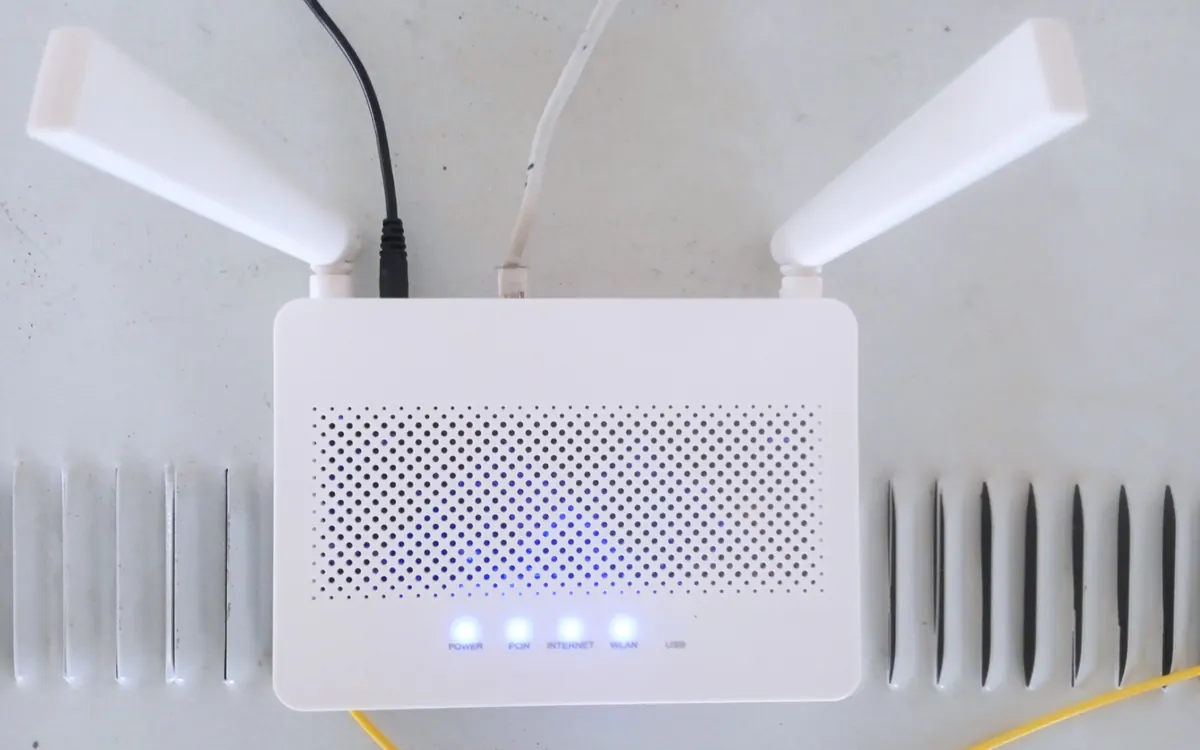
Your router is the front door of your home network. Every phone, laptop, smart speaker and camera goes through it, so a security hole in its software, the firmware, is a hole in all of them. Router makers fix these holes with firmware updates, as Asus did this week for three high-severity router flaws. The catch is that many routers don't update themselves, and plenty of people have never logged into theirs.
Updating is usually a ten-minute job. The steps below work for almost any brand; the menu names differ, but the logic is the same.
Find the exact model and hardware version
Turn the router over and look at the label. You need three things: the model name (for example "RT-AX58U" or "Archer AX55"), the hardware version if one is listed (often "H/W Ver" or "V2"), and the admin address and default login printed there.
The hardware version matters. Some makers sell several hardware revisions under the same model name, and firmware for one revision can damage another. If your router came from your internet provider, note that too: provider-supplied routers are often updated remotely by the provider, and their admin pages may hide the update option.
Check that it still gets updates
Go to the maker's official support page for your model (type the address yourself or use the maker's app; don't trust links from emails or ads). Look at the date of the latest firmware and any end-of-life or "end of support" notice.
If the newest firmware is years old or the model is marked end-of-life, no update will protect you from new flaws. Skip to the last step, because the safest option is a replacement.
Log in to the router
There are two common ways in:
- The maker's app (Asus Router, TP-Link Tether or Deco, Netgear Nighthawk or Orbi, Eero and others). Most mesh systems are managed only through an app.
- The web admin page. Connect to the router, ideally with an Ethernet cable, open a browser and type the address from the label. Common ones are
192.168.0.1,192.168.1.1or a name such asrouter.asus.com, but use whatever your label says.
If you never changed the admin password from the default on the label, change it now (see the hardening step below).
Back up your settings
Most routers have a Backup or Save configuration option in the administration or system menu. Save the file to your computer. Also write down your Wi-Fi name and password and any custom settings such as port forwarding or a fixed IP for a printer or game console.
Updates rarely wipe settings, but if something goes wrong and you need a factory reset, this saves you from rebuilding the network from memory.
Run the update the safe way
Look for a section called Firmware Upgrade, Software Update or System Update. Most modern routers have a Check for updates button that downloads the right file automatically, which is the safest route. If your router needs a manual upload, download the file only from the maker's support page for your exact model and hardware version, and unpack it if it comes as a ZIP.
While it installs:
- Don't unplug the router or switch off the power. A cut during writing is the classic way to "brick" a router.
- Don't close the page or start other changes. Wait until it says it's done and the router restarts on its own, which can take several minutes.
- Use a wired connection for manual uploads if you can; your Wi-Fi will drop during the restart anyway.
For mesh systems, the app normally updates all nodes together. Keep every node powered until they all come back online.
Turn on automatic updates
Once you're on the latest version, check for an automatic update or auto-upgrade option and switch it on, ideally scheduled for the middle of the night. Some routers only offer automatic notifications; in that case, make a habit of checking every month or two, and whenever you read about a flaw in your brand.
Lock it down after updating
An update fixes known bugs, but a few settings close many other doors:
- Change the admin password to a long, unique one. It should be different from your Wi-Fi password.
- Use WPA3 or WPA2/WPA3 Wi-Fi security (WPA2-AES at minimum) and a strong Wi-Fi password.
- Turn off remote management from the internet (often called WAN access or remote web access) unless you really need it.
- Disable WPS if you don't use it, and consider turning off UPnP, which lets devices open ports on their own.
- Put visitors and cheap smart gadgets on a guest network, so a weak device can't see your laptop.
- Review the list of connected devices and remove anything you don't recognise.
If you care about your smart home working even when the internet is down, see our guide to local control for smart home devices.
Know when to replace it
Replace the router when the maker stops releasing firmware for it, when it's marked end-of-life, or when it can't handle your internet speed or the number of devices you have. A new router also brings newer security standards. Our mesh Wi-Fi buying guide explains when mesh is worth it, and our Wi-Fi 7 explainer covers whether you need the newest standard or a good Wi-Fi 6/6E model will do.
Frequently asked questions
How often should I update my router firmware?
Install updates as soon as they appear. If your router can't update itself automatically, check for new firmware every month or two, and straight away when a security flaw in your brand is in the news.
Will updating firmware delete my Wi-Fi settings?
Usually not; most updates keep your network name, password and other settings. Back up the configuration first anyway, in case you need a factory reset.
Can a firmware update break my router?
It is rare, but cutting the power mid-update or flashing firmware for the wrong model or hardware version can leave a router unusable. Use the built-in update check or the exact file for your model, and don't interrupt it.
My internet provider gave me the router. Do I need to update it?
Many providers update their routers remotely, so the option may be hidden. Check the admin page or ask your provider, and request a newer model if yours no longer receives updates.
How do I know if my router is too old to be safe?
Look on the maker's support page. If the last firmware release is years old or the model is listed as end-of-life, it will not get fixes for new vulnerabilities and should be replaced.
More from Computers & AI
View all →Read next

FreeSync vs G-Sync: which matters for your monitor?
FreeSync vs G-Sync explained: how variable refresh rate works, the tiers (Premium, Pro, Compatible, Ultimate), GPU and console support, and what to buy in 2026.

NASA's new Artemis plan: Earth-orbit test, landing in 2028
Artemis III becomes a 2027 Earth-orbit test with both commercial landers, and the first crewed landing moves to 2028 with whichever lander is ready first.
How to check battery health on iPhone and Android
How to check your phone's battery health on iPhone, Samsung Galaxy, Pixel and other Android phones, what the numbers mean, and when a battery replacement is worth it.