2.4GHz vs 5GHz Wi-Fi: which band should you use?
2.4GHz vs 5GHz Wi-Fi explained: range, speed and interference, why smart home devices need 2.4GHz, when 6GHz helps, and how to fix devices that won't connect.
LandGadget Newsroom · · 7 min read
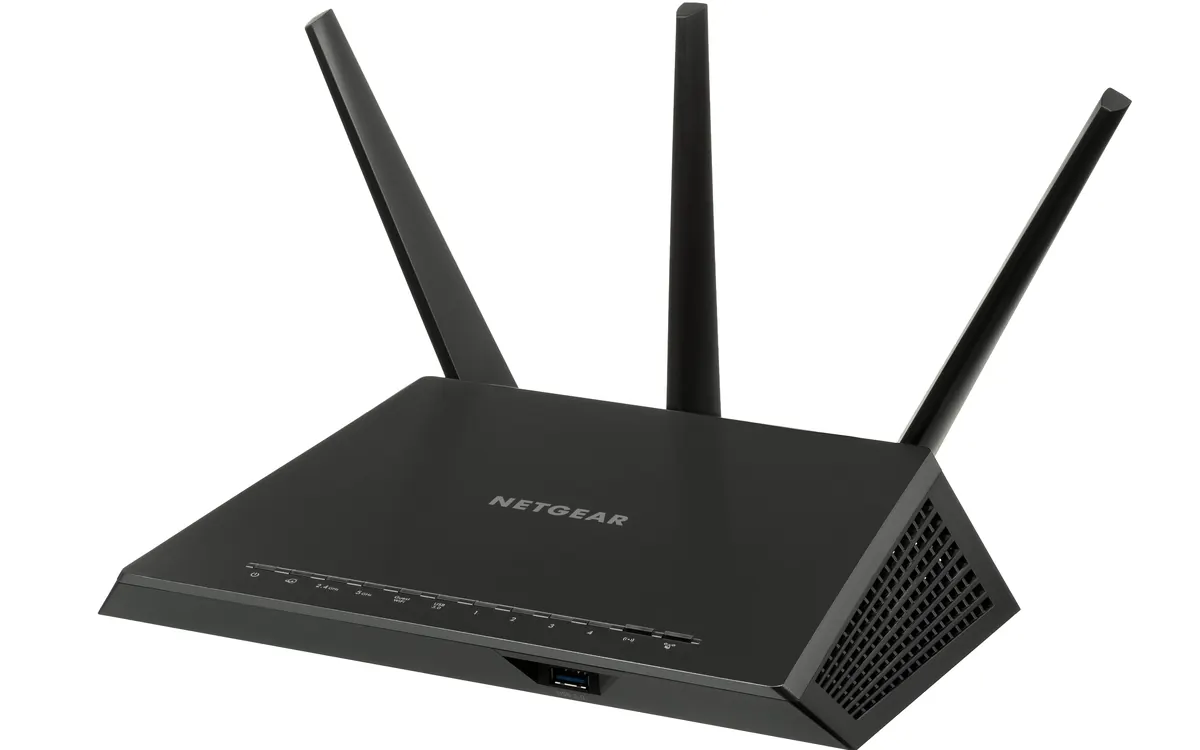
Quick verdictUse 5GHz (or 6GHz) for phones, laptops and TVs near the router, keep 2.4GHz switched on for smart home gadgets and far-away rooms, and let one network name handle both unless a device refuses to pair.
Jump to the verdict ↓On this page
Almost every home router today is dual-band: it broadcasts Wi‑Fi on 2.4GHz and 5GHz at the same time, and newer Wi‑Fi 6E and Wi‑Fi 7 models add 6GHz. The bands behave very differently, which explains why your laptop flies next to the router but crawls in the bedroom, and why a new smart plug says it "can't find the network". Here is what each band is good at and how to set up your home so every device gets the right one.
The short answer
- 5GHz is the faster band. Use it for phones, laptops, consoles and streaming boxes that are in the same room as the router or one wall away.
- 2.4GHz is the long-range band. It's slower but goes further and copes better with walls and floors, and it's the band most smart home devices use.
- 6GHz (Wi‑Fi 6E and Wi‑Fi 7) is the fastest and least crowded, but has the shortest range and only works with newer devices.
| 2.4GHz | 5GHz | 6GHz | |
|---|---|---|---|
| Range through walls | Best | Medium | Shortest |
| Typical speed | Lowest | High | Highest |
| Interference | Crowded | Less crowded | Least crowded |
| Non-overlapping channels | 3 (1, 6, 11) | Many | Most |
| Device support | Almost everything | Most phones, laptops, TVs | Wi‑Fi 6E/7 devices only |
Why 2.4GHz goes further
Lower-frequency radio waves lose less energy travelling through air, plasterboard, brick and furniture. That is why the 2.4GHz signal often still shows a bar or two at the far end of a flat or in the garden when 5GHz has dropped out. The trade-off is capacity: the 2.4GHz band is narrow, so routers usually run it with 20MHz-wide channels, which carry far less data than the 80MHz or 160MHz channels used on 5GHz.
Why 5GHz is faster (but shorter)
The 5GHz band has much more spectrum, so routers can use wider channels and more of them. Wider channels mean higher throughput, which is what you notice on large downloads, 4K streaming and cloud gaming. The higher frequency, however, is absorbed more easily by walls and floors, so speed drops quickly with distance. Some 5GHz channels are DFS channels, which the router must leave if it detects weather or military radar nearby; that can cause a short disconnection on rare occasions.
Interference: the crowded 2.4GHz band
In most countries the 2.4GHz band offers only three channels that don't overlap: 1, 6 and 11. In a block of flats, dozens of neighbouring routers fight over those three. The same band is also used by Bluetooth, baby monitors, wireless mice, older cordless gadgets and Zigbee and Thread, the low-power networks many smart home sensors use. Even microwave ovens leak energy around 2.4GHz, which is why a video call can stutter while someone heats lunch.
Practical tips:
- Let the router pick the 2.4GHz channel automatically, or set it to 1, 6 or 11 — never in between.
- Keep 2.4GHz at 20MHz channel width; 40MHz rarely helps in busy areas.
- If you use Zigbee, pick a Zigbee channel that sits between busy Wi‑Fi channels (Zigbee 15, 20 and 25 are common choices). Our Matter vs Thread vs Zigbee explainer covers how these networks fit together.
Why smart home devices use 2.4GHz
Open the box of a smart plug, bulb, camera or robot vacuum and you'll usually find "2.4GHz Wi‑Fi only" in small print. There are good reasons: these devices send tiny amounts of data, so they don't need 5GHz speed; they're often installed far from the router; and simpler single-band radio chips are cheaper and use less power. Our smart plug buying guide and robot vacuum setup guide both run into this limit.
That's why you should never switch off the 2.4GHz band to "force" devices onto 5GHz. Your phone will be fine; your doorbell, thermostat and plugs will drop offline.
+ Pros
- 2.4GHz: better range and wall penetration
- 2.4GHz: supported by almost every smart home gadget
- 5GHz: much higher speed and less interference
− Cons
- 2.4GHz: slower and crowded in flats
- 5GHz: weaker through walls and floors
- 6GHz: needs new devices and has the shortest range
One network name or two?
Most modern routers and mesh systems use band steering (sometimes called Smart Connect): both bands share one network name (SSID) and password, and the router nudges each device to the band that suits it. For everyday use this is the best setup — your phone moves to 5GHz near the router and falls back to 2.4GHz at the far end of the home.
It can confuse some smart gadgets during setup, because the setup app often expects your phone to be on the same band as the device. If a new device won't pair:
- Move the device and your phone close to the router or nearest mesh node.
- Turn off mobile data on the phone during setup so it stays on Wi‑Fi.
- If that fails, temporarily give the 2.4GHz band its own network name, connect the phone to it, pair the device, then switch back. Many routers also let you create a separate 2.4GHz-only IoT or guest network, which keeps smart gadgets apart from your laptops.
- Check security settings: some older devices can't join a WPA3-only network, so a WPA2/WPA3 mixed mode may be needed for them.
- Update the router: our guide on how to update router firmware shows where to find it.
Where 6GHz and Wi‑Fi 7 fit
Wi‑Fi 6E opened the 6GHz band, and Wi‑Fi 7 builds on it with wider channels and Multi-Link Operation, which lets a device use several bands at once. 6GHz is excellent for short-range, high-speed links — a laptop or headset in the same room as the router — but it reaches even less far than 5GHz, and smart home gadgets don't use it. Our Wi‑Fi 7 explainer covers the details. If whole rooms have weak signal on every band, the fix is usually more access points, not a different band: see our mesh Wi‑Fi buying guide.
Frequently asked questions
Is 5GHz always faster than 2.4GHz?
Close to the router, yes. Far away or behind several walls, a strong 2.4GHz signal can beat a weak 5GHz one, because 5GHz speed falls off quickly with distance.
Should I turn off 2.4GHz on my router?
No. Most smart plugs, bulbs, cameras, doorbells and robot vacuums only work on 2.4GHz and will go offline. Keep both bands on and let the router steer devices.
Why does my smart device say it can't connect to 5GHz?
Its radio only supports 2.4GHz. Make sure the 2.4GHz band is enabled, move closer to the router and, if needed, temporarily split the bands into two network names while you pair it.
Does 2.4GHz Wi-Fi interfere with Bluetooth?
They share the same band, so heavy Wi-Fi traffic can cause occasional Bluetooth dropouts. Both technologies hop or pick channels to reduce clashes, and moving devices away from the router usually helps.
Which band is better for gaming?
5GHz or 6GHz if the console or PC is near the router, because they offer more speed and less interference. A wired Ethernet connection is still the most stable option.
Our verdict
Both bands on, one network name, 2.4GHz for gadgets
Don't choose one band for the whole house. Keep 2.4GHz and 5GHz both enabled under one network name, let phones, laptops and TVs use 5GHz (or 6GHz) near the router, and leave 2.4GHz for smart home devices and distant rooms. Only split the bands when a stubborn gadget refuses to pair, and fix dead zones with better router placement or mesh nodes rather than by turning a band off.
More from Smart Home
View all →Read next
144Hz vs 240Hz: which refresh rate do you need?
60Hz vs 144Hz vs 240Hz explained: what refresh rate really changes, the frame rate your PC needs, which games benefit, and when 360Hz or 500Hz is worth it.
EV charging connector types explained: Type 2, CCS, NACS
Type 1, Type 2, CCS1, CCS2, CHAdeMO, NACS and GB/T: which EV plug your car uses, which chargers fit, where each is used and when an adapter is safe to use.
How many case fans do I need? PC airflow setup guide
How many case fans a gaming PC really needs, which way to point them, intake vs exhaust, positive vs negative pressure, 120 vs 140 mm and how to set fan curves.