How many case fans do I need? PC airflow setup guide
How many case fans a gaming PC really needs, which way to point them, intake vs exhaust, positive vs negative pressure, 120 vs 140 mm and how to set fan curves.
LandGadget Newsroom · · 7 min read
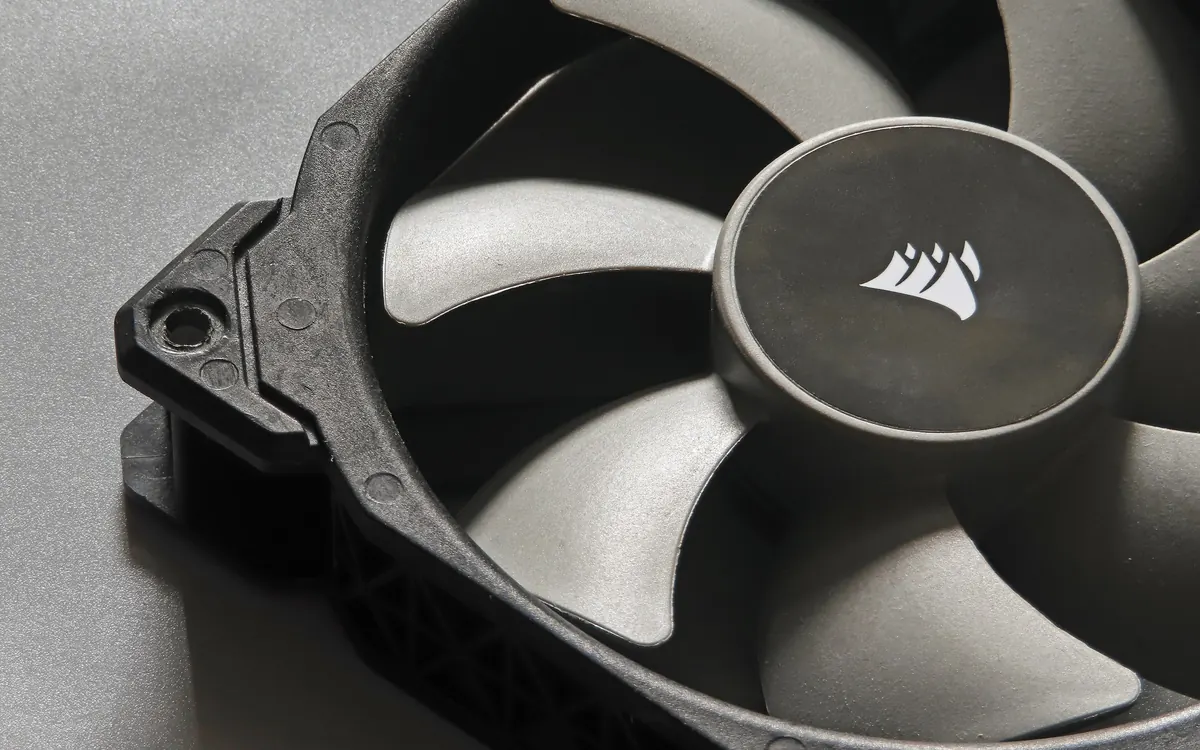
Case fans are the cheapest cooling upgrade in a desktop PC, and also the easiest to get wrong. Too few and hot air from the graphics card and CPU lingers inside the case. Too many, or pointed the wrong way, and you get noise, dust and no better temperatures. This guide explains how many fans a typical PC needs, how to orient them and how to tune them, without invented benchmark numbers.
Why case airflow matters
Your CPU cooler and graphics card cooler only move heat off the chips. They dump it into the air inside the case. Case fans have one job: replace that warm air with cooler room air. If they can't, every other cooler works with warmer air, and components run hotter and louder.
That is why a high-end air cooler in a case with no fans can perform worse than a mid-range cooler in a well-ventilated case. If your processor is already running hot, check what a normal CPU temperature is first, then use our guide on how to check CPU temperature to measure before and after any change.
How many case fans do you need?
There is no single right number, but these rules of thumb work for most mid-tower cases:
| Fans | Typical layout | Good for | |
|---|---|---|---|
| Minimum | 2 | 1 front intake, 1 rear exhaust | Office PCs, low-power CPUs and GPUs |
| Sweet spot | 3 | 2 front intake, 1 rear exhaust | Most gaming PCs |
| High-end | 4–6 | 3 front intake, 1 rear + 1–2 top exhaust | Hot GPUs, high-core-count CPUs, AIO radiators |
Beyond about five or six fans, gains usually get small while noise and cost keep rising. Many cases ship with one or two fans, so adding one or two front intakes is often the best upgrade for the money.
Which way should case fans face?
A fan pushes air from its open side towards the side with the plastic struts (the arms that hold the motor and usually the sticker). Many fans also have two small arrows moulded into the frame: one shows airflow direction, the other blade rotation.
The standard layout follows how heat behaves:
- Front and bottom fans: intake. They pull cool air from the room, usually through dust filters.
- Rear and top fans: exhaust. Warm air rises, so pushing it out at the top and back works with nature, not against it.
- Side-panel fans: usually intake, aimed at the graphics card, if the case supports them.
Avoid setups where two fans fight each other, for example a top front fan blowing out right next to a front fan blowing in. That just recirculates air.
Positive vs negative pressure
Positive pressure means more air is pushed in than pulled out. The extra air escapes through gaps, vents and slots, so dust can only get in through the filtered intakes. Negative pressure is the opposite: the case pulls air in through every unfiltered gap, which brings in more dust.
For most builds, aim for neutral to slightly positive pressure: equal or slightly more intake fans than exhaust, or intake fans spinning a little faster. The temperature difference between the two approaches is usually small; the dust difference is easy to see after a few months.
120 mm vs 140 mm fans
At the same airflow, a 140 mm fan can spin slower than a 120 mm one, so it is often quieter. Check what your case supports first: many front panels take either three 120 mm or two 140 mm fans. Within the same space, two 140 mm fans can be as effective as three 120 mm fans, with fewer parts.
You will also see fans sold as airflow or static pressure models. Airflow fans suit open areas such as a rear exhaust. Static-pressure fans push better through resistance, which makes them the better choice on radiators, dense heatsinks and fine dust filters.
3-pin vs 4-pin fans and fan curves
- 3-pin (DC) fans are speed-controlled by voltage.
- 4-pin (PWM) fans get a separate control signal, which usually allows smoother, lower minimum speeds.
Connect fans to the motherboard's fan headers or a fan hub so you can control them. Splitters and hubs are fine, but check your motherboard manual for how much current each header can supply before chaining many fans.
Then set a fan curve in the BIOS/UEFI or the motherboard's software. A good curve keeps fans quiet at idle and ramps up gradually under load. For case fans, tying the curve to the CPU temperature makes them spike every time you open a browser; if your board allows it, base case fans on a system, chipset or GPU temperature sensor, and add a few seconds of smoothing.
Where to mount an AIO radiator
If you use an AIO liquid cooler, its radiator fans are part of your case airflow:
- Top, as exhaust: the most common choice. The CPU gets slightly warmer air from inside the case, but the GPU isn't fed with heated air.
- Front, as intake: the CPU gets the coolest air, but warm air from the radiator then flows over the graphics card.
Either way, avoid mounts where the pump is the highest point of the loop, because trapped air collects there and can cause noise. Not sure whether you need an AIO at all? Our air cooler vs AIO liquid cooler comparison explains the trade-offs.
Quick checklist for better airflow
- Start with at least one intake and one exhaust, then add front intakes.
- Check every fan's direction before you close the case.
- Clean dust filters every month or two; a clogged filter can choke an intake.
- Tidy cables so they don't block the front intakes.
- Leave space between the case and the wall or desk, especially at the back and top.
- Run a game or stress test for 15–20 minutes and compare temperatures and noise before and after.
The graphics card is usually the biggest heat source in a gaming PC, so watch it too: here's what a normal GPU temperature is. If airflow is fine but temperatures are still high, the problem may be the cooler mount or old paste; see our guide on how to apply thermal paste.
Frequently asked questions
How many case fans does a gaming PC need?
For most mid-tower gaming PCs, three fans are enough: two intakes at the front and one exhaust at the rear. Hot high-end GPUs or AIO radiators can justify four to six.
Should case fans blow in or out?
Front and bottom fans should usually blow in, rear and top fans should blow out. Warm air rises, so exhausting at the top and back works with natural convection.
How do I know which way a fan blows?
Air enters on the open side of the fan and exits on the side with the support struts and sticker. Many fans also have an arrow on the frame showing airflow direction.
Is positive or negative air pressure better?
Slightly positive pressure is the usual recommendation. Temperatures are similar, but positive pressure keeps dust out of unfiltered gaps.
Are more fans always better?
No. After about three to five good fans the temperature gains get small, while noise and cost go up. Layout, clean filters and fan curves matter more.
Are 140 mm fans better than 120 mm?
At the same airflow, 140 mm fans can spin slower, so they are often quieter. Use them if your case supports them; 120 mm fans are fine and more widely compatible.
More from Computers & AI
View all →Read next

Best Monitor Size for Gaming: 24 vs 27 vs 32 Inch
What monitor size is best for gaming? Compare 24, 27, 32-inch and ultrawide screens by resolution, pixel density, desk distance, GPU power and the games you play.

Bluetooth Codecs Explained: SBC vs AAC vs aptX vs LDAC vs LC3
What Bluetooth audio codecs actually change: SBC, AAC, aptX, LDAC and LE Audio's LC3 compared — sound, latency, battery and which phones support which codec.

Electric motorcycle buying guide: range, charging, licence
How to choose an electric motorcycle: real-world range, battery size, home and fast charging, licence classes, running costs and what to check before you buy.