How to set up a robot vacuum: 10 setup tips that matter
New robot vacuum? Where to put the dock, how to get a clean first map, no-go zones, schedules, Wi-Fi and smart home setup, and the upkeep that keeps it working.
LandGadget Newsroom · · 8 min read
On this page
- Pick the right spot for the dock
- Charge it and update the firmware first
- Get it onto your Wi-Fi
- Tidy up before the first mapping run
- Edit the map straight away
- Set cleaning rules room by room
- Schedule cleans for when you are out
- Connect it to your smart home
- Check the privacy settings
- Keep up with basic maintenance
A robot vacuum that wanders, gets stuck under the sofa or skips half the flat is usually not a bad robot. It is a robot that was set up in a hurry. The first hour you spend with it, especially the dock position and the first map, shapes how well it cleans for months. This guide walks through setup in the order that works, whatever brand you bought. If you are still choosing a model, start with our robot vacuum buying guide.
Settings names differ between apps (Roborock, Dreame, Ecovacs, iRobot, Xiaomi and others), and every manual has its own rules. When this guide and your manual disagree, follow the manual.
Pick the right spot for the dock
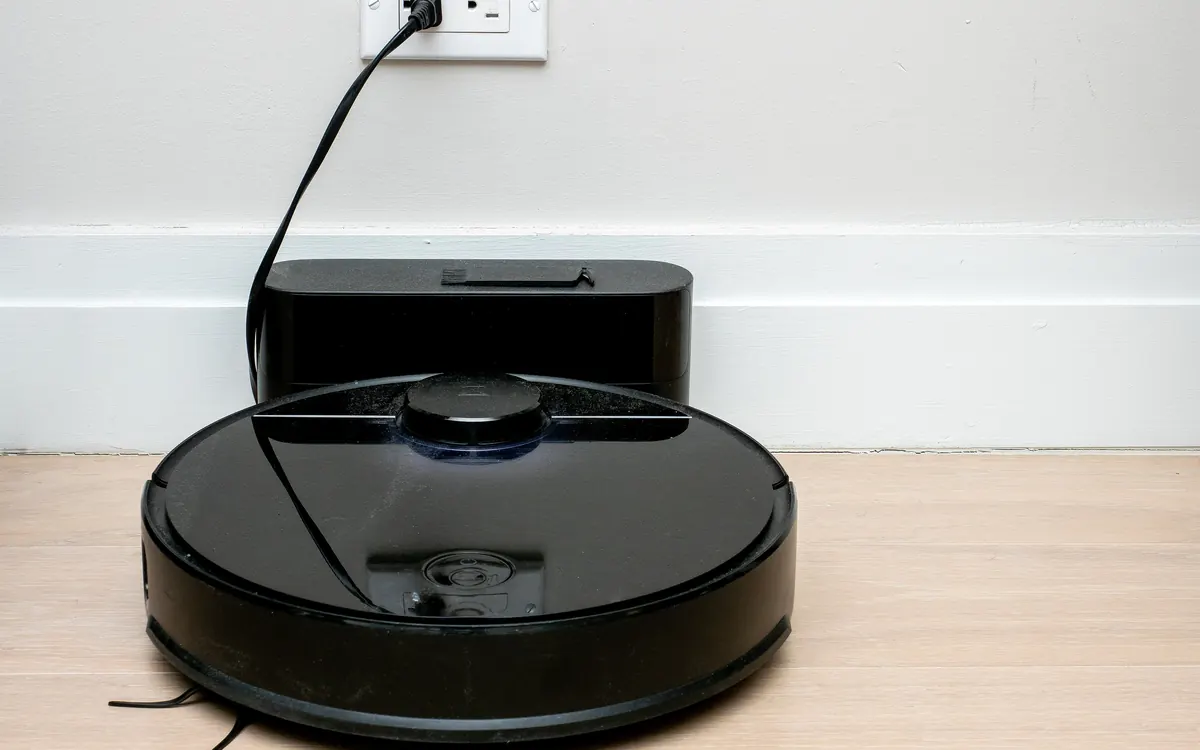
The dock is the robot’s home base and its reference point on the map, so choose carefully before the first run:
- Flat, hard floor against a wall, close to a socket, not on a thick rug.
- Clear space on both sides and in front. Manuals specify how much; robots struggle to dock in a cramped corner or behind a door.
- Away from stairs and drops, so the robot does not have to approach an edge every time it returns.
- Good Wi-Fi coverage. The dock spot is where the robot spends most of its time and downloads updates.
- Not in direct sunlight if your model has infrared docking sensors, and away from mirrors, which can confuse some sensors.
Self-emptying and mop-washing docks are big and can be loud when they empty the bin. A hallway often works better than a bedroom. If the dock refills and drains water by itself, make sure the plumbing kit really fits that spot before you commit.
Charge it and update the firmware first
Let the robot charge fully on the dock before its first job, as most manuals recommend. While it charges, install the app, create your account and install any firmware update the app offers. Updates often improve navigation, obstacle avoidance and docking, and it is better to map the home with current software than to rebuild the map after a big update.
Get it onto your Wi-Fi
Most robot vacuums connect only to 2.4 GHz Wi-Fi. If your router or mesh system uses one network name for both 2.4 and 5 GHz, pairing usually still works, but if it fails, temporarily turn on a separate 2.4 GHz network or move closer to the router. Weak signal in some rooms can make the app lose contact mid-clean, so dead zones are worth fixing; our mesh Wi-Fi buying guide explains how.
Use a strong, unique password for the robot’s app account and turn on two-factor sign-in if it is offered. The account controls a device that can drive around your home and, on some models, carries a camera.
Tidy up before the first mapping run
The first run builds the map that every later clean depends on, so give it a fair chance:
- Open every interior door you want cleaned, and keep them open in the same way for future cleans.
- Pick up cables, phone chargers, socks, toys and pet bowls.
- Tie up long curtains and tuck in rug tassels.
- Turn the lights on if your robot relies on a camera to navigate.
- Lift light chairs onto tables if they block access.
If your app offers a quick mapping or map-only run, use it: the robot explores without cleaning and finishes faster. Stay at home for the first run so you can rescue it if it gets stuck, and note where that happens.
Edit the map straight away
Once the map appears, spend ten minutes on it. This is what turns a generic robot into one that knows your home:
- Split and merge rooms so the app’s rooms match real ones, and name them. Room names also make voice commands like “clean the kitchen” work.
- Draw no-go zones around pet bowls, floor lamps with wide bases, charging cables you cannot move and the space under a low bed where it keeps getting stuck.
- Add virtual walls across doorways or areas you never want cleaned.
- Mark carpets if the app did not detect them, so mop-lift and carpet rules work.
- Set no-mop zones for rugs, parquet you would rather keep dry and areas near the dock’s water tanks.
Most apps save the map once you confirm it. If yours supports several floors, map each floor separately and carry the robot (not the dock) upstairs.
Set cleaning rules room by room
Running every room on maximum power wastes battery and noise. Use per-room settings where your app has them:
- Higher suction on carpets and in hallways, quieter modes in bedrooms.
- Mopping only on hard floors, with the water level suited to the floor. Too much water on wooden floors is a common mistake.
- Two passes in the kitchen and entrance, where dirt builds up fastest.
- A sensible cleaning order, for example kitchen last, so the robot does not track crumbs through the flat.
If your model has an obstacle-avoidance setting for pet waste or cables, turn it on, and keep it updated.
Schedule cleans for when you are out
Robots do their best work in an empty home: no feet, no pets underfoot and no noise complaints. Set a schedule for when you are usually out, and use do-not-disturb hours so the robot does not resume a job or run the self-empty cycle at night.
A daily light clean of busy rooms plus a weekly full clean tends to keep floors tidier than one long run, but the right rhythm depends on your home, pets and tolerance for noise. Start simple and adjust after a week.
Connect it to your smart home
Most robot vacuums work with Amazon Alexa and Google Home through the maker’s cloud integration, so you can start, stop or send them to a room by voice once rooms are named. Matter added a robot vacuum device type in version 1.2, and support from robot makers and smart home platforms is still rolling out, so check whether your specific model and platform support it before relying on it. Our explainer on Matter and Thread covers how that standard works.
Useful automations include starting a clean when everyone leaves home, or pausing it when a door sensor reports that someone has come back.
Check the privacy settings
Robots with front cameras use images to recognise obstacles, and some offer remote video viewing. In the app, check:
- whether images are stored or uploaded and whether you can turn that off,
- whether remote camera access is enabled, and who in your household can use it,
- what data the account shares with partners.
If you share the home, tell everyone if the robot has a camera that can be viewed remotely. For more on keeping connected devices in check, see our home security camera buying guide.
Keep up with basic maintenance
A clogged brush or a dusty sensor causes more “my robot is useless” moments than bad software. A light routine is enough:
- After each run (if there is no self-empty dock): empty the bin.
- Weekly: remove hair from the main brush and side brush, wipe the cliff sensors and the charging contacts with a dry cloth, and rinse mop pads or the dock’s mop tray.
- Monthly or as the app suggests: clean or tap out the filter, check wheels for wrapped hair, and empty and clean the dirty-water tank of a mop dock.
- Replace parts (filters, side brushes, bags, pads) at the intervals the app or manual gives. Many apps track this for you.
If the robot starts missing spots, losing its position or failing to dock, clean the sensors and contacts first. If you have moved furniture a lot, run a new map rather than fighting the old one.
Frequently asked questions
Do I have to map my home before the first clean?
Robots with LiDAR or camera navigation build a map during the first run either way. A dedicated mapping run, if your app offers it, is faster and gives a cleaner map, and you should edit rooms and no-go zones before scheduling regular cleans.
Can a robot vacuum work without Wi-Fi?
Many can start a clean from a button on the robot, but without Wi-Fi you usually lose the app, maps, room selection, schedules and firmware updates. Check your manual, because offline behaviour differs between models.
Why does my robot vacuum keep getting stuck in the same place?
Usually because of a low gap under furniture, a rug edge, cables or a threshold it cannot climb. Add a no-go zone or virtual wall there, raise or block the gap, and keep the cliff sensors clean.
Where should I put a self-emptying dock?
On a flat hard floor against a wall near a socket, with the clearance your manual lists on each side and in front, good Wi-Fi coverage and enough distance from bedrooms that the emptying noise does not bother anyone.
How often should I clean the brushes?
A quick check about once a week is a good habit, more often with long hair or pets. Replace brushes, filters and pads at the intervals in the manual or app.
More from Smart Home
View all →Buying guide
Aqara Outdoor Plug H2 EU: Thread or Zigbee mode?
Buying guide
How to choose a smart lock in 2026
Read next

What is Claude Duet? Anthropic’s proactive AI agent explained
Claude Duet is Anthropic’s new proactive agent app: a daily brief, background tasks on its own virtual machine and approvals before it acts. How it works.

EA shuts BioWare and cancels the next Mass Effect
EA is closing BioWare, the studio behind Mass Effect and Dragon Age, and ending work on the next Mass Effect as it cuts about 400 jobs. What it means for fans.
Spotify's native in-car app debuts in Audi, no phone needed
Spotify's new built-in car app launches first in Audi's A6 e-tron, Q6 e-tron, A5, Q5 and A6, with video and lyrics when parked or charging and Jam for passengers.