Where to Put Your Wi‑Fi Router for the Best Signal
Router placement matters as much as the router. Where to put it, what to avoid (walls, metal, microwaves), antenna angles and when to add mesh instead.
LandGadget Newsroom · · 5 min read
On this page
- Put it as close to the centre of the home as you can
- Raise it off the floor
- Keep it in the open, not in a cabinet
- Avoid walls and materials that block Wi‑Fi
- Keep distance from other electronics
- Angle the antennas in different directions
- Think about who needs the most speed
- Check the result with real measurements
- When placement isn't enough: add mesh or an access point
A faster router won't help much if it sits in the wrong place. Wi‑Fi is radio: it spreads out from the router, loses strength with distance and gets absorbed or reflected by walls, furniture and appliances. Moving the router a couple of metres often fixes dead zones for free. Work through these rules in order.
Put it as close to the centre of the home as you can
A router sends its signal out in all directions, roughly like a sphere. If it sits by an outside wall, half of that coverage goes to the street or your neighbours. Aim for the middle of the area where you actually use devices — a hallway or central living room often works best. If your internet line enters the home in a corner, a longer Ethernet cable from the modem or ONT to a central spot is usually worth it.
Raise it off the floor
Signals spread better from a shelf or the top of a cabinet, roughly at chest-to-head height or higher. On the floor, furniture, sofas and people block much of the signal. In a two-storey house, a router on the ground floor ceiling level or the upper floor's floor level — for example a high shelf downstairs — reaches both floors more evenly.
Keep it in the open, not in a cabinet
Closed TV stands, cupboards and media boxes with doors cut range, and many routers also run hotter when enclosed. Leave at least some free space around the router, especially in front and above it. Hiding it behind a big TV is a classic mistake: the TV's metal back panel acts like a shield.
Avoid walls and materials that block Wi‑Fi
Not all obstacles are equal. Drywall and wood cost relatively little signal; brick and especially reinforced concrete cost much more. Metal is the worst — fridges, metal doors, radiators, filing cabinets and even large mirrors (with a metal backing) reflect radio waves. Water absorbs Wi‑Fi too, so aquariums, water heaters and boilers make poor neighbours. Try to have as few thick walls as possible between the router and the rooms where you need speed.
Keep distance from other electronics
Microwave ovens use the same 2.4 GHz band as Wi‑Fi and can disrupt it while running. Cordless phone bases, baby monitors, Bluetooth speakers and USB 3 hubs can add interference too. A metre or two of separation is usually enough. If your network still struggles, see 2.4 GHz vs 5 GHz Wi‑Fi to understand which band suits each device.
Angle the antennas in different directions
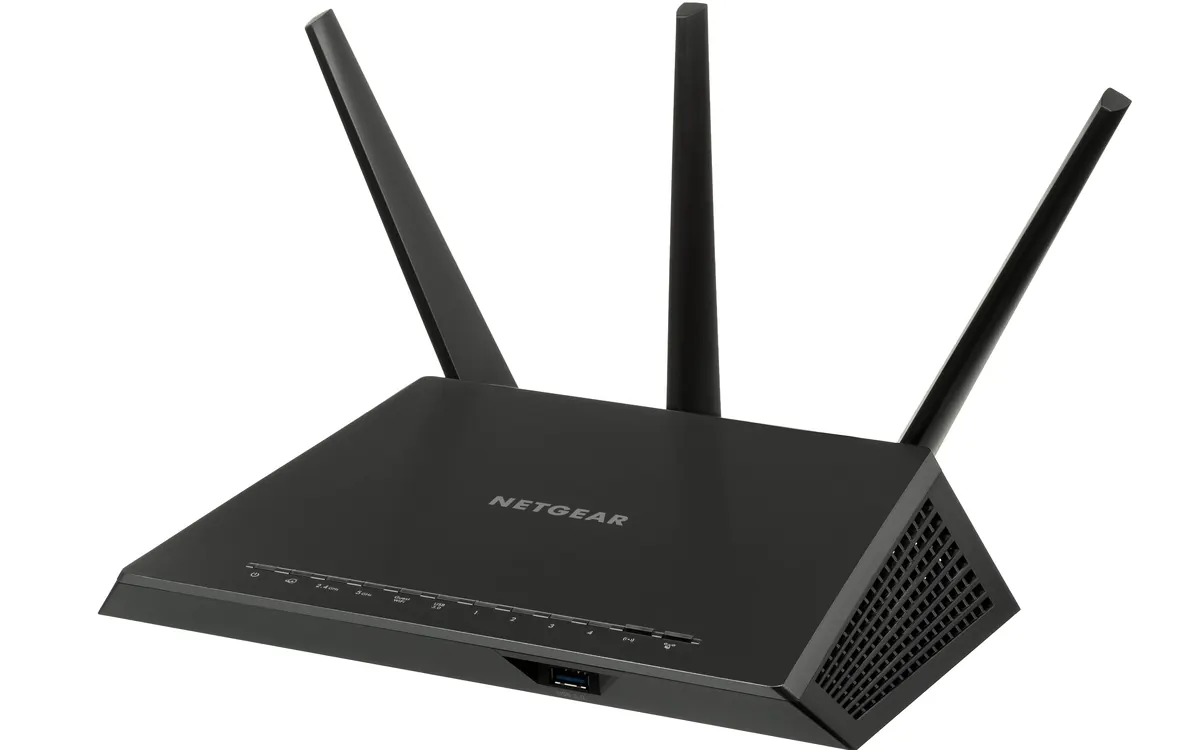
If your router has external antennas, don't leave them all pointing straight up. Most phones and laptops hold their own antennas in various orientations, and a mix works best: point some antennas vertically and some horizontally (or at 45°). Vertical antennas spread signal mostly sideways across a floor; horizontal ones send more of it up and down to other floors. Routers with internal antennas are designed to be placed in the orientation shown in the manual — usually standing upright.
Think about who needs the most speed
Put the router nearer to the devices that matter most: the home office, the gaming PC or the TV used for 4K streaming. Better still, connect fixed devices like a desktop PC, console or TV with an Ethernet cable — that frees up Wi‑Fi airtime for phones and laptops.
Check the result with real measurements
After moving the router, test instead of guessing. Run a speed test in each room on the same device, or use a Wi‑Fi analyser app to see signal strength (dBm). As a rough guide, around −50 to −60 dBm is very good, −67 dBm is fine for streaming and calls, and below about −75 dBm you'll notice slowdowns and drops. Also update the router's software — see how to update router firmware.
When placement isn't enough: add mesh or an access point
Large homes, L‑shaped flats, several floors or thick concrete walls may defeat even a perfectly placed router. Then it's time to add hardware rather than keep moving the box. A mesh system or a wired access point gives far more consistent results than a cheap repeater — compare the options in Wi‑Fi extender vs mesh and our mesh Wi‑Fi buying guide. Place mesh nodes halfway between the router and the dead zone, not inside the dead zone itself.
| Good spot | Bad spot | |
|---|---|---|
| Position | Central, open shelf | Corner, outside wall |
| Height | Chest height or above | On the floor |
| Surroundings | Free space around it | Inside a cabinet, behind the TV |
| Neighbours | Away from metal and water | Next to fridge, microwave, aquarium |
Frequently asked questions
Is it better to put the router high or low?
High. A shelf or the top of a cabinet spreads the signal better and keeps furniture and people from blocking it.
Can I put my router in a cupboard?
It works, but range drops and the router may run hotter. If you must hide it, use an open shelf or a cabinet with no door.
Should router antennas point up?
Use a mix. Some vertical and some horizontal antennas give better coverage across one floor and between floors.
Does the router need to be near the modem?
No. You can run an Ethernet cable from the modem or fibre box to a more central position, which is often the best upgrade you can make.
More from Smart Home
View all →Buying guide
Wi-Fi extender vs mesh: which fixes dead zones?
Buying guide
2.4GHz vs 5GHz Wi-Fi: which band should you use?
Read next
How accurate is smartwatch heart rate? What the research says
How optical heart-rate sensors in smartwatches work, how accurate they are at rest, in steady cardio and in intervals or weights, and how to get better readings.

IPS vs VA vs OLED (and TN): which monitor panel type should you buy?
IPS vs VA vs OLED vs TN monitors compared: contrast, colour, viewing angles, response time, burn-in and price, with the best panel for gaming, work and movies.
144Hz vs 240Hz: which refresh rate do you need?
60Hz vs 144Hz vs 240Hz explained: what refresh rate really changes, the frame rate your PC needs, which games benefit, and when 360Hz or 500Hz is worth it.