Wi-Fi extender vs mesh: which fixes dead zones?
Wi-Fi extender vs mesh system explained: how each works, speed loss, roaming, cost, when a cheap extender is enough and when mesh or a wired access point is better.
LandGadget Newsroom · · 7 min read
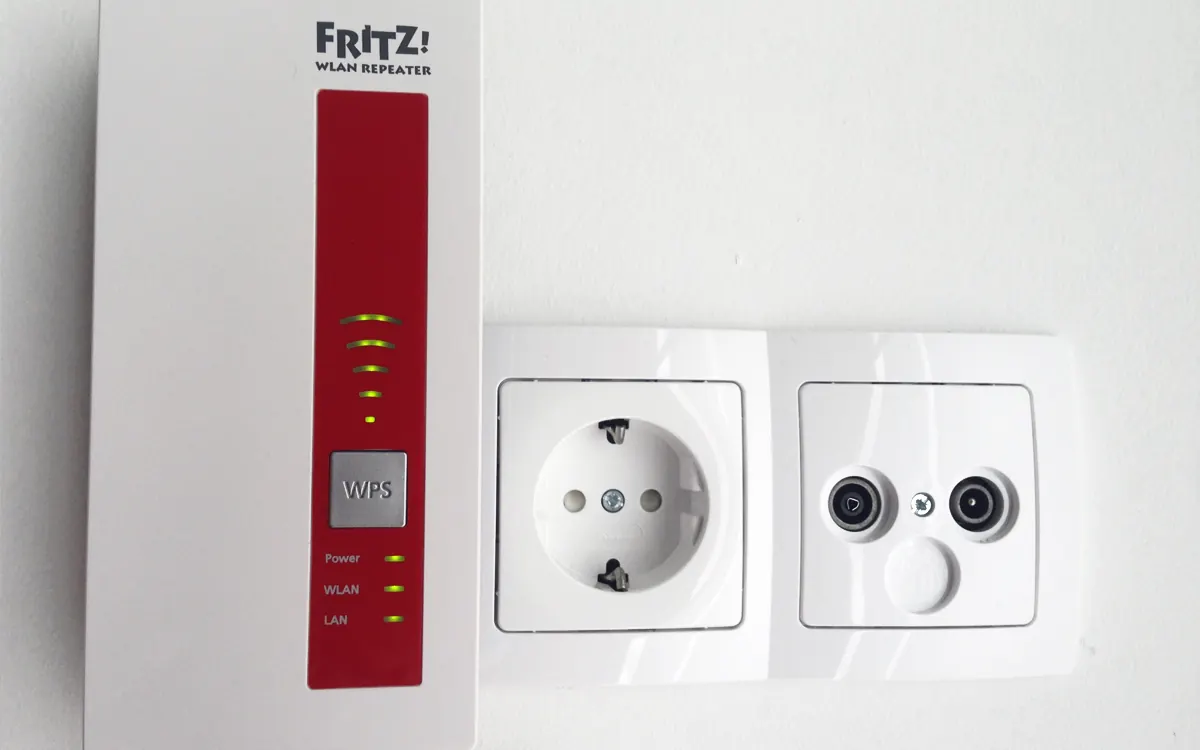
Quick verdictUse a plug-in extender for one weak room on a budget, choose mesh when several rooms or floors struggle or you want seamless roaming, and wire an access point wherever you can run a cable.
Jump to the verdict ↓On this page
When the Wi‑Fi in your bedroom, home office or garden keeps dropping, the two usual fixes are a Wi‑Fi extender (also called a repeater or booster) and a mesh Wi‑Fi system. Both add more radios to your home, but they work differently, cost very different amounts and solve different problems. This guide explains the trade-offs in plain language so you can pick the right one, or realise you need neither.
The short answer
- Extender: cheap, plugs into a wall socket and repeats your existing router's signal. Good enough for one weak room close to the edge of coverage.
- Mesh system: two or more matching units that replace (or sit behind) your router and create one network across the whole home. Better for multiple weak rooms, multi-storey houses and people who move around with phones and laptops.
- Wired access point or mesh with Ethernet backhaul: the best option if you can run a network cable, whichever hardware you buy.
| Wi‑Fi extender | Mesh system | |
|---|---|---|
| Typical cost | Lowest | Higher (kit of 2–3 nodes) |
| Setup | Plug in, pair with router | App-guided, replaces router Wi‑Fi |
| Network name | Often a separate SSID | One SSID everywhere |
| Roaming between rooms | Device must switch itself | Coordinated handover |
| Speed far from router | Can drop sharply | Usually more consistent |
How a Wi‑Fi extender works
An extender sits roughly halfway between the router and the dead zone. It connects to your router over Wi‑Fi and rebroadcasts that signal to nearby devices. The catch is airtime: a basic single-radio extender has to receive data from the router and then send it again on the same channel, so it can pass on far less speed than the router delivers. Dual-band and tri-band extenders reduce this by using one band to talk to the router and another for your devices, but they still depend on a good link back to the router.
Placement matters more than the model. Put the extender too close to the dead zone and its own link to the router is weak, so everything behind it is slow. Put it too close to the router and it barely extends anything. Most models have a signal light or app indicator to help you find the middle ground.
Many extenders also create a second network name such as "Home_EXT". Devices then cling to whichever network they joined first, even when the other is stronger, which feels like random slowdowns. Some newer extenders can copy the router's name, and those that support EasyMesh can join a compatible router's network more cleanly.
How mesh Wi‑Fi works
A mesh system is a set of nodes designed to work together. One node connects to your modem or provider's router; the others are placed around the home. They share one network name and password, pick channels together and help devices move from node to node as you walk around. Better kits have a dedicated wireless backhaul, an extra radio used only for node-to-node traffic, so your devices don't compete with that traffic.
You manage everything from one app: guest networks, parental controls, firmware updates and, on many systems, a separate network for smart home gadgets. Our mesh Wi‑Fi buying guide covers backhaul, node counts and Wi‑Fi 6 vs 6E vs 7 in detail.
+ Pros
- Extender: very cheap and quick to install
- Extender: fine for a single room or a garden office near the house
- Mesh: one network, smoother roaming and central management
- Mesh: dedicated backhaul keeps speed more consistent across floors
− Cons
- Extender: speed loss and often a separate network name
- Extender: depends heavily on a strong link to the router
- Mesh: costs more and may duplicate your provider's router
- Mesh: wireless backhaul still weakens through thick walls
Which one should you buy?
Choose an extender if:
- only one room or corner is weak and it is not far from good coverage;
- you mainly need browsing, messaging or a smart plug and camera to stay online;
- you rent, can't change the router and want the cheapest fix.
Choose mesh if:
- several rooms or a whole floor have poor signal;
- you live in a long flat, a house with thick walls or two to three storeys;
- you take video calls while moving around, or stream and game in rooms far from the router;
- you want one app to manage the network and keep firmware up to date.
Choose a wired access point (or mesh with Ethernet backhaul) if there is any way to run a cable, for example through a loft, along skirting boards or using existing Ethernet sockets. Some mesh systems also support powerline adapters, but their speed depends on your home's wiring.
Before you buy anything
Many dead zones can be improved for free:
- Move the router. Put it high, central and in the open, not in a cupboard, behind a TV or next to a fish tank or mirror.
- Check which band devices use. Distant rooms often do better on 2.4GHz, while 5GHz is faster nearby; see our 2.4GHz vs 5GHz guide.
- Update the firmware. Our guide on how to update router firmware explains where to find it.
- Test the speed next to the router and in the weak room. If the internet plan itself is slow, no extender or mesh system will make it faster.
Smart home devices and extenders
Smart plugs, bulbs and robot vacuums usually connect on 2.4GHz and remember the exact network they were set up on. If you add an extender with a different network name, they may stay on the weaker router signal. With mesh, they see a single network, though some gadgets struggle during setup if the system aggressively steers devices between bands. For Thread and Zigbee devices, Wi‑Fi coverage doesn't matter as much, because they build their own low-power mesh; our Matter vs Thread vs Zigbee explainer explains why.
Frequently asked questions
Is a Wi-Fi extender worse than mesh?
Not always. For one weak room close to good coverage an extender can be enough. For several rooms, multiple floors or seamless roaming, mesh usually performs better.
Do Wi-Fi extenders cut speed in half?
Basic single-radio extenders can lose a large share of speed because they receive and resend data on the same channel. Dual-band or tri-band models and wired backhaul reduce the loss.
Can I use an extender with a mesh system?
It is possible, but it usually works better to add another node from the same mesh system so the network stays managed as one.
Can I keep my provider's router with mesh?
Yes. Most mesh systems can run in access point or bridge mode behind the provider's router. Turn off the provider router's Wi-Fi to avoid two competing networks.
Where should I put an extender?
About halfway between the router and the weak area, where the extender still gets a strong signal from the router. Avoid floors, cupboards and spots behind large appliances.
Our verdict
One weak room: extender. Many weak rooms: mesh. Cable available: wire it.
Start by moving and updating your router, which is free. If one room is still weak, a plug-in extender is the cheapest fix. If several rooms or floors struggle, or you want one network that follows you around, buy a mesh system, ideally with a dedicated backhaul. And wherever you can run Ethernet to a node or access point, do it: a cable beats any wireless link.
More from Smart Home
View all →Buying guide
2.4GHz vs 5GHz Wi-Fi: which band should you use?
Read next

144Hz vs 240Hz: which refresh rate do you need?
60Hz vs 144Hz vs 240Hz explained: what refresh rate really changes, the frame rate your PC needs, which games benefit, and when 360Hz or 500Hz is worth it.
EV charging connector types explained: Type 2, CCS, NACS
Type 1, Type 2, CCS1, CCS2, CHAdeMO, NACS and GB/T: which EV plug your car uses, which chargers fit, where each is used and when an adapter is safe to use.
How many case fans do I need? PC airflow setup guide
How many case fans a gaming PC really needs, which way to point them, intake vs exhaust, positive vs negative pressure, 120 vs 140 mm and how to set fan curves.