Google Wallet adds passports from Estonia, Ireland, Italy, Spain
Google Wallet on Android is starting to accept digital ID passes from four more countries' passports, and a new notifications feed is rolling out in the app.
LandGadget Newsroom · · 2 min read
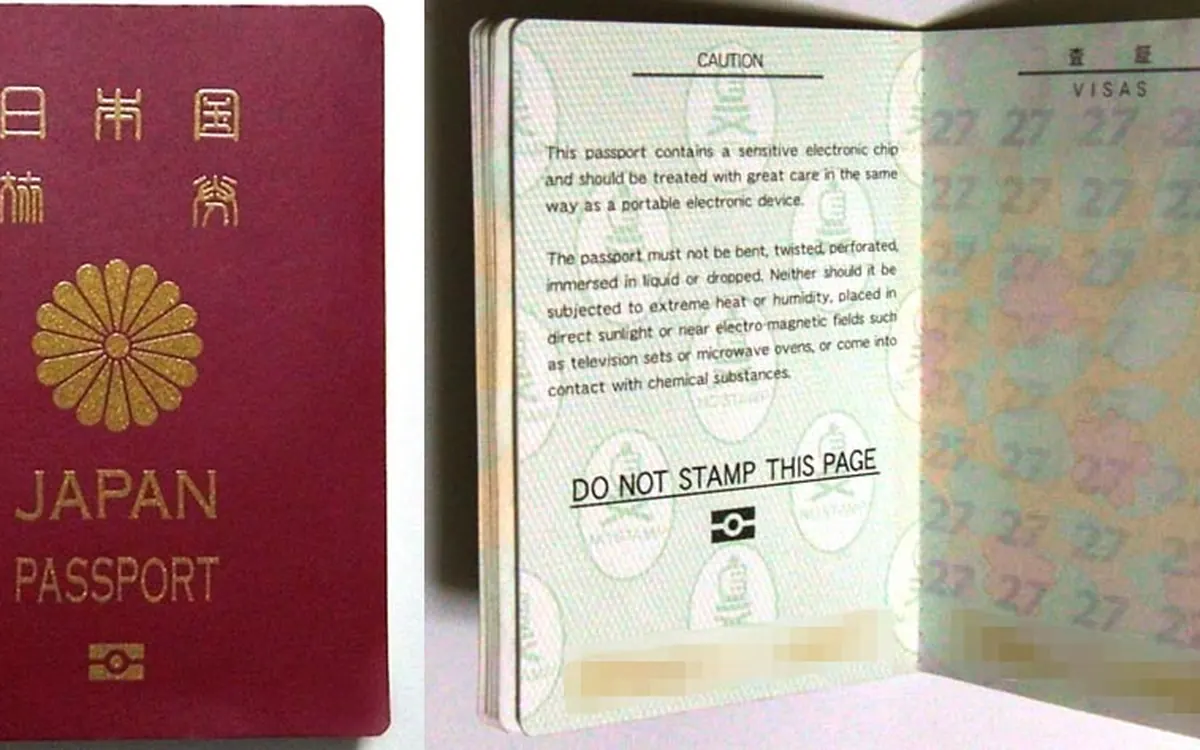
Google Wallet for Android is picking up two changes this week: support for passports from more countries and an in-app notifications feed, 9to5Google reports.
Four more passport countries
Google calls a digital passport an ID pass in the app. Until now it worked with passports from Brazil, Singapore, Taiwan, the United Kingdom and the United States. 9to5Google is now seeing the option to add passports from:
- Estonia
- Ireland
- Italy
- Spain
The new countries are not widely rolled out yet, so don't worry if your app doesn't offer them today.
What you can actually do with an ID pass depends on the country. In the US, for example, an ID pass made from a US passport can be used at TSA security checkpoints at supported airports, by tapping over NFC or scanning a QR code.
How to add a passport
- Open Google Wallet and tap the plus button at the bottom.
- Choose IDs & personal info, then ID pass.
- Scan the passport's photo page, then hold the phone to the passport so it can read the security chip.
- Record a short video selfie so Google can match your face to the passport.
You'll get a notification when verification is complete. Because the phone reads the passport's chip, you need a passport with an electronic chip and a phone with NFC.
A notifications feed
The other change is a bell icon next to the profile switcher in the top-right corner of the home screen. It opens a feed of updates about items stored in Wallet. Google mentioned an "in-app message center" earlier this month, and the feature is arriving through a server-side update, so it may show up at different times on different phones. It follows a recent redesign that turned the card list into a stacked layout.
A digital ID is only as safe as the phone holding it. Use a strong screen lock, and watch out for fakes: our guide to spotting fake apps on Google Play and our story on Google Messages' scam protection are worth a read.
More from Smartphones
View all →Read next
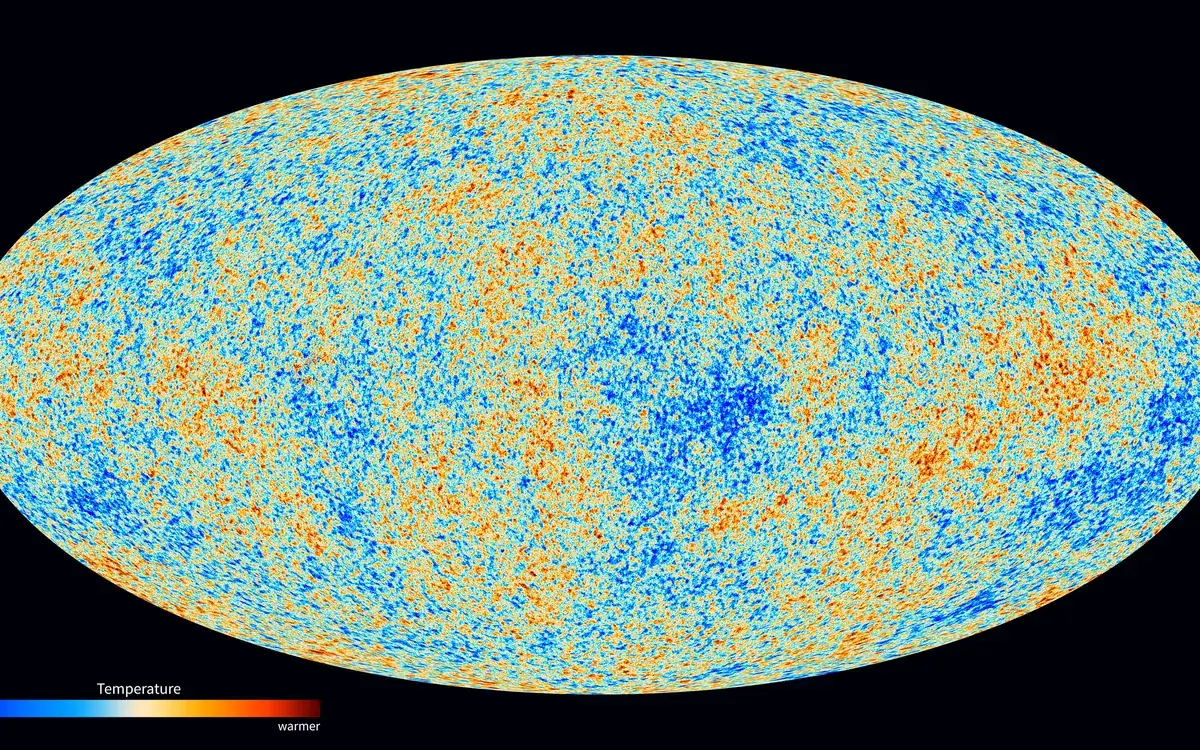
‘Stupendously large’ black holes can’t be most of dark matter, study finds
Black holes heavier than whole galaxies would leave a grainy imprint on the cosmic microwave background. It isn't there, so they can't be a major part of dark matter.

Cyberpunk 2077 update 2.5: dual wielding, mods and an Edgerunners 2 gig
CD Projekt Red's free Edgerunners 2 Update (2.5) adds dual-wielded pistols, cross-platform mods via mod.io, cyberware styling and a prequel quest to the new anime.

How to buy a used graphics card safely: a 2026 checklist
How to buy a used graphics card without getting burned: where to buy, fair prices, seller questions, physical checks, stress tests, fake GPUs and warranty.