How to spot fake apps on Google Play before you install
Fake WhatsApp, Chrome and banking apps keep slipping onto Google Play. Learn the checks that expose a clone: developer, downloads, reviews, ads, permissions, Play Protect.
LandGadget Newsroom · · 6 min read
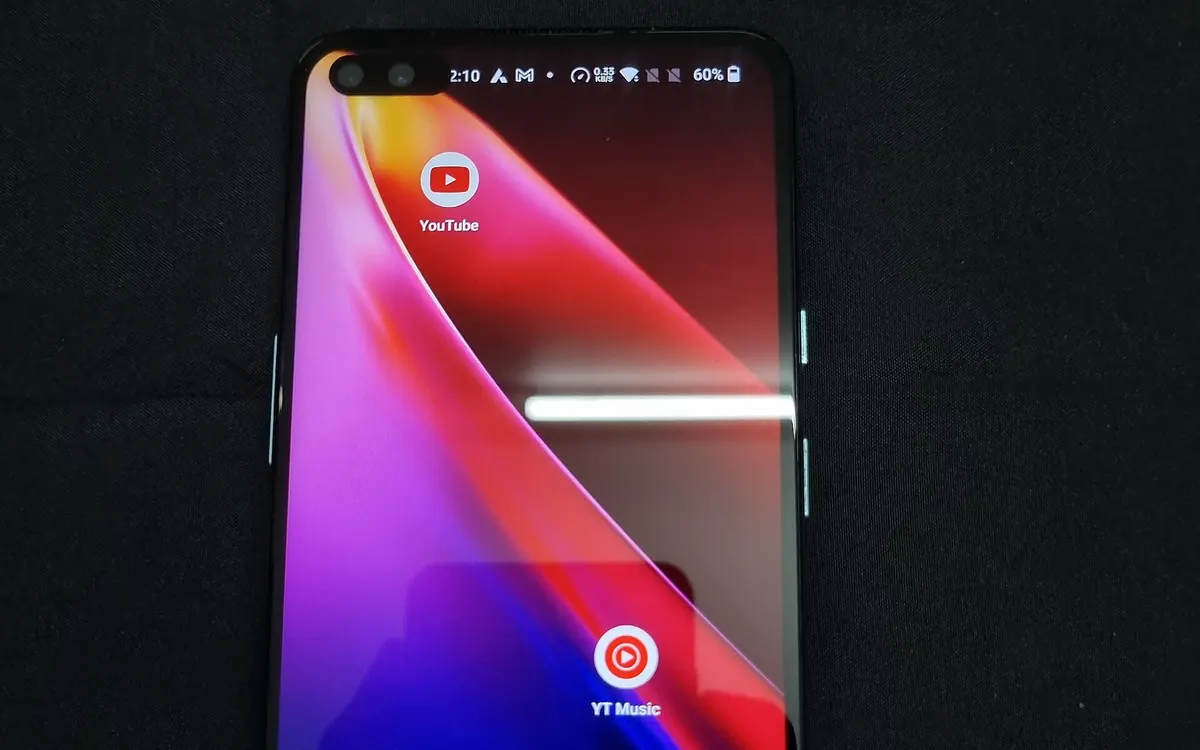
Google Play is the safest place to get Android apps, but it isn't perfect. In October a fake WhatsApp Messenger reportedly reached more than 500,000 downloads and appeared in a sponsored slot above the real app, days after a fake Chrome listing was found (our report). Clones like these copy the icon, screenshots and description, so they look right at a glance. The good news is that a few checks, which take under a minute, expose almost all of them.
Why fake apps get through
Every app on Google Play goes through automated and human review, and Google Play Protect scans apps on your phone. Scammers still find gaps: they submit a harmless-looking version and change it later, buy search ads so their listing appears first, or copy a popular brand's store page word for word. Some clones simply show ads or harvest data; others try to steal passwords, one-time codes or bank details. The aim is always the same: get you to tap Install before you look closely.
Check 1: the developer name
Directly under the app name, Google Play shows the developer. This is the single most useful check.
- The real WhatsApp is published by WhatsApp LLC, Chrome by Google LLC, and a bank app by the bank itself.
- Tap the developer name to see its other apps. A brand-new account with one app, or a developer that publishes wallpapers, VPNs and "messengers" together, is a warning sign.
- Scroll to App support on the listing: a genuine company lists its real website and a support email on its own domain, not a free webmail address.
Check 2: ads above the real result
Search results can include paid placements marked Sponsored or Ad. Most are legitimate, but this slot is exactly where the reported WhatsApp clone appeared. If you search for a well-known app, scroll past the ad and make sure you open the listing that matches the right developer.
Check 3: downloads, reviews and age
Big apps leave a big footprint. The real WhatsApp shows billions of downloads and hundreds of millions of reviews; a clone with the same icon but a few thousand reviews is not the real thing. Also:
- Read the newest reviews (sort by most recent), not just the star rating. Many one-star reviews saying "fake", "asks for payment" or "not the real app" are a clear signal.
- Be careful when reviews are missing. Android Authority noted that the fake WhatsApp may have used Google Play's Early Access programme, which hides public reviews.
- Check About this app for the release date and update history. A "major" app that appeared last week is suspicious.
Check 4: screenshots, text and spelling
Copycats often reuse the real screenshots, so good images prove little. Look instead for odd spelling, awkward wording, mismatched logos and promises the real app wouldn't make ("free premium", "see who viewed your profile", "unlock any account"). Also compare the app size and the "Contains ads" label: a lightweight clone of a big app that suddenly contains ads is a red flag.
Check 5: Data safety and permissions
Every listing has a Data safety section where the developer says what it collects and shares. It's self-reported, but a flashlight or wallpaper app claiming to collect your contacts, messages or location tells you plenty.
After installing, Android asks for sensitive permissions one by one. Say no to anything that doesn't fit the app, and be especially wary of requests to turn on an Accessibility service, become a device admin, or display over other apps. Those powers can be abused to read the screen, intercept codes or block uninstalling. You can review everything later in Settings → Apps → app → Permissions (menu names vary slightly by phone maker).
Check 6: keep Play Protect on
Google Play Protect is built into Android phones with Google services. Open the Play Store, tap your profile picture → Play Protect, make sure scanning is on and run Scan if you're unsure about something you installed. It won't catch everything, so treat it as a safety net, not a replacement for the checks above. Also keep Install unknown apps switched off for browsers and messaging apps, so a link in a chat can't install an APK from outside the store.
| Likely genuine | Likely fake | |
|---|---|---|
| Developer | The brand itself (e.g. WhatsApp LLC) | Unknown account, few or unrelated apps |
| Downloads & reviews | Matches the app's real popularity | Far fewer, very recent, or hidden |
| Placement | Organic result or the brand's own ad | Ad above the real app with a similar name |
| Permissions | Fit what the app does | Accessibility, SMS or device admin without reason |
If you already installed a fake app
- Uninstall it. If Android won't let you, check Settings → Security → Device admin apps (location varies) and remove its admin rights first.
- Run a Play Protect scan.
- Change passwords you typed into it, starting with email and banking, and turn on two-step verification.
- If you entered card or bank details, call your bank straight away.
- Report the listing: on the app's Play Store page, open the three-dot menu and choose Flag as inappropriate.
Scam protection on Android goes beyond the store, too: see the new scam shields in Google Messages, and if you're setting up a new phone, our eSIM explainer covers moving your number safely.
Frequently asked questions
Can fake apps really get onto Google Play?
Yes. Google reviews apps and Play Protect scans them, but clones still slip through occasionally, sometimes with hundreds of thousands of downloads before they are removed.
What is the quickest way to tell a fake app?
Check the developer name under the app title. Famous apps are published by the company itself, such as WhatsApp LLC or Google LLC. Then compare downloads and reviews with what you'd expect.
Are Sponsored results on Google Play safe?
Most are legitimate ads, but scammers can buy them too. When searching for a known app, make sure the listing you open has the correct developer, whether it is an ad or not.
Does Google Play Protect stop all malware?
No security tool catches everything. Keep Play Protect on and run a scan if unsure, but still check the developer, reviews and permissions before installing.
Is it safe to install APK files from websites?
Only from developers you trust, such as the official site of a well-known app. Leave Install unknown apps off for browsers and chat apps, so a link can't install software without you noticing.
More from Smartphones
View all →Read next
Cyberpunk 2077 update 2.5: dual wielding, mods and an Edgerunners 2 gig
CD Projekt Red's free Edgerunners 2 Update (2.5) adds dual-wielded pistols, cross-platform mods via mod.io, cyberware styling and a prequel quest to the new anime.
1Password for Agents: AI can sign in without your password
1Password's new Agents platform lets AI assistants like Meta's Muse log in on your behalf after you approve, filling credentials the agent never sees or keeps.
Seattle will add up to 200 curbside EV chargers by 2030
Seattle is letting residents pick sites for up to 200 new curbside Level 2 EV chargers near apartments, with installs from fall 2027 to 2030.