What is a normal CPU temperature? Safe ranges and fixes
Normal CPU temperatures at idle, in games and under full load, Intel and AMD limits explained, how to check your CPU temp and 8 ways to keep your processor cooler.
LandGadget Newsroom · · 8 min read
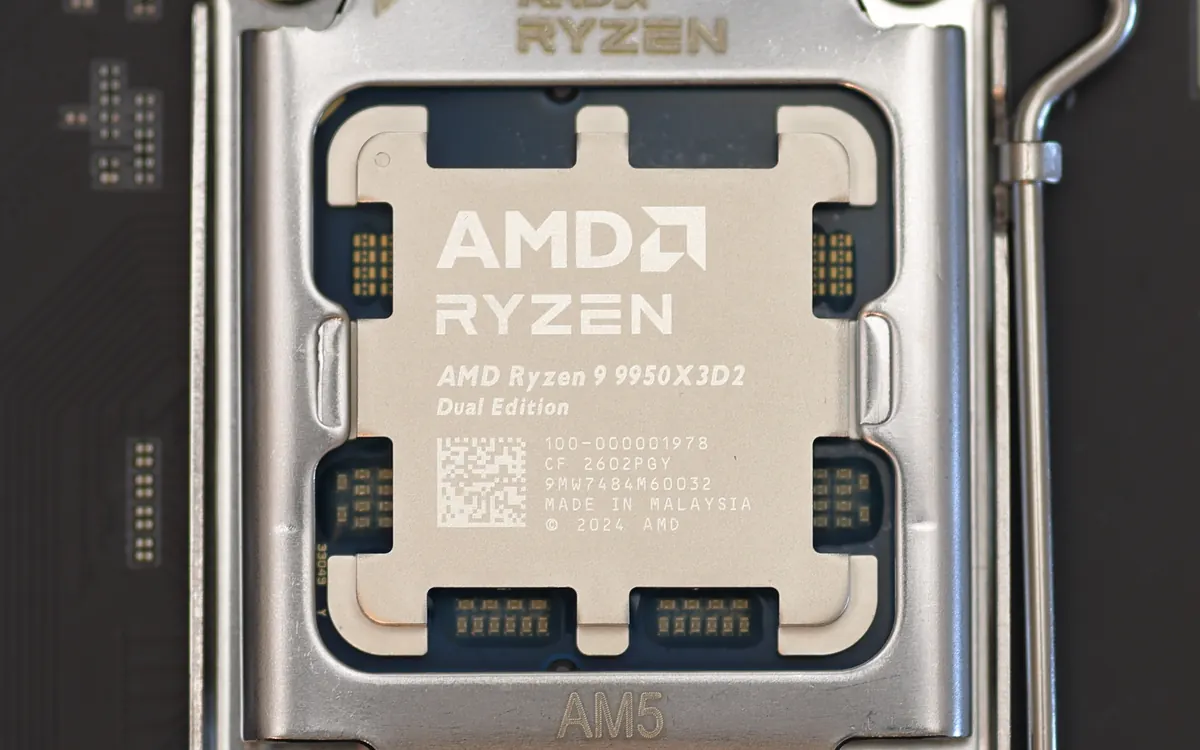
Your processor's temperature is one of the easiest things to misread. A modern CPU can jump from 40 °C to 80 °C in a second when you open a browser tab, and some high-end chips are designed to run close to 95 °C under full load. So a scary number on a monitoring tool doesn't automatically mean something is wrong. This explainer gives realistic ranges, explains the limits Intel and AMD set, and lists the fixes that make a real difference.
Normal CPU temperature ranges
These are typical readings for desktop processors with a reasonable air or liquid cooler, in a room at around 20–25 °C. Treat them as a sanity check, not a specification.
| Situation | Typical CPU temperature | What it means |
|---|---|---|
| Idle / desktop | 30–50 °C | Normal. Short spikes when apps open are expected. |
| Browsing, office, video | 40–65 °C | Normal light load. |
| Gaming | 60–85 °C | Normal for most chips; it depends heavily on the cooler and the game. |
| All-core stress test, rendering | 80–95 °C+ | Can be normal for high-end chips that boost until they reach their limit. |
| At TjMax | Throttling | The CPU cuts its speed to protect itself; check your cooling. |
Laptops are a different case. Thin laptops have small coolers and are often tuned to let the processor reach 90–100 °C under heavy load before the fans get really loud. That is usually within the design limits, although a laptop that throttles constantly will feel slower than its specs suggest. Our laptop buying guide explains why chassis size and cooling matter as much as the chip.
How hot is too hot for a CPU?
Every processor has a maximum junction temperature, often called TjMax. Intel lists a "Max Operating Temperature" on each chip's page in its ARK database, and for many recent desktop Core processors it is 100 °C. AMD lists a "Max. Operating Temperature (Tjmax)" on its product pages, for example 95 °C for many recent Ryzen desktop chips.
When the CPU gets close to that limit, it lowers its clock speed and voltage to stay there. That is thermal throttling: you lose performance, but the chip is protected. If temperatures still can't be controlled, the PC shuts down.
Some modern chips deliberately use all of that headroom. AMD has said its Ryzen 7000 desktop processors are designed to boost until they reach about 95 °C under heavy all-core loads, so seeing 95 °C in a rendering benchmark on such a chip is expected behaviour. Intel's high-end desktop chips can likewise hit their limit in stress tests with mid-range coolers.
So what should you aim for? In gaming and everyday use, staying roughly 10 °C or more below TjMax is a comfortable target. In a synthetic stress test, briefly touching the limit on a high-end chip is not a fault, but it does tell you your cooler has no headroom left.
CPU package, core and Tctl readings explained
Monitoring tools often show several CPU temperatures:
- CPU package is the overall reading for the whole chip and the best single number to watch.
- Core temperatures show each core separately. They jump around constantly and can differ by several degrees; that is normal.
- Tctl/Tdie appear on AMD systems. Tctl is the control value the motherboard uses for fan curves; on some older Ryzen chips it was offset above the real temperature, while Tdie is the actual die reading.
- CCD temperatures on multi-chiplet Ryzen processors show each chiplet; they are often hotter than the package average.
How to check your CPU temperature
- HWiNFO (free, Windows): the most detailed option. Run it in "sensors only" mode and watch the CPU package value, plus clock speed and a column showing whether the chip is throttling.
- Core Temp (free, Windows): a light tool that shows per-core temperatures in the taskbar.
- AMD Ryzen Master or Intel Extreme Tuning Utility (XTU): the vendors' own tools, with temperature, power and clock readings.
- BIOS/UEFI: shows the CPU temperature at idle, but not under load, so it's only a starting point.
- Linux: install
lm-sensorsand runsensors. macOS has no built-in readout; third-party apps can show it.
Windows Task Manager can show the temperature of a dedicated graphics card, but on most PCs it does not show CPU temperature, so use one of the tools above. For a meaningful number, play a demanding game for 15–20 minutes and read the stable value rather than the first spike.
Why your CPU is running hot
- Dust clogging the cooler fins, fans and case filters.
- A weak cooler for the chip. A small stock cooler on a high-end CPU will hit the limit quickly.
- Poor mounting or old thermal paste: an uneven mount or paste that has dried out after years of use.
- Case airflow: too few intake fans, a closed front panel, or a radiator mounted so it breathes hot air from the graphics card.
- Motherboard power settings: many boards ship with high or unlimited power limits that push the CPU harder (and hotter) than the vendor's default.
- A failing fan or AIO pump, often noticeable by noise or by temperatures that shoot up within seconds.
- Background load: a stuck process, updates or malware keeping the CPU busy at idle.
8 ways to lower CPU temperature
- Clean it. Unplug the PC and blow dust out of the cooler, fans and filters with short bursts of compressed air, holding fans still.
- Check the fan curve. In the BIOS, make sure the CPU fan (or pump) is plugged into the right header and ramps up between about 60 and 80 °C.
- Improve airflow. Fans at the front pull air in, fans at the rear and top push it out. Our PC upgrade guide covers when a case or cooler upgrade is worth it.
- Re-apply thermal paste if the cooler has been on for years or was mounted unevenly. Use a pea-sized amount and tighten screws in a cross pattern.
- Use sensible power limits. Setting the motherboard to the CPU maker's default power limits, or enabling an eco mode on Ryzen, usually costs little performance in games and cuts heat a lot.
- Undervolt carefully where your platform supports it (for example AMD's Curve Optimizer). Go in small steps and test stability.
- Upgrade the cooler. A good tower air cooler or a 240–360 mm AIO is the biggest single fix for a hot high-end chip. Check case clearance and socket support first.
- Cap frame rates. In games, a frame cap near your monitor's refresh rate reduces CPU load as well as GPU load.
For laptops: keep the vents clear, use it on a hard surface, raise the back slightly, and pick a balanced power mode when you don't need full speed.
When to worry
Act quickly if the PC shuts down or freezes under load, if temperatures rise within seconds of starting a game (often a pump or mounting problem), or if the CPU sits above 80 °C while idle. If temperatures are fine but games still stutter, your processor may simply be the limit: our explainer on CPU vs GPU bottlenecks shows how to tell. And since the graphics card is the other big heat source in a gaming PC, check what a normal GPU temperature is as well.
Frequently asked questions
Is 80 °C too hot for a CPU?
Not while gaming or under heavy load. 80 °C is within the normal range for most modern desktop and laptop processors. It is only a concern at idle, if it keeps rising, or if the CPU throttles.
What is a normal CPU temperature at idle?
Around 30–50 °C for most desktop processors with a decent cooler. Brief spikes when apps open are normal.
Is 90 °C safe for a CPU?
It is below the maximum for most modern chips, which is often 95–100 °C, and some processors are designed to reach it in stress tests. In games, sustained 90 °C means your cooling has little headroom left.
What is TjMax?
It is the maximum junction temperature a processor is designed for, listed by Intel and AMD for each model. When the CPU approaches it, it reduces its speed to protect itself.
Does high CPU temperature reduce performance?
Yes, once it reaches its limit. The processor lowers clock speeds to stay at or below TjMax, which can cut frame rates and make games stutter.
How do I check my CPU temperature in Windows?
Use a free tool such as HWiNFO or Core Temp, or your CPU maker's utility (AMD Ryzen Master or Intel XTU). Windows Task Manager does not show CPU temperature on most PCs.
More from Computers & AI
View all →Read next

Best Monitor Size for Gaming: 24 vs 27 vs 32 Inch
What monitor size is best for gaming? Compare 24, 27, 32-inch and ultrawide screens by resolution, pixel density, desk distance, GPU power and the games you play.

Bluetooth Codecs Explained: SBC vs AAC vs aptX vs LDAC vs LC3
What Bluetooth audio codecs actually change: SBC, AAC, aptX, LDAC and LE Audio's LC3 compared — sound, latency, battery and which phones support which codec.

Electric motorcycle buying guide: range, charging, licence
How to choose an electric motorcycle: real-world range, battery size, home and fast charging, licence classes, running costs and what to check before you buy.