How to choose a mechanical keyboard: switches, size, layout
A practical mechanical keyboard buying guide: linear vs tactile vs clicky switches, 60% to full-size layouts, hot-swap, Hall effect, keycaps and wireless.
LandGadget Newsroom · · 9 min read
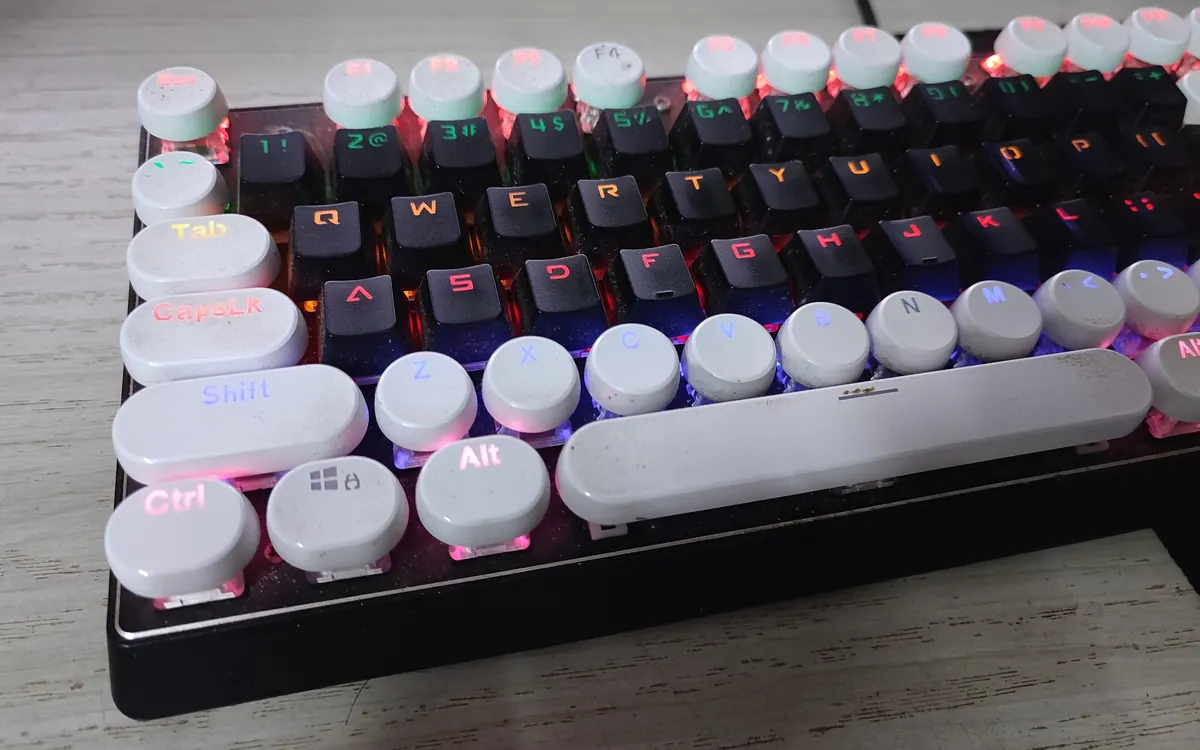
Quick verdictChoose the size and layout you need first, then the switch feel; hot-swap sockets let you change your mind later.
Jump to the verdict ↓On this page
A mechanical keyboard is one of the few PC upgrades you feel every minute you use your computer. It also comes with more jargon than almost any other accessory: linear, tactile, TKL, 75%, gasket mount, hot-swap, PBT, rapid trigger. This guide explains what those terms mean in practice and in which order to decide, so you can find a board that suits your hands, your desk and the games you play, without relying on rankings or invented test scores.
What makes a keyboard "mechanical"
Most cheap keyboards use a rubber dome (membrane) under each key: you press a soft dome until it squashes and closes a circuit. A mechanical keyboard has an individual switch under every key, with a spring and a stem that slides in a housing. That gives you a more consistent feel from the first key to the last, a clearer point where the key registers, and much longer life. It also makes the keyboard modular: switches, keycaps and even the case can often be changed.
Membrane boards still have their place, as they are quiet, light and cheap, but if you type or game for hours, a mechanical keyboard is worth considering.
Step 1: pick a size and layout
Decide this first, because it affects your desk space, mouse room and which keys you'll miss.
| Size | What you keep | What you lose | Good for |
|---|---|---|---|
| Full-size (100%) | Number pad, F-row, arrows, nav cluster | Desk space; mouse sits further right | Spreadsheets, data entry |
| TKL (80%) | F-row, arrows, nav cluster | Number pad | Most people, office and gaming |
| 75% | F-row, arrows, a few nav keys squeezed in | Some nav keys, spacing | Compact desks, laptop users |
| 65% | Arrows and a few nav keys | F-row (via Fn layer) | Gaming with more mouse room |
| 60% | Letters, numbers, modifiers | Arrows, F-row (via Fn layer) | Minimalists, low-sens FPS players |
Shooter players often prefer 65% or smaller boards because they leave more room for wide mouse movements at low sensitivity; our gaming mouse buying guide explains why low DPI needs a big swipe area. If you use the arrow keys, Home/End or Page Up/Down a lot for work, a TKL or 75% board is the safer compromise.
Layout standard matters too. ANSI (common in the US) has a wide, single-row Enter key and a long left Shift. ISO (common in Europe, including Ukraine) has a tall, L-shaped Enter and an extra key next to a shorter left Shift. Pick the one you're used to, and check that the keycaps include the legends for your language if you type in more than one alphabet.
Step 2: choose the switch type
Switches come in three basic families. Feel is personal, and none is objectively "faster":
| Linear | Tactile | Clicky | |
|---|---|---|---|
| Feel | Smooth from top to bottom | Small bump where the key registers | Bump plus an audible click |
| Noise | Quietest (bottoming out still makes noise) | Moderate | Loud |
| Typical fans | Gamers, fast double taps | Typists, mixed use | Typists who like feedback |
| Watch out for | Accidental presses if very light | Bump can feel scratchy on cheap switches | Annoys others in shared rooms and on voice chat |
Beyond the family, look at:
- Actuation force (weight): how hard you press before the key registers, usually given in grams or centinewtons. Light linear switches around 35–45 g feel fast; heavier ones reduce typos for heavy-handed typists.
- Actuation point and travel: many switches register around 2 mm into a roughly 4 mm press. Shorter "speed" switches register earlier.
- Silent variants: dampened linear or tactile switches are worth considering for offices, shared flats and voice chat. A clicky switch is the worst choice for streaming or late-night gaming next to someone sleeping.
If you're unsure, a cheap switch tester (a small board with a handful of different switches) is a better guide than any written description.
Step 3: hot-swap, Hall effect and other switch tech
Hot-swappable sockets let you pull switches out and push new ones in without soldering. That protects you from buying the "wrong" feel and makes it easy to replace a single faulty switch. Check whether the board takes 3-pin or 5-pin switches; 5-pin sockets accept both.
Magnetic (Hall effect) and other analog switches measure how far each key is pressed rather than using a fixed contact. That allows:
- Adjustable actuation: set keys to register very early for games and deeper for typing.
- Rapid trigger: the key resets as soon as it starts to rise, not at a fixed point, which some competitive players use for quick strafing in shooters.
- Analog input: in supported games, a key can act more like a joystick axis.
These features are genuinely useful for competitive FPS players, but they usually cost more, rely on the maker's software, and Hall effect switches are generally not interchangeable with standard mechanical ones. Some tournaments and games have also discussed limiting certain "snap tap"-style input features, so check the rules if you play competitively.
Optical switches use a light beam to register presses. They avoid contact wear and are common on some gaming brands, but like Hall effect switches they are often proprietary.
Step 4: wired, 2.4 GHz or Bluetooth
| Wired | 2.4 GHz wireless | Bluetooth | |
|---|---|---|---|
| Latency | Lowest and consistent | Close to wired on gaming models | Higher; fine for typing |
| Battery | None | Rechargeable; RGB drains it fast | Rechargeable; RGB drains it fast |
| Multi-device | One PC | Usually one dongle | Often 3 paired devices |
| Best for | Desktops, competitive play | Clean desk gaming setups | Laptops, tablets, office |
Most gaming keyboards poll at 1,000 Hz (every 1 ms); some offer 4,000–8,000 Hz, which, as with mice, adds CPU load and battery drain for a gain most people won't notice. If you also use the keyboard with a laptop or tablet, multi-device Bluetooth switching is a nice bonus. Bright RGB lighting can cut wireless battery life dramatically, so look for a board with sensible lighting controls.
Step 5: keycaps, case and sound
- Keycap material: ABS plastic is common and can develop a shine with use; PBT is more resistant to shine and feels slightly textured. Double-shot or dye-sublimated legends won't wear off like cheap printed ones.
- Profile: keycaps come in different heights and shapes (Cherry, OEM, low-profile and others). Taller profiles can feel nicer to type on; low-profile ones need less wrist angle.
- Standard bottom row: if you might buy custom keycaps later, a standard layout (especially a standard-size spacebar and modifiers) makes it far easier to find sets that fit.
- Case and mounting: aluminium cases feel solid and heavy; plastic ones are lighter. Terms like gasket mount and foam dampening describe how the internals are isolated, which mainly changes sound and softness, not speed.
- Ergonomics: a wrist rest, adjustable feet and a reasonable front height help on long sessions. Split and ergonomic mechanical keyboards exist if you have wrist or shoulder pain.
Step 6: software and firmware
Check whether you can remap keys, create layers and set lighting without being logged into a heavy companion app. Onboard memory keeps your settings when you plug into another PC. Keyboards that support open firmware such as QMK or configuration tools like VIA let you remap everything through a browser or small app, which is a strong plus. Also check N-key rollover (every key registers even when many are pressed at once) and anti-ghosting, though almost every modern mechanical board handles this well.
+ Pros
- Consistent feel and long life compared with membrane keyboards
- { "Modular": "switches and keycaps can often be swapped" }
- Compact layouts free up space for the mouse
- Hall effect boards add adjustable actuation and rapid trigger
− Cons
- Louder than membrane boards, especially with clicky switches
- Small layouts hide keys behind Fn layers
- Proprietary switches and software can limit upgrades
- Wireless RGB boards need regular charging
Our verdict
Size first, then switch feel, then connection
Pick the smallest layout that still has the keys you use every day: TKL or 75% suits most people, 65% or smaller suits shooter players who want mouse room. Choose a switch family by feel (linear for smooth gaming, tactile for mixed typing, clicky only if noise isn't a problem), and favour hot-swap sockets so you can change it later. Go Hall effect only if you play competitive shooters and want rapid trigger. Finally, choose wired or 2.4 GHz for gaming, Bluetooth for laptops, and buy from a store with easy returns.
Rounding out your setup? See our gaming headset buying guide for comfort and mic tips, and the PC game controller guide if some of your games play better on a pad. A gaming monitor with a high refresh rate is the other upgrade that changes how fast games feel.
Frequently asked questions
Which mechanical keyboard switch is best for gaming?
There is no single best switch. Many gamers prefer light linear switches for smooth, quick presses, while others like tactile switches for mixed gaming and typing. Hall effect switches with adjustable actuation and rapid trigger are popular with competitive shooter players.
Is a 60% keyboard good for gaming?
Yes, if you don't need dedicated arrow keys or function keys. Small boards leave more room for mouse movement, but keys like arrows and F1–F12 move to an Fn layer, which can be awkward for work.
What does hot-swappable mean?
It means the switches sit in sockets and can be pulled out and replaced without soldering, so you can change the feel of the keyboard or replace a faulty switch easily.
Are mechanical keyboards too loud for an office?
Clicky switches usually are. Linear or tactile switches, especially silent variants, plus O-rings or a dampened case, make a mechanical keyboard much quieter.
PBT or ABS keycaps?
PBT keycaps resist the shiny wear that ABS keycaps develop over time and often feel slightly textured. Good ABS keycaps with double-shot legends are still durable and can feel smoother.
More from Gaming
View all →Read next
How to choose a baby monitor: Wi‑Fi vs non‑Wi‑Fi, security
Audio, local video or Wi‑Fi app monitor? How to choose a baby monitor by range, night vision, battery, privacy and security, plus the setup steps that matter.
CPU vs GPU bottleneck explained: how to tell what's slowing your games
What a CPU or GPU bottleneck really is, how to spot one with a performance overlay, why resolution changes everything, and the fixes worth trying before you buy parts.

How long does it take to charge an electric car?
From 40+ hours on a wall socket to about 20–40 minutes on a fast charger: how long EV charging really takes, how to work it out for your car, and what slows it.