How to choose a gaming mouse: shape, weight, DPI and more
A practical gaming mouse buying guide: grip and hand size, weight, sensor and DPI, polling rate, wired vs wireless, switches and feet, without fake rankings.
LandGadget Newsroom · · 7 min read
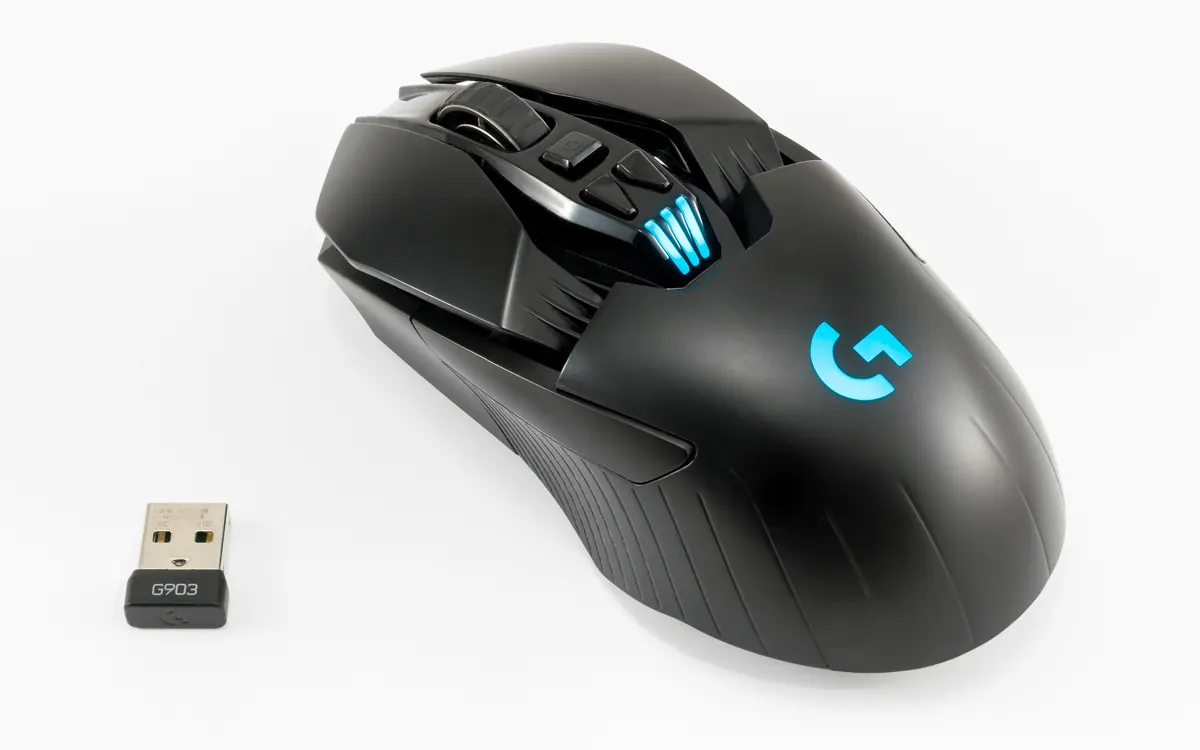
Quick verdictPick the shape that fits your hand and grip first, then weight, then wired or wireless; any modern gaming sensor is good enough.
Jump to the verdict ↓On this page
A gaming mouse is the part of your setup your hand touches for hours, yet it is usually bought on the strength of a big DPI number on the box. That number barely matters. What decides whether a mouse helps or hurts your aim is shape, size, weight and connection, roughly in that order. This guide explains each choice in plain terms so you can narrow a crowded market down to a few sensible candidates.
Start with your grip and hand size
There are three common ways to hold a mouse, and most people use a mix:
- Palm grip: your whole hand rests on the mouse. Suits larger, taller, ergonomic shapes with a hump towards the back.
- Claw grip: your palm touches the back of the mouse while your fingers arch. Suits medium mice with a pronounced rear hump.
- Fingertip grip: only your fingertips touch the mouse. Suits small, light, low-profile shapes.
To size a mouse, measure from the crease of your wrist to the tip of your middle finger. As a rough rule, hands under about 17 cm suit small mice, 17–19 cm medium, and longer hands large ones, but brands size their shapes differently, so compare the length and width in millimetres on spec sheets with a mouse you already like.
Also check handedness. Ergonomic (right-handed) shapes are the most common; left-handed players should look for ambidextrous (symmetrical) models, ideally with side buttons on both sides.
| Palm | Claw | Fingertip | |
|---|---|---|---|
| Typical size | Medium to large | Small to medium | Small |
| Shape that helps | Ergonomic, tall back | Pronounced rear hump | Low, flat, light |
| Feels like | Relaxed, stable | Quick, precise flicks | Fast micro-adjustments |
| Watch out for | Mice too short for your hand | Too tall a hump | Heavy mice |
Weight: lighter is popular, not mandatory
Over the last few years, light mice (roughly 50–70 g) have become the norm for competitive shooters, because they are easier to start and stop during fast flicks. Heavier mice (around 90 g and up) feel more planted and can help with slow, steady tracking or if you play mostly strategy and MMO games.
Light mice sometimes use honeycomb holes to shave grams; they collect dust and some people dislike the texture. Many newer light models use solid shells instead. A few mice include removable weights, which is handy if you're unsure.
Sensor, DPI and why big numbers don't matter
Every current gaming mouse from a reputable brand uses an optical sensor that tracks accurately at any speed you can physically move. The headline DPI (or CPI) figure describes sensitivity: how far the cursor moves per inch of mouse movement. Most players use 400–1,600 DPI and adjust in-game sensitivity from there, so a 26,000 or 44,000 DPI rating is not a practical advantage.
What's worth checking instead:
- On-the-fly DPI button to switch between a few presets.
- Lift-off distance (LOD): low LOD stops the cursor drifting when you reposition the mouse. Some software lets you tune it.
- No forced acceleration or smoothing: reviews and the brand's software usually make this clear.
Polling rate: 1,000 Hz is the sensible baseline
Polling rate is how often the mouse reports its position to the PC. At 1,000 Hz that's every 1 ms, which is the long-standing standard for gaming mice. Newer models offer 4,000 or 8,000 Hz. These can make movement look smoother on high-refresh monitors, but they also use more CPU time and battery, and some games and older systems don't handle them well. If you have a 240 Hz or faster gaming monitor, a higher polling rate can be worth trying; otherwise, 1,000 Hz is plenty.
Wired vs wireless vs Bluetooth
| Wired | 2.4 GHz wireless (dongle) | Bluetooth | |
|---|---|---|---|
| Latency | Lowest and consistent | Designed for games; very close to wired | Higher; fine for desktop work |
| Power | From USB | Rechargeable or AA battery | Rechargeable or AA battery |
| Weight | No battery | Battery adds some grams | Battery adds some grams |
| Best for | Budget, never charging | Most gamers who want no cable | Laptops, travel, office |
Modern 2.4 GHz gaming wireless is good enough for competitive play; the old "wireless lags" rule no longer applies to reputable gaming models. You do get charging, a battery that ages, and a small dongle to keep track of. If you go wired, look for a flexible, lightweight cable (often called paracord-style) so it doesn't drag; a mouse bungee helps too.
Switches, buttons and wheel
- Main switches: traditional mechanical switches can develop a "double-click" fault after heavy use; optical switches avoid that failure mode and are increasingly common. Click feel is personal.
- Side buttons: two thumb buttons cover most games. MMO players may want a grid of 10+ side buttons; competitive players often prefer fewer to avoid accidental presses.
- Scroll wheel: check whether it's notched and stable. A wheel that rattles or double-scrolls is annoying in weapon switching.
Feet, surface and build
Mouse feet (skates) are usually made of PTFE; bigger or rounded feet glide more smoothly, and replacements are cheap. Your mouse pad matters as much as the feet: cloth pads offer more control, hard pads more speed. Get a pad big enough for your sensitivity, especially if you play at low DPI and move your whole arm.
Software and onboard memory
Most brands ship software for DPI, polling rate, lighting and button mapping. Look for onboard memory, which saves your settings on the mouse so you can uninstall the software or plug into another PC. Heavy companion apps can be annoying, so a mouse that works well without them is a plus.
+ Pros
- A good fit improves comfort and consistency more than any spec upgrade
- Wireless gaming mice now match wired performance for most players
- Onboard memory lets you carry settings between PCs
− Cons
- Shape is personal; reviews can't tell you if it fits your hand
- Very high DPI and polling rates are mostly marketing for typical setups
- Ultra-light mice can feel fragile and some use dust-collecting holes
Our verdict
Shape and size first, then weight, then wired vs 2.4 GHz
Measure your hand, decide how you grip, and shortlist mice whose dimensions match a mouse you already like. Then choose a weight that suits your games and pick wired or 2.4 GHz wireless based on whether you mind charging. Ignore DPI wars: any current gaming sensor is accurate enough. Buy from a store with an easy return policy, because fit is the one thing a spec sheet can't promise.
Building the rest of your setup? See our gaming headset buying guide for mic and comfort tips, and our PC game controller guide if you also play with a pad.
Frequently asked questions
What DPI should I use for gaming?
Most players use 400 to 1,600 DPI and fine-tune in-game sensitivity. Lower DPI with a larger mouse pad is common in shooters; higher DPI suits high-resolution desktops and fast menus.
Is a wireless gaming mouse good enough for competitive games?
Yes, if it uses a 2.4 GHz gaming dongle from a reputable brand. Bluetooth mode usually has more latency and is better kept for laptops and office work.
Does polling rate matter?
1,000 Hz is the standard and is enough for most people. 4,000 to 8,000 Hz can look smoother on very high refresh-rate monitors but costs CPU time and battery life.
How heavy should a gaming mouse be?
Many competitive players prefer roughly 50 to 70 grams for fast flicks, while heavier mice feel more stable. Comfort and control matter more than a specific number.
Are optical switches better than mechanical?
Optical switches avoid the double-click fault that worn mechanical switches can develop, so they tend to last better. Click feel varies by model and is a personal preference.
More from Gaming
View all →Read next
How to choose a baby monitor: Wi‑Fi vs non‑Wi‑Fi, security
Audio, local video or Wi‑Fi app monitor? How to choose a baby monitor by range, night vision, battery, privacy and security, plus the setup steps that matter.
CPU vs GPU bottleneck explained: how to tell what's slowing your games
What a CPU or GPU bottleneck really is, how to spot one with a performance overlay, why resolution changes everything, and the fixes worth trying before you buy parts.

How long does it take to charge an electric car?
From 40+ hours on a wall socket to about 20–40 minutes on a fast charger: how long EV charging really takes, how to work it out for your car, and what slows it.