Best Wi‑Fi Channel for 2.4 GHz and 5 GHz: How to Find and Change It (2026)
Which Wi‑Fi channel is best? Use 1, 6 or 11 on 2.4 GHz, pick the right width on 5 GHz, find the least crowded channel with a free app and change it on your router.
LandGadget Newsroom · · 6 min read
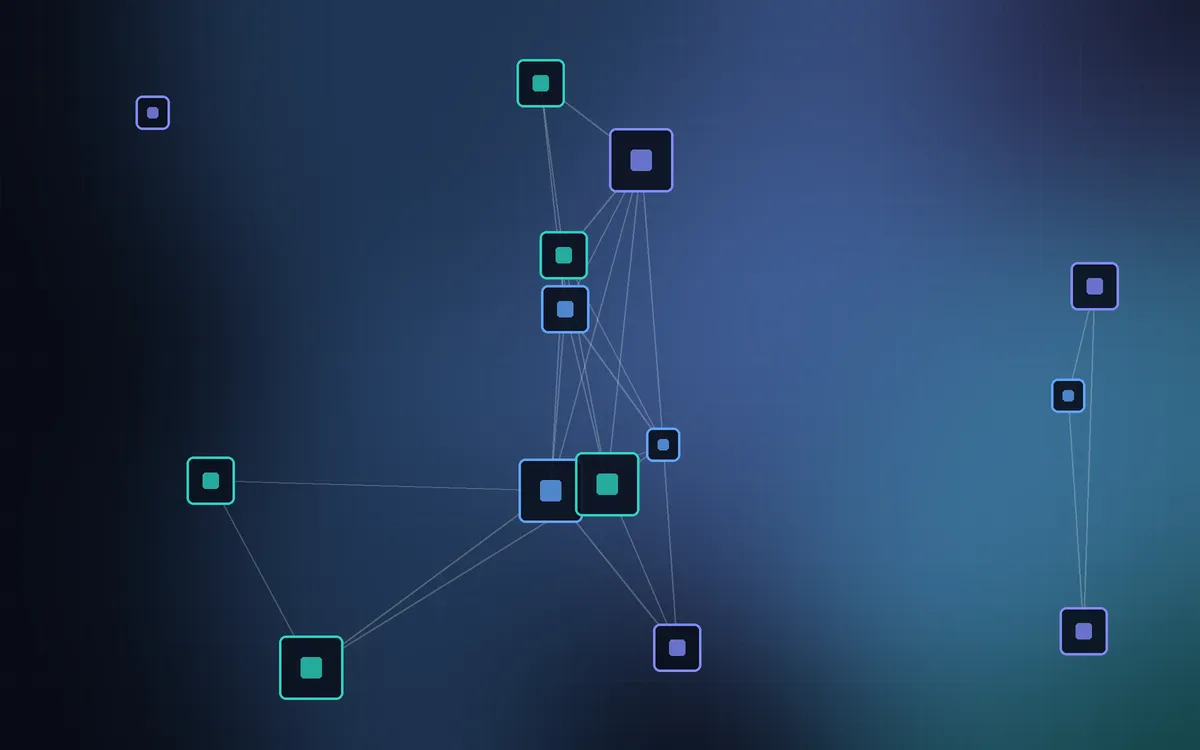
Wi‑Fi shares the air with every network around you. If your router sits on the same channel as five neighbours, everyone waits their turn and speed drops — especially in apartment blocks in the evening. Choosing the best Wi‑Fi channel is one of the few free fixes that can make a real difference. Here is which channels to use, how to find the least crowded one and how to change it.
Quick answer
| Band | Best channels | Recommended width |
|---|---|---|
| 2.4 GHz | 1, 6 or 11 (pick the least used) | 20 MHz |
| 5 GHz | 36–48 (safe), 149–165 where allowed; DFS 52–144 if they are empty | 80 MHz |
| 6 GHz (Wi‑Fi 6E/7) | Leave on Auto — plenty of clean spectrum | 160 MHz (320 MHz on Wi‑Fi 7) |
Why 1, 6 and 11 on 2.4 GHz
The 2.4 GHz band is split into channels only 5 MHz apart, but each Wi‑Fi signal is about 20 MHz wide. So channel 3 overlaps 1 through 5 and interferes with all of them. Only 1, 6 and 11 (in most of the world) sit far enough apart not to overlap. Two networks on the same channel politely share airtime; two networks on overlapping channels just create noise for each other — which is worse. Pick whichever of 1, 6 or 11 has the fewest and weakest neighbours.
Keep 2.4 GHz at 20 MHz width. 40 MHz uses two-thirds of the whole band, collides with neighbours and rarely gets faster in practice. For more on what each band is good at, see 2.4 GHz vs 5 GHz Wi‑Fi.
Choosing a 5 GHz channel
5 GHz has far more room, and channels don't overlap when you use standard widths. Typical groups:
- 36–48 (UNII‑1): allowed almost everywhere, no radar rules. The safest default, but often the busiest because every router starts here.
- 52–144 (DFS): shared with weather and military radar. The router must check for radar before using them and switch away if it detects any, which can cause a short drop (up to a minute). In return they are often nearly empty.
- 149–165 (UNII‑3): allowed in the US and many other countries, sometimes restricted in Europe; good, often higher permitted power.
Width matters more than the exact number: 80 MHz is the sweet spot for most homes. 160 MHz doubles the theoretical speed but needs a big clean block of spectrum, usually includes DFS channels and shrinks range. Use it only if a scan shows the block is quiet.
6 GHz: mostly leave it alone
If you have a Wi‑Fi 6E or Wi‑Fi 7 router, the 6 GHz band has many wide channels and very few neighbours, because only newer devices use it and walls stop it quickly. Auto is fine here.
How to find the least crowded channel
- Use a Wi‑Fi analyser. On Android, free apps such as WiFiman or Wi‑Fi Analyzer show every nearby network, its channel and signal strength. On Windows,
netsh wlan show networks mode=bssidlists channels; on macOS, hold Option, click the Wi‑Fi icon and open Wireless Diagnostics > Window > Scan. iPhones can't scan channels without a router app. - Scan where you use Wi‑Fi, not next to the router — the sofa or desk is what matters.
- Look at signal strength, not just counts. Ten networks at −85 dBm hurt less than one at −55 dBm.
- Check in the evening, when neighbours are online.
How to change your router's channel
- Open the router app or its web page (usually 192.168.0.1 or 192.168.1.1; the address is on the router's label).
- Find Wireless, Wi‑Fi or Advanced Wireless settings. Many routers have separate settings per band; if bands are merged under one name ("smart connect"), you may need to split them to set channels manually.
- Set the 2.4 GHz channel to 1, 6 or 11 and width to 20 MHz; set 5 GHz to your chosen channel and 80 MHz.
- Save. Devices reconnect within seconds.
- Run a speed test in the same spot as before and compare.
Mesh systems usually manage channels for the whole network; many only offer a "channel optimisation" button rather than manual settings, and that's fine.
Auto or manual?
Modern routers scan at boot and some re-scan regularly, so Auto is a good default. Set a channel manually when Auto keeps landing on a crowded channel, when you see slowdowns at the same time every evening, or when you want to avoid DFS drops (pick 36–48). Re-check after a few months — neighbours change too.
When changing the channel won't help
A channel only fixes interference. It won't fix distance and thick walls (router placement or mesh will), an old router or a slow internet plan. If the speed is low even next to the router on a cable, work through why your Wi‑Fi is slow and check what internet speed you really need.
Frequently asked questions
What is the best Wi‑Fi channel for 2.4 GHz?
Channel 1, 6 or 11 — whichever has the fewest and weakest neighbouring networks. They are the only non-overlapping 2.4 GHz channels in most countries.
What is the best 5 GHz Wi‑Fi channel?
Channels 36–48 are the safe default because they have no radar rules. DFS channels 52–144 are often emptier but can briefly drop when radar is detected. Use 80 MHz width.
Should I use 20 MHz or 40 MHz on 2.4 GHz?
Use 20 MHz. 40 MHz overlaps most of the band, interferes with neighbours and rarely increases real speed.
Is it better to set the Wi‑Fi channel to Auto?
Usually yes on modern routers. Switch to a manual channel only if a scan shows Auto keeps choosing a crowded channel or you want to avoid DFS channels.
Does changing the Wi‑Fi channel increase speed?
Only if interference was the problem — common in apartment buildings. It won't help with distance, walls, an old router or a slow internet plan.
What are DFS channels?
5 GHz channels 52–144 shared with radar. Routers must listen for radar before using them and leave the channel if radar appears, which can cause a short disconnection.
More from Smart Home
View all →Read next
How accurate is smartwatch heart rate? What the research says
How optical heart-rate sensors in smartwatches work, how accurate they are at rest, in steady cardio and in intervals or weights, and how to get better readings.
IPS vs VA vs OLED (and TN): which monitor panel type should you buy?
IPS vs VA vs OLED vs TN monitors compared: contrast, colour, viewing angles, response time, burn-in and price, with the best panel for gaming, work and movies.
144Hz vs 240Hz: which refresh rate do you need?
60Hz vs 144Hz vs 240Hz explained: what refresh rate really changes, the frame rate your PC needs, which games benefit, and when 360Hz or 500Hz is worth it.