How to Set Up Philips Hue with Matter
Step-by-step guide to connecting Philips Hue to Matter: with the Hue Bridge or bulbs directly, adding Apple Home, Google Home or Alexa, and fixing common problems.
LandGadget Newsroom · · 6 min read
On this page
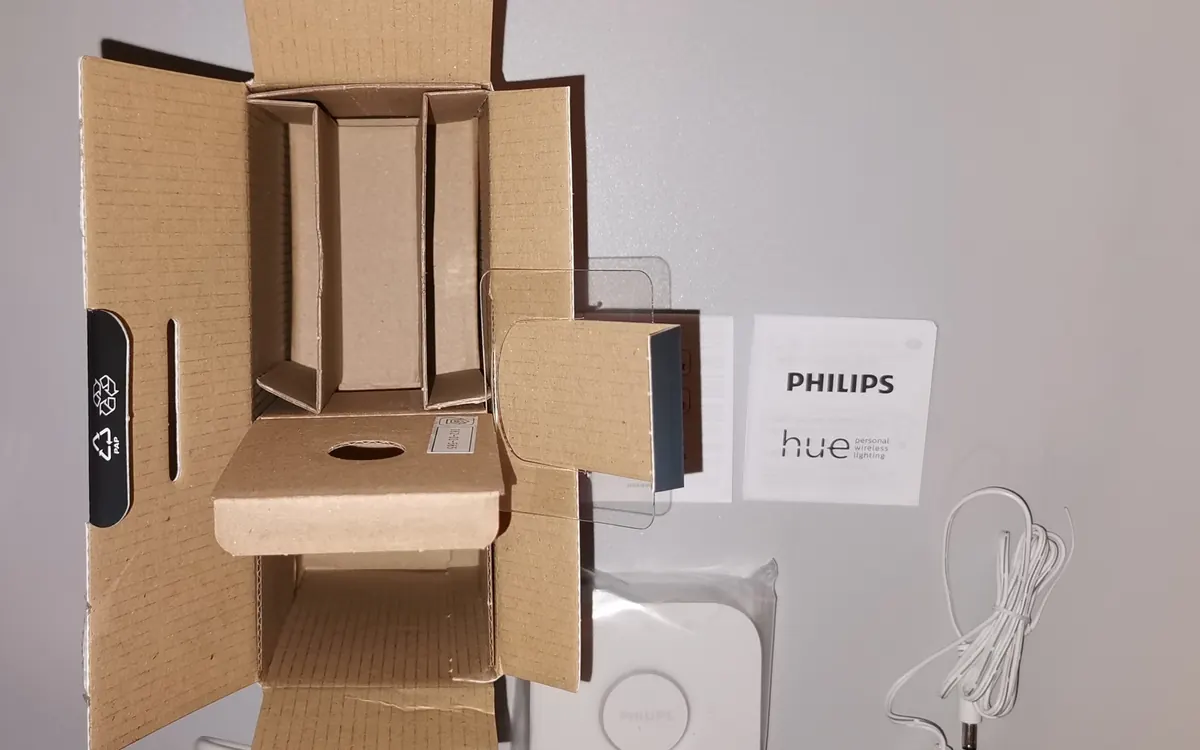
Philips Hue works with Matter in two ways: through the Hue Bridge, which turns your whole Hue system into a Matter bridge, or with individual bulbs that have a Thread radio and can join a Matter network on their own. This guide covers both, plus how to add Hue to more than one app. It's based on Philips Hue's own support documentation; menus can shift slightly between app versions.
New to the standard? Read what Matter is first.
Check what you need
For the bridge route:
- A current Hue Bridge (the square model) or the newer Hue Bridge Pro. The original round bridge from 2012 does not support Matter.
- The Philips Hue app with the bridge and lights already set up, and a Hue account signed in.
- A Matter controller from the ecosystem you want to use, such as a HomePod mini, an Apple TV, a Google Nest speaker or display, or an Amazon Echo.
For the bulb-only route:
- A Hue bulb with the Matter logo on the packaging (newer models with built-in Thread).
- A controller that is also a Thread border router. Our Matter vs Thread vs Zigbee guide explains why.
Update the Hue app, the bridge firmware and your controller before you begin.
Remove old integrations first
If Hue is already linked to Apple Home, Google Home or Alexa through the old cloud or HomeKit integration, remove it from that platform's app first. Otherwise you'll end up with duplicate lights. You can also review linked services in your Hue account settings online and remove ones you no longer use.
Connect the Hue Bridge to Matter
- Open the Hue app and tap Settings.
- Choose Smart Home. You'll see options for Apple Home (on iPhone), Amazon Alexa, Google Assistant and Other apps.
- For Apple Home, tap it and follow the prompts. The Hue app adds the bridge to your home without a code.
- For Google Home, Alexa, SmartThings or Home Assistant, tap Other apps and then get a pairing code.
- Open your other app, choose Add device → Matter, and enter the code instead of scanning a QR code.
- The app finds the bridge and imports your lights, plugs, switches and sensors. Assign rooms and check names.
Pairing codes expire after a short time, so enter it promptly and generate a new one if it fails.
Add Hue to a second or third app
Matter's multi-admin lets several ecosystems control Hue at once, all locally:
- In the Hue app, go to Settings → Smart Home → Other apps again.
- Generate a new pairing code for each additional platform.
- Enter it in the next app, for example Google Home after Apple Home.
Each platform then talks to the bridge directly. Google says Hue bridges in Google Home are being moved to local Matter control in the background; see our report on Google Home and Hue local Matter.
Set up a Hue bulb without a bridge
- Screw in the bulb and switch it on. A new bulb starts in pairing mode.
- In Apple Home, Google Home or Alexa, tap Add device and scan the Matter QR code from the bulb or its leaflet, or type the 11-digit code.
- Name the bulb and assign a room.
If the bulb was previously on a Hue Bridge, delete it from the bridge first or reset it. Keep the code: you need it to re-add the bulb later.
Newer Thread-capable Hue bulbs can run Zigbee and Matter-over-Thread at the same time after a recent firmware update, so a bulb can stay on the bridge and join a Thread network too. Our news post on the Hue Matter firmware explains which bulbs qualify.
What works over Matter, and what doesn't
Over Matter you get on/off, brightness, colour and colour temperature, plus Hue motion sensors, switches and smart plugs exposed by the bridge. Some features stay in the Hue app:
- Hue scenes and dynamic effects, Entertainment areas and syncing with TV or music.
- Hue Secure cameras and security alarms.
- Some switch button configurations.
Apple's Adaptive Lighting historically required the HomeKit integration; Hue's latest firmware adds it over Matter for Thread-capable bulbs.
Troubleshooting
- Bridge not found: keep the phone, bridge and controller on the same Wi‑Fi network, and turn off VPNs during setup.
- Code rejected: generate a fresh code; it may have expired.
- Duplicate lights: remove the old non-Matter integration from that app.
- Bulb won't pair directly: reset it, check you have a Thread border router, and make sure it shows the Matter logo.
- Lights slow or unavailable: check your Wi‑Fi coverage around the bridge and controller; a mesh Wi‑Fi system can help.
Building out from there? Our Matter starter kit guide suggests what to add next.
Frequently asked questions
Does my Hue Bridge support Matter?
The square Hue Bridge and the Hue Bridge Pro do, after a firmware update. The original round bridge does not.
Do I need a Hue Bridge to use Hue with Matter?
No, newer Hue bulbs with the Matter logo can pair directly using a Thread border router. The bridge adds more features and supports more lights.
Can I use Hue with Apple Home and Google Home at the same time?
Yes. Generate a new pairing code in the Hue app under Settings, Smart Home, Other apps, and add it to the second app.
Will setting up Matter change my Hue app?
No. Your lights, rooms and scenes stay in the Hue app as before; Matter only adds connections to other platforms.
More from Smart Home
View all →Read next
Half-Life: Alyx adds foveated rendering on PC: which GPUs work
Valve's new Half-Life: Alyx patch adds a foveated rendering option on PC. It needs Nvidia GTX 16 or RTX 20 series or newer, AMD via Vulkan, and works best with eye tracking.

Iceberg A-81 reaches South Georgia after a 3-year drift
NASA satellite images show Antarctic iceberg A-81, about 1,550 km² of ice from the Brunt Ice Shelf, slowing at South Georgia's undersea shelf. Its route and why it matters.
Samsung Community goes offline for 72 hours: back up first
Samsung Community shuts for 72 hours from October 30 for an overhaul. DMs, drafts, bookmarks and subscriptions won't migrate. What to save and what changes after.