How to apply thermal paste: amount, method and mistakes
How much thermal paste to use, the pea, line and X methods, how to clean off old paste, how often to replace it and the mistakes that raise CPU temperatures.
LandGadget Newsroom · · 8 min read
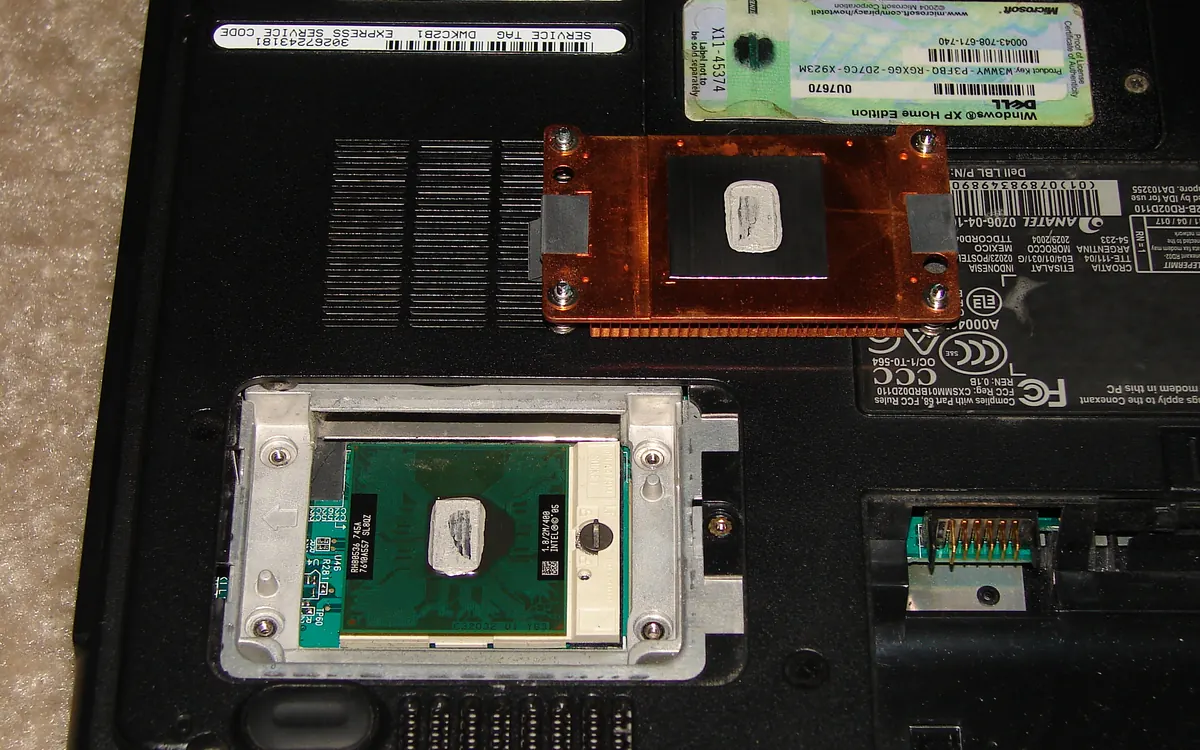
Thermal paste is the cheapest part of a PC and one of the most argued-about. People debate dots, lines, crosses and spreading with a card, but the basics are simple: clean surfaces, the right amount, even mounting pressure. Get those right and the method barely matters. This guide covers the steps, the amounts that work for common CPUs, and the mistakes that actually raise temperatures.
What thermal paste does
The top of a processor (its heat spreader) and the base of a cooler look flat, but under magnification both are full of tiny dips and scratches. Air trapped in those gaps is a poor conductor of heat. Thermal paste (thermal compound or thermal grease) fills the gaps so heat can move from the chip into the cooler.
The key point: paste conducts heat far worse than the metal itself. Its job is to fill air gaps, not to form a layer between the two parts. Thinner is better, as long as the whole contact area is covered.
What you need
- Thermal paste. Any reputable non-conductive paste is fine for most builds.
- Isopropyl alcohol, ideally 90% or stronger, which evaporates without leaving water behind.
- Lint-free cloths or coffee filters. Paper towels can leave fibres.
- A screwdriver for your cooler and, for laptops, the right bits and a plastic pry tool.
Many coolers ship with paste already applied to the base. It is usually fine to use it on the first install; just don't touch it, and don't add more paste on top.
How to apply thermal paste, step by step
- Shut down and unplug the PC. For a laptop, also disconnect the battery if you can.
- Remove the cooler. If it sticks, run the PC for a few minutes first so the old paste softens, then twist the cooler gently rather than pulling it straight up. On older AMD sockets, pulling hard can lift the CPU out of the socket with the cooler attached.
- Clean off the old paste from both the CPU and the cooler base. Wipe with a dry cloth first, then with isopropyl alcohol until the metal is shiny. Let it dry for a minute.
- Apply new paste to the centre of the CPU, using the amount in the table below.
- Mount the cooler straight down, without sliding it around, and tighten the screws a little at a time in a diagonal (X) pattern so the pressure stays even.
- Check temperatures. Boot, open a monitoring tool and compare idle and load temperatures with what is normal for your chip. Our guide on how to check CPU temperature shows the free tools to use, and what a normal CPU temperature is gives the ranges.
How much thermal paste to use
| CPU / chip | Typical amount and pattern | Why |
|---|---|---|
| Mainstream AMD Ryzen (AM4, AM5) | Pea-sized dot in the centre (about 4–5 mm), or a small X | Square heat spreader; pressure spreads a dot well. |
| Intel Core on LGA1700 / LGA1851 | Short line along the long side, or a dot plus small lines | The chip is rectangular, so a single dot can leave the ends uncovered. |
| Large CPUs (Threadripper, Xeon) | Several dots or a thin spread over the whole surface | Big surface; the cooler maker often specifies a pattern. |
| Laptop CPU / GPU dies (bare chip) | A thin layer covering the die, spread carefully | Small bare die, little pressure, nothing to protect the edges. |
| Graphics card GPU die | Thin even layer or small X covering the die | Bare die; replace any thermal pads that tear. |
If you're unsure, it is better to use slightly too much than too little with an ordinary non-conductive paste. Excess squeezes out at the edges and is mostly cosmetic. Too little leaves part of the chip without contact, which can push temperatures up sharply. A quick check: after removing the cooler, the paste should cover the whole heat spreader in a thin layer.
Dot, line, X or spread?
Tests by hardware reviewers over the years have found that the method makes little difference on mainstream desktop CPUs, as long as the chip ends up fully covered. Pick the one that suits the chip's shape:
- Dot: easiest; ideal for square chips.
- Line: better for long, rectangular chips.
- X: good coverage with little risk of bubbles.
- Spread with a spatula or card: gives full coverage you can see, but makes it easier to trap air if the layer is uneven. It is most useful on bare dies.
How often should you replace thermal paste?
There is no fixed interval. Most good pastes stay effective for several years in a desktop PC. Replace the paste when:
- you remove or move the cooler for any reason;
- temperatures have crept up over time even after cleaning dust from the fans and heatsink;
- you buy a used PC or graphics card and temperatures look high (see our used graphics card buying guide);
- an older laptop has become loud and hot under the same workloads it used to handle quietly.
Before blaming the paste, rule out dust, fan curves and power settings, which cause high temperatures more often.
Common mistakes
- Leaving the plastic film on the base of a new cooler. It's surprisingly common and leads to very high temperatures.
- Using far too little paste, or a tiny dot on a large rectangular chip.
- Tightening one corner fully before the others, which tilts the cooler.
- Getting conductive paste or liquid metal on the socket or components. Ordinary pastes are non-conductive; some metal-based ones and liquid metal are not.
- Using liquid metal with an aluminium cooler. The gallium in liquid metal attacks aluminium. Leave liquid metal to experienced builders with copper or nickel-plated coolers.
- Expecting paste to fix a weak cooler. Fresh paste restores contact; it won't turn a small cooler into a big one. Our PC upgrade guide covers when a cooler upgrade is worth it.
Laptops and graphics cards
Repasting a laptop or GPU is more delicate than a desktop CPU. You often need to remove several screws and ribbon cables, and some makers treat opening the device as a warranty issue, so check your terms first. Bare chips need a careful, even layer, and any thermal pads on memory or power components must stay in place or be replaced with pads of the same thickness. Some newer laptops and cards use phase-change pads instead of paste; if yours does, replace like with like or use a quality paste. For GPU temperature ranges, see what a normal GPU temperature is.
Frequently asked questions
How much thermal paste should I use on a CPU?
For most desktop CPUs, a dot about the size of a pea (4–5 mm) in the centre is enough. On long rectangular chips such as recent Intel Core models, use a short line or a dot with small lines so the ends are covered.
Should I spread thermal paste or use a dot?
Either works if the whole chip ends up covered. A dot or line spread by the cooler's pressure is the easiest and least likely to trap air; spreading is most useful on bare laptop or GPU dies.
Is too much thermal paste bad?
With an ordinary non-conductive paste, a bit too much is mostly messy and only slightly worse. Too little is the bigger risk because parts of the chip lose contact with the cooler.
How often should I replace thermal paste?
Whenever you remove the cooler, and otherwise only when temperatures rise over the years and cleaning dust doesn't help. Most quality pastes last several years in a desktop.
What can I use to clean thermal paste?
Isopropyl alcohol (ideally 90% or stronger) on a lint-free cloth or coffee filter. Wipe off the bulk dry first, then clean until the metal is shiny.
Do I need thermal paste if my cooler already has it?
No. Pre-applied paste is fine for the first installation. Don't add more on top; if you remove the cooler later, clean it off and use fresh paste.
More from Computers & AI
View all →Read next

Best Monitor Size for Gaming: 24 vs 27 vs 32 Inch
What monitor size is best for gaming? Compare 24, 27, 32-inch and ultrawide screens by resolution, pixel density, desk distance, GPU power and the games you play.

Bluetooth Codecs Explained: SBC vs AAC vs aptX vs LDAC vs LC3
What Bluetooth audio codecs actually change: SBC, AAC, aptX, LDAC and LE Audio's LC3 compared — sound, latency, battery and which phones support which codec.

Electric motorcycle buying guide: range, charging, licence
How to choose an electric motorcycle: real-world range, battery size, home and fast charging, licence classes, running costs and what to check before you buy.